
Plugin
Cursor Cloud Agents
Start a Cursor Cloud Agent on a GitHub repository from AI Integrator Chat, and follow its run in the same conversation.
Chat
What can I help you with?
Ask anything
How a run works
- Ready
Propose
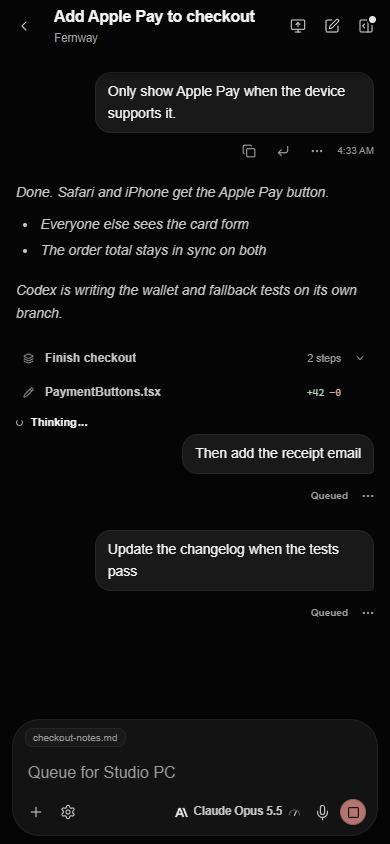
Ask in Chat. The reply includes an approval card with the task, the repository, the branch, and the Cursor model.
- Preparing workspace
Approve
Nothing starts until you press Approve. Open the card first to edit the task, the branch, or the model.
- Working
Follow
Open the card to see the run's status, Cursor's messages, and the commands it runs. You can stop the run at any time.
- Finished
Review
When the run finishes, the card shows the branch and a link to the pull request Cursor opened.
Also available
- Follow-ups
- After a run finishes, send the same agent another instruction from its view.
- Agents started in Cursor
- Ask Chat to list the agents in your Cursor account and attach one to the conversation. Attaching does not start new work.
- Code tasks
- In the desktop app, the coding agent in a Code task can propose a Cursor agent. You approve it the same way.
Setup
Set up Cursor Cloud Agents
You need a Cursor account and a GitHub repository that your Cursor account can access.
Create a Cursor API key
Create the key in your Cursor dashboard.
Add the plugin
In Skills & Plugins, add Cursor Cloud Agents, read the notice, and turn it on for Chat, Code, or both.
Paste your key
Chat stores the key encrypted with your account. Code keeps it in your computer's credential store.
Ask in Chat
Name the repository and the change you want, then approve the card to start the run.
Example prompts
Turn on Cursor Cloud Agents in Skills & Plugins before you ask. The third prompt also uses the GitHub connector.
Limits
- GitHub only
- The repository must be on GitHub, and your Cursor account must have access to it.
- Pushed code only
- Cursor starts from the branch or commit you name. Changes you have not pushed are not sent.
- One run at a time
- You can send a follow-up only after the current run finishes.
- Cursor charges
- Runs use your Cursor account, and Cursor may charge for them. Chat's own replies use your AI Integrator plan.
- Merging is separate
- Approving a run never merges its pull request. You merge it in GitHub.
- Partial activity
- The agent view shows the messages and commands that Cursor reports. Some steps can be missing.
Questions
No. The plugin uses Cursor's API with your own Cursor API key. AI Integrator is not affiliated with or endorsed by Anysphere, the maker of Cursor.
On Cursor's servers, against the GitHub repository and branch you approve. Nothing runs on your computer.
In Chat, AI Integrator stores the key encrypted with your account. In Code, it stays in your computer's credential store.
No. Cursor can push a branch and open a pull request. Merging it is a separate step that you take in GitHub.
Yes. Ask Chat to list the agents in your Cursor account, then attach one. Attaching lets you follow its runs and does not start new work.
Open the agent from its card and press Stop, or ask Chat to cancel it. Closing the agent view does not stop the run.
Chat on the web, iPhone, Mac, and Windows, and Code in the desktop app for Mac and Windows.
In Skills & Plugins, turn the plugin off for Chat or Code, or remove it. Runs that already started continue in Cursor.
Cursor is a trademark of Anysphere, Inc. GitHub is a trademark of GitHub, Inc. AI Integrator is not affiliated with or endorsed by Anysphere or GitHub.