

Remote Access
Remote Access
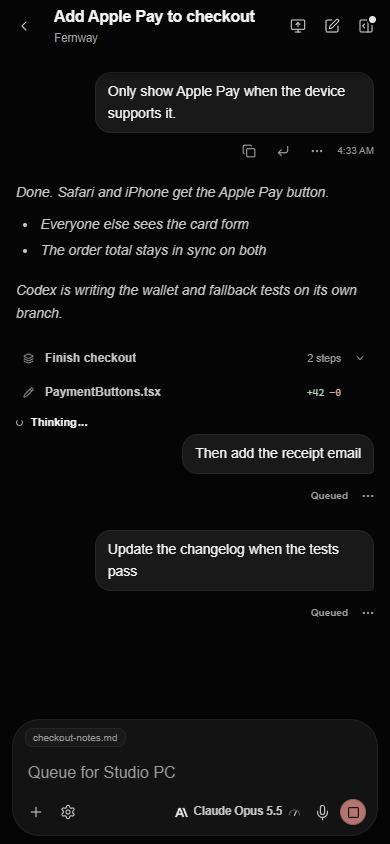
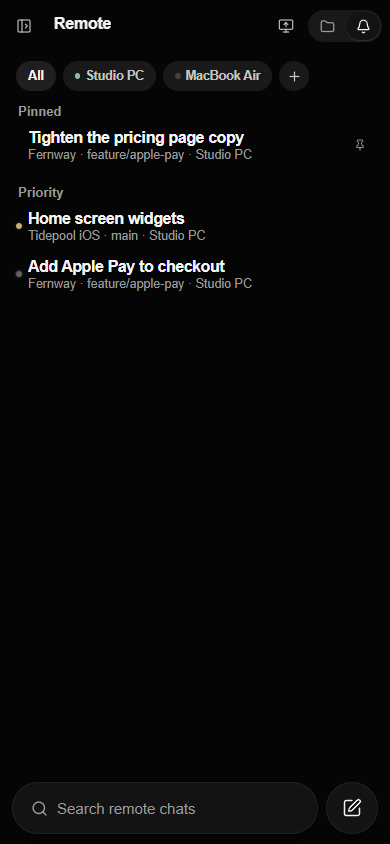
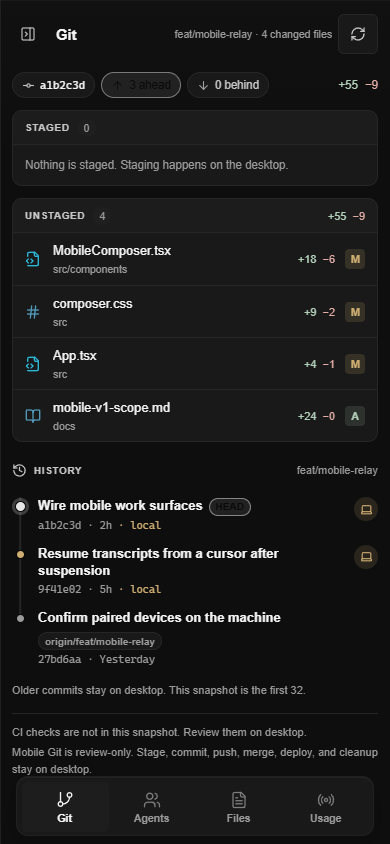
Open your computer from your iPhone, another computer, or a browser. Run Code there, approve your agents, or use its apps and screens with touch, a trackpad, a gamepad, or a keyboard and mouse.
Ways in
Pick the device you have with you
 GamepadPlay your PC's games from your phone with a touch stick and buttons.
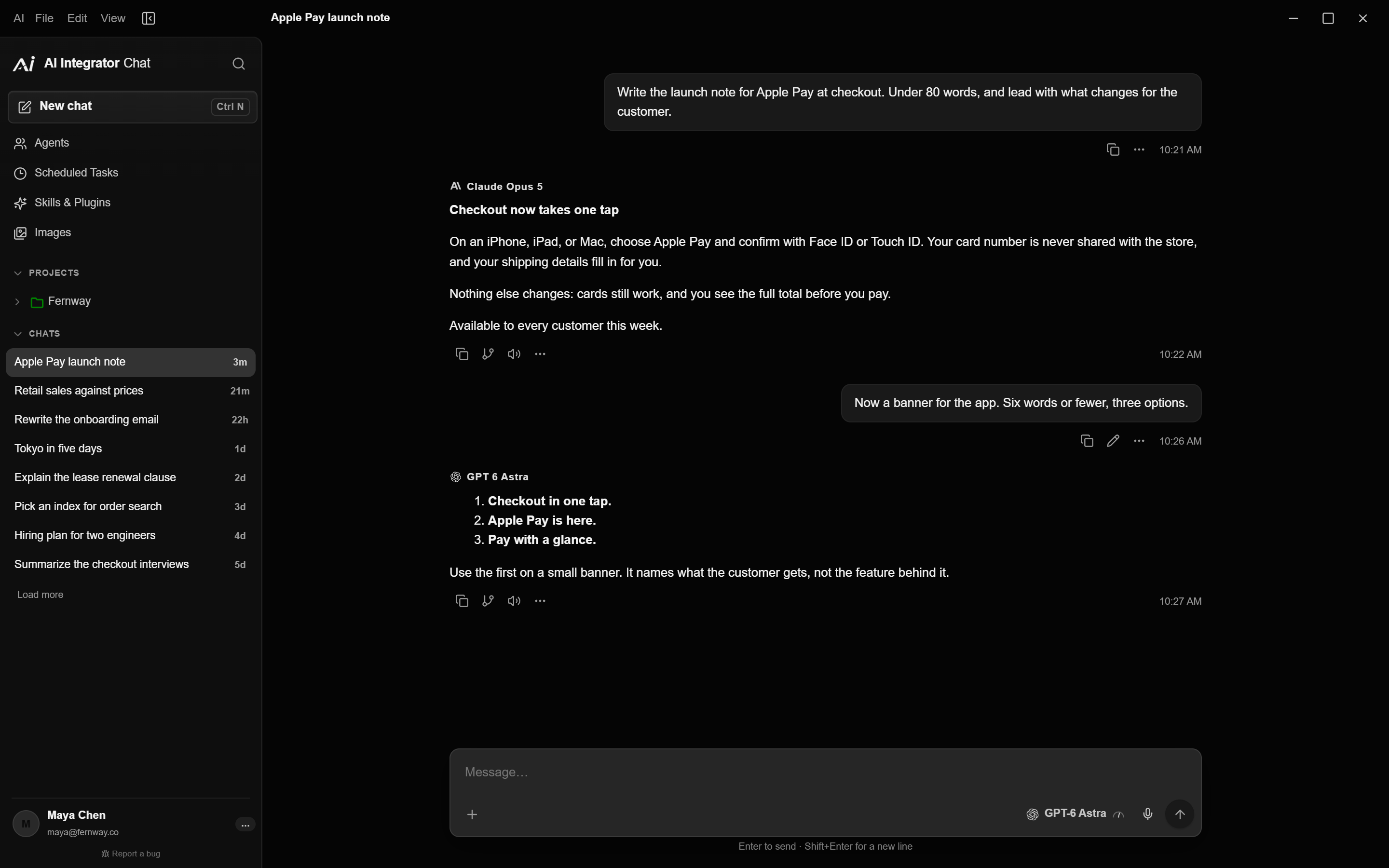
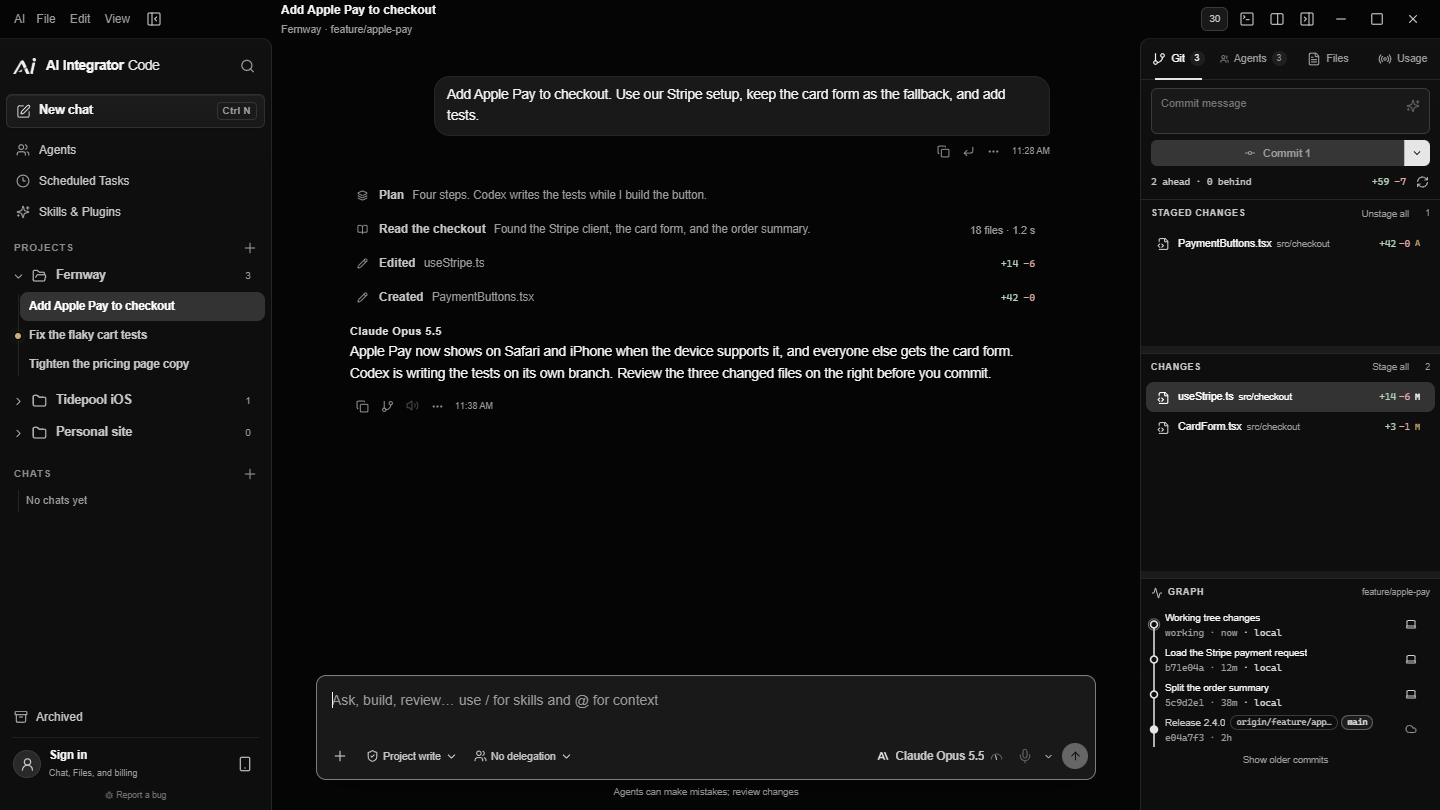
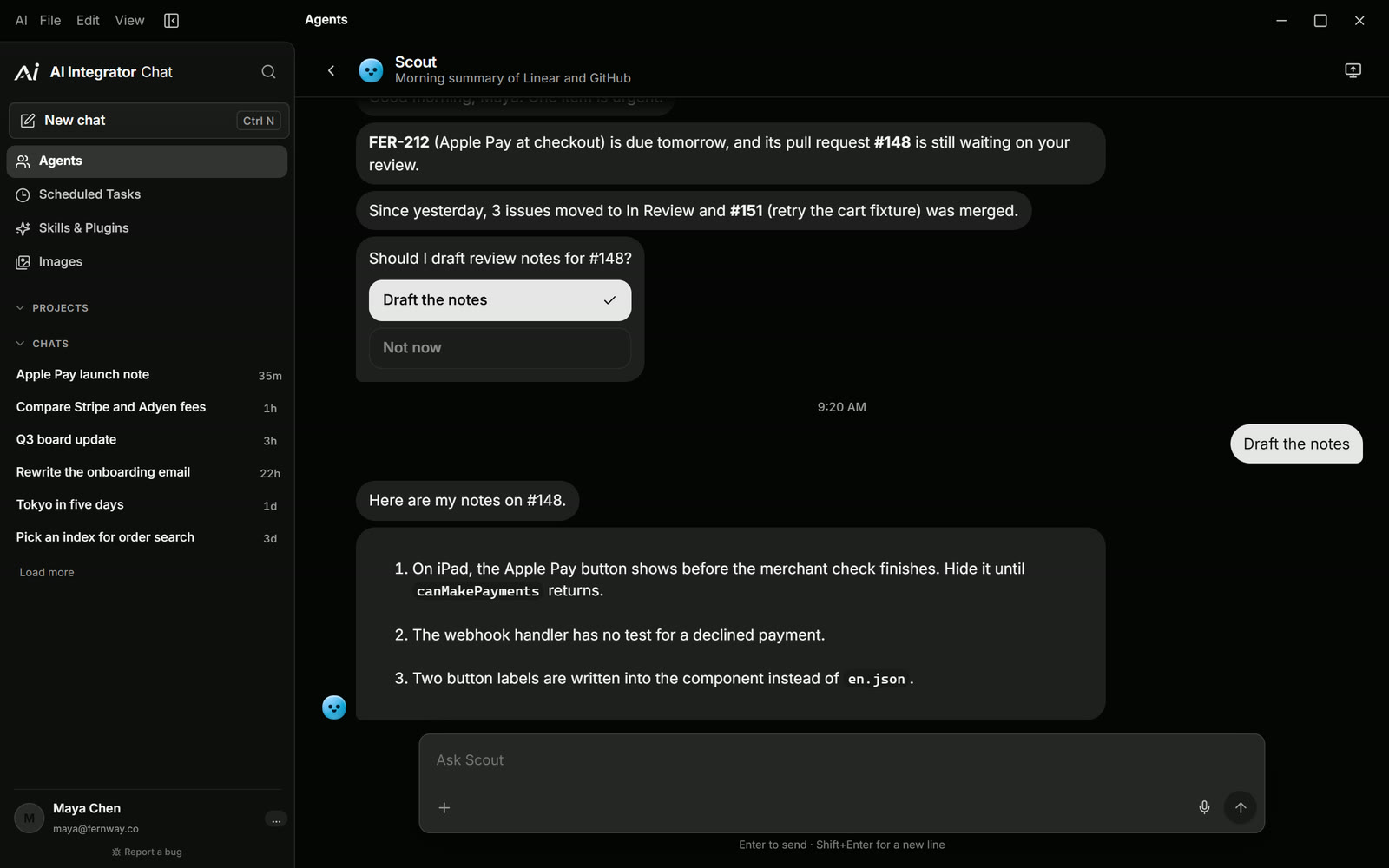
 iPhone to PCUse your computer by touch and follow every Code chat on it.
 PC to PCUse your desktop's screen and Code chats from your laptop.
 Browser to PCOpen your computer from any browser on your tailnet.
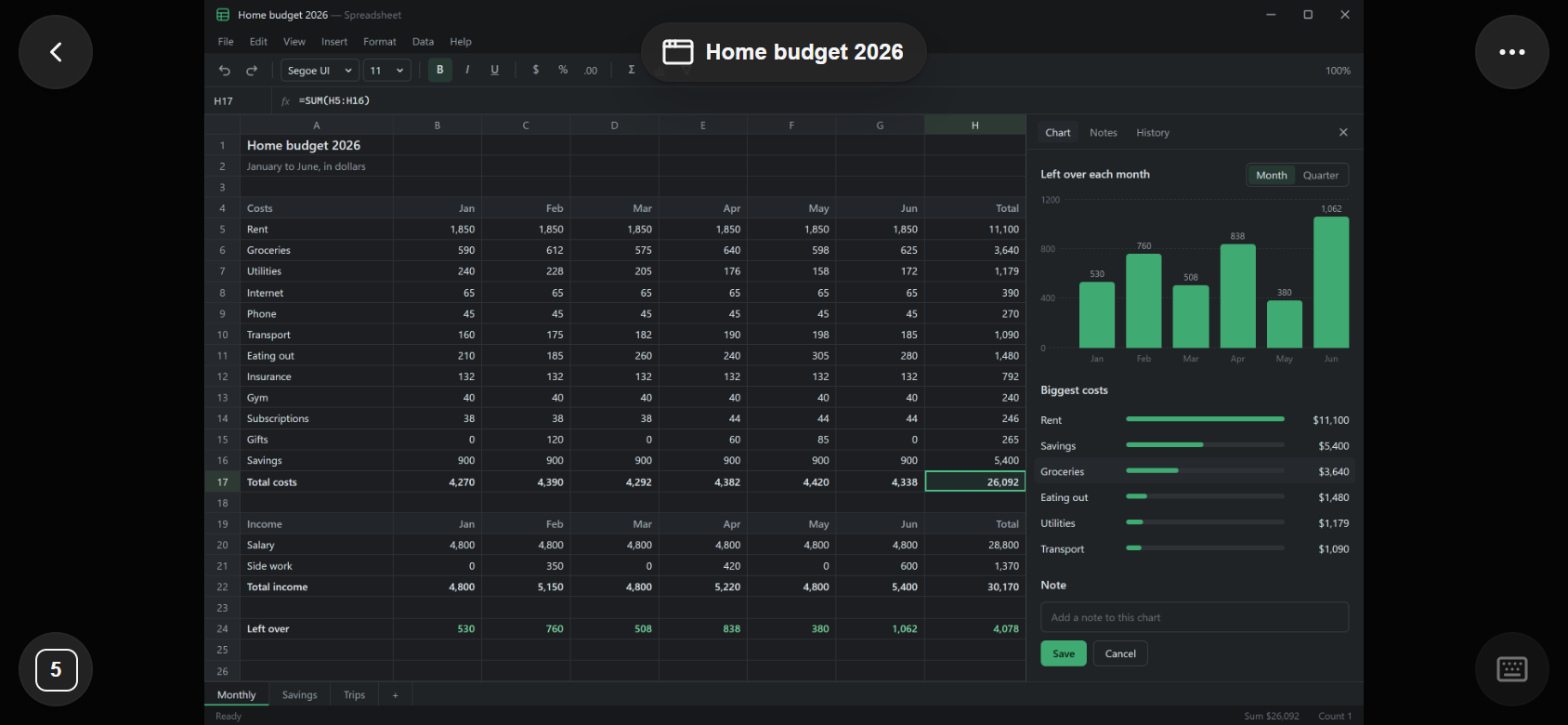
 Mac to WindowsUse your Windows PC on a Mac, including its games.
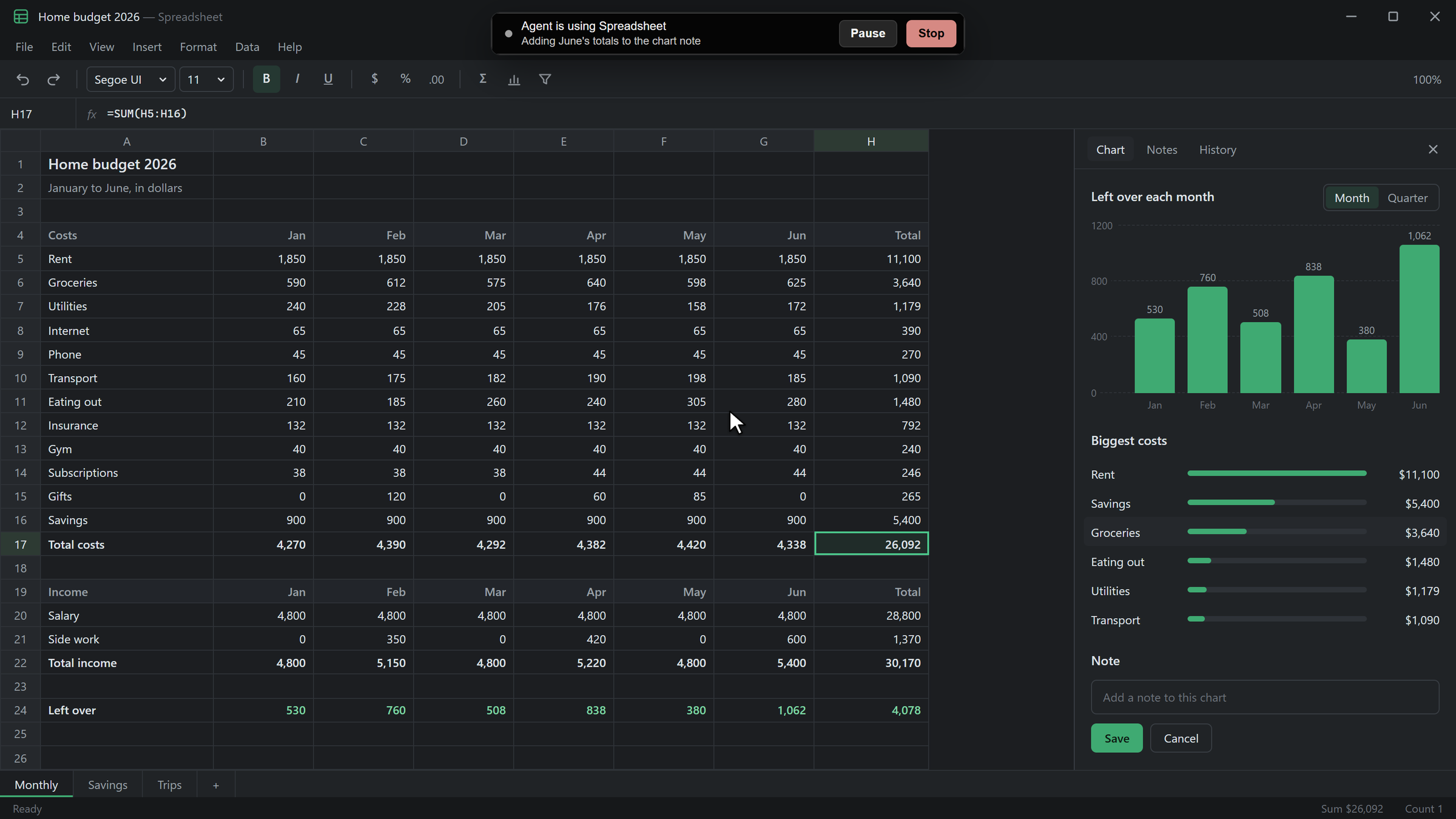 Agents on your PCLet agents use the apps on your PC after you allow each one.
How it connects
Straight to your computer
- Direct to your computer
- Devices reach your computer on the same Wi-Fi, through Tailscale, or through ZeroTier. A browser connects through Tailscale.
- Six characters to pair
- Your computer shows a QR code and a code that changes every 30 seconds. Type it on the other device, then choose Allow.
- You choose what each device can do
- Chats, prompts, approvals, Git, and the task browser are one set of switches. Apps and screens are another. Viewing and control are separate.
- Same account only
- Both ends sign in to the same AI Integrator account, and the computer checks it every time a device connects.
Plans
What each plan includes
- Free
- Code chats on one computer
- Pro and Max
- Apps, screens, and games, and Remote on every computer you sign in on
Questions
No. Your device connects straight to your computer on your own network, Tailscale, or ZeroTier. The account only checks who you are.
Two devices can watch at once. The first one controls, and the second takes over after the first has been idle for 3 seconds.
They come first. Input from other devices pauses while the mouse or keyboard is in use and resumes a second after they stop.
Your computer shows a bar that names the device, with Stop. Stop ends every screen session at once.