

Remote Access · Browser to PC
Your computer, from a browser
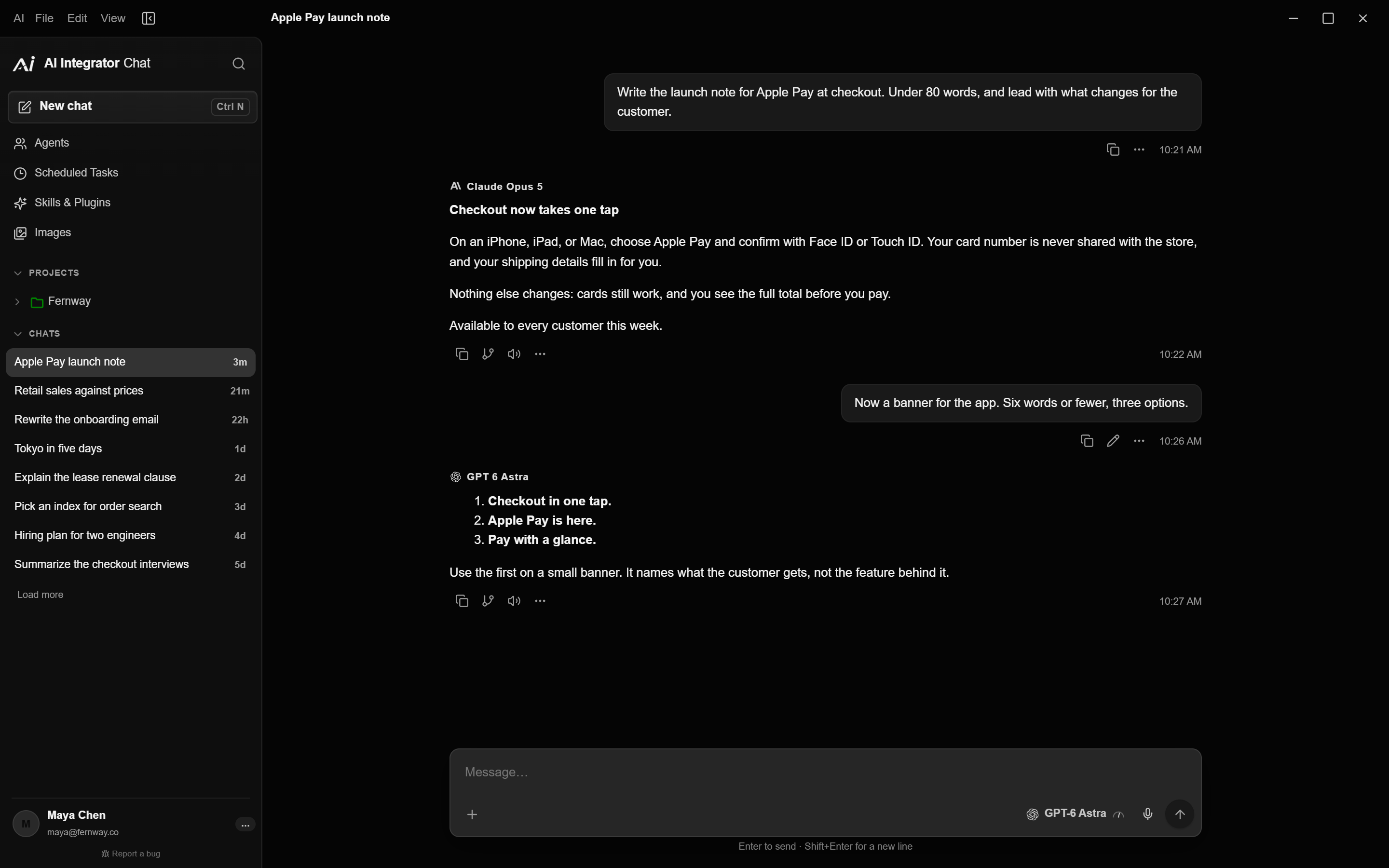
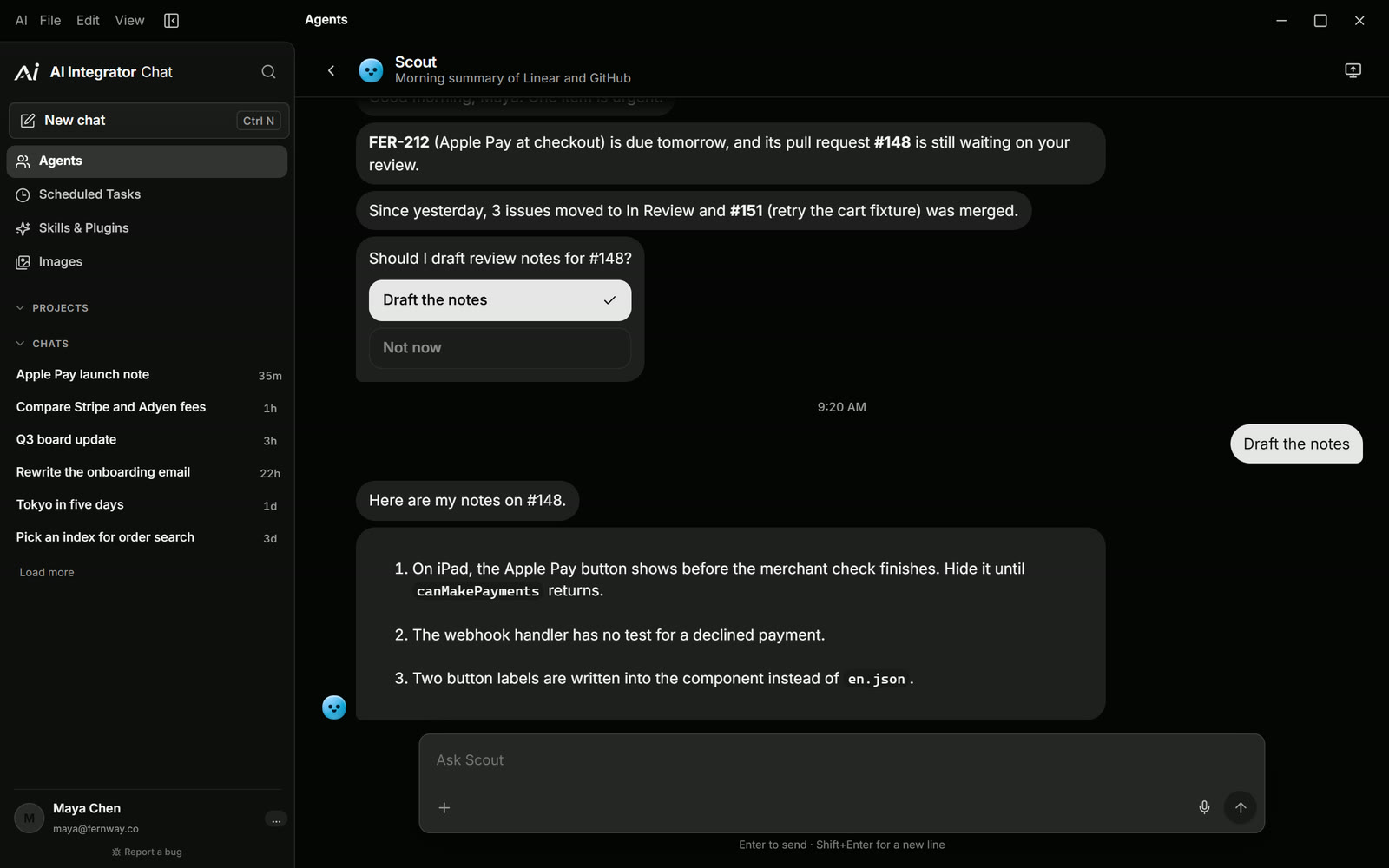
Sign in at aiintegrator.dev on any computer on your tailnet. Remote opens your PC or Mac with nothing installed on the computer you're sitting at.
Before you start
Put both on your tailnet
A browser connects through Tailscale only. The computer you sit at needs Tailscale, not AI Integrator.
Publish the computer
On the PC or Mac you want to use, open Settings → Remote Access and choose Publish on Tailscale.
Sign in on the web
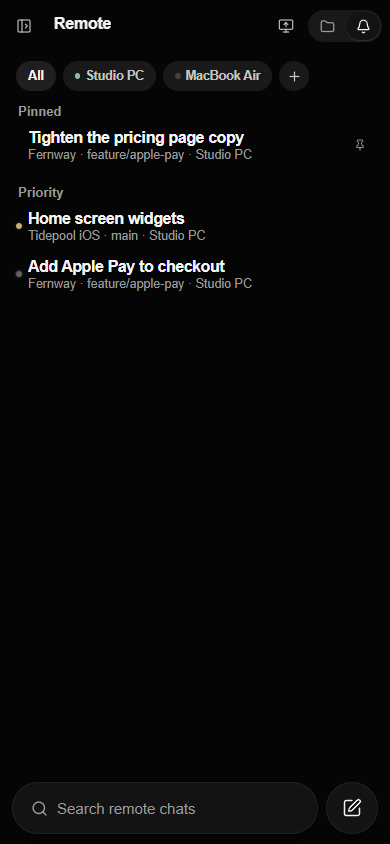
In a browser on any device in the same tailnet, sign in at aiintegrator.dev and choose Remote in the sidebar.
Type the code
Choose Pair next to your computer, type the six-character code it shows, and choose Allow on the computer.
Keyboard and mouse
Shortcuts reach the computer, not the browser
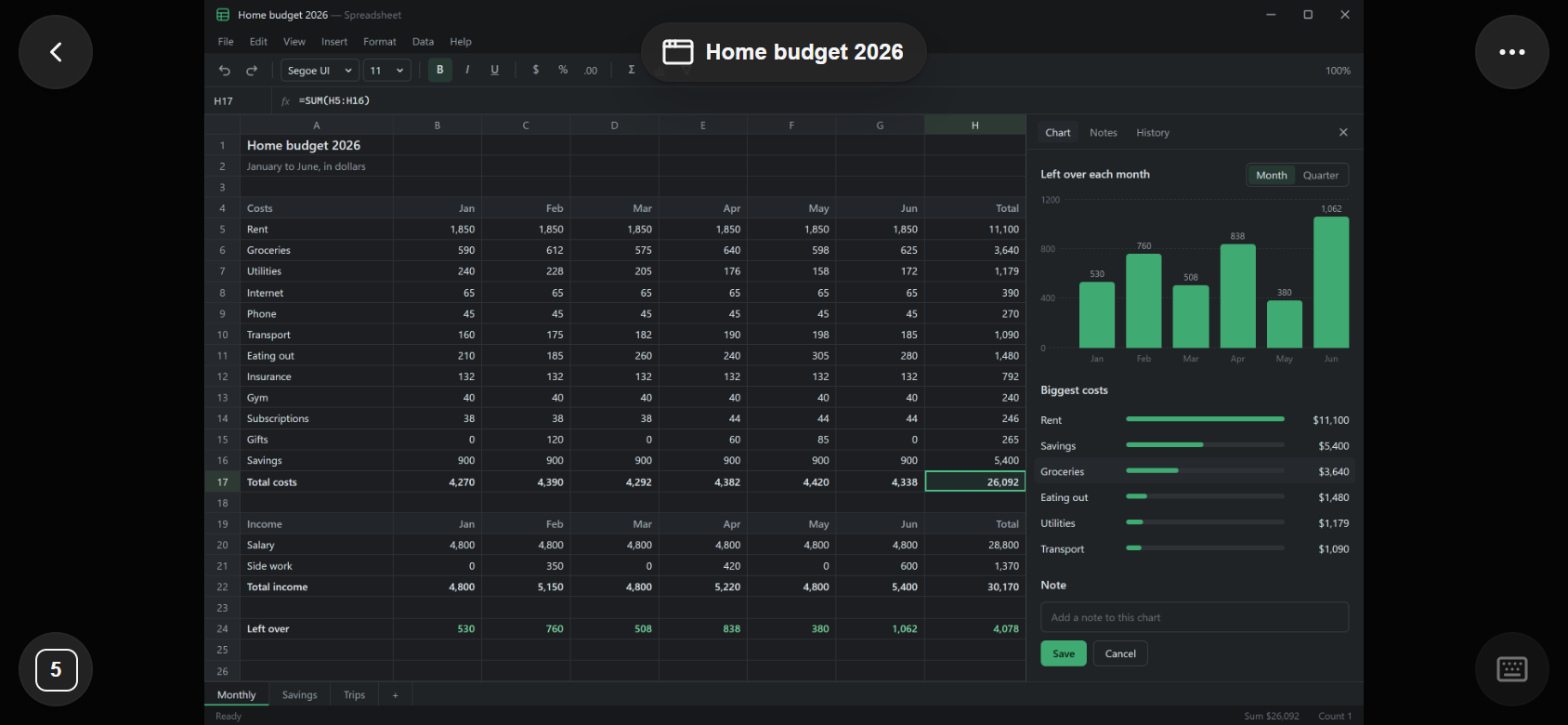
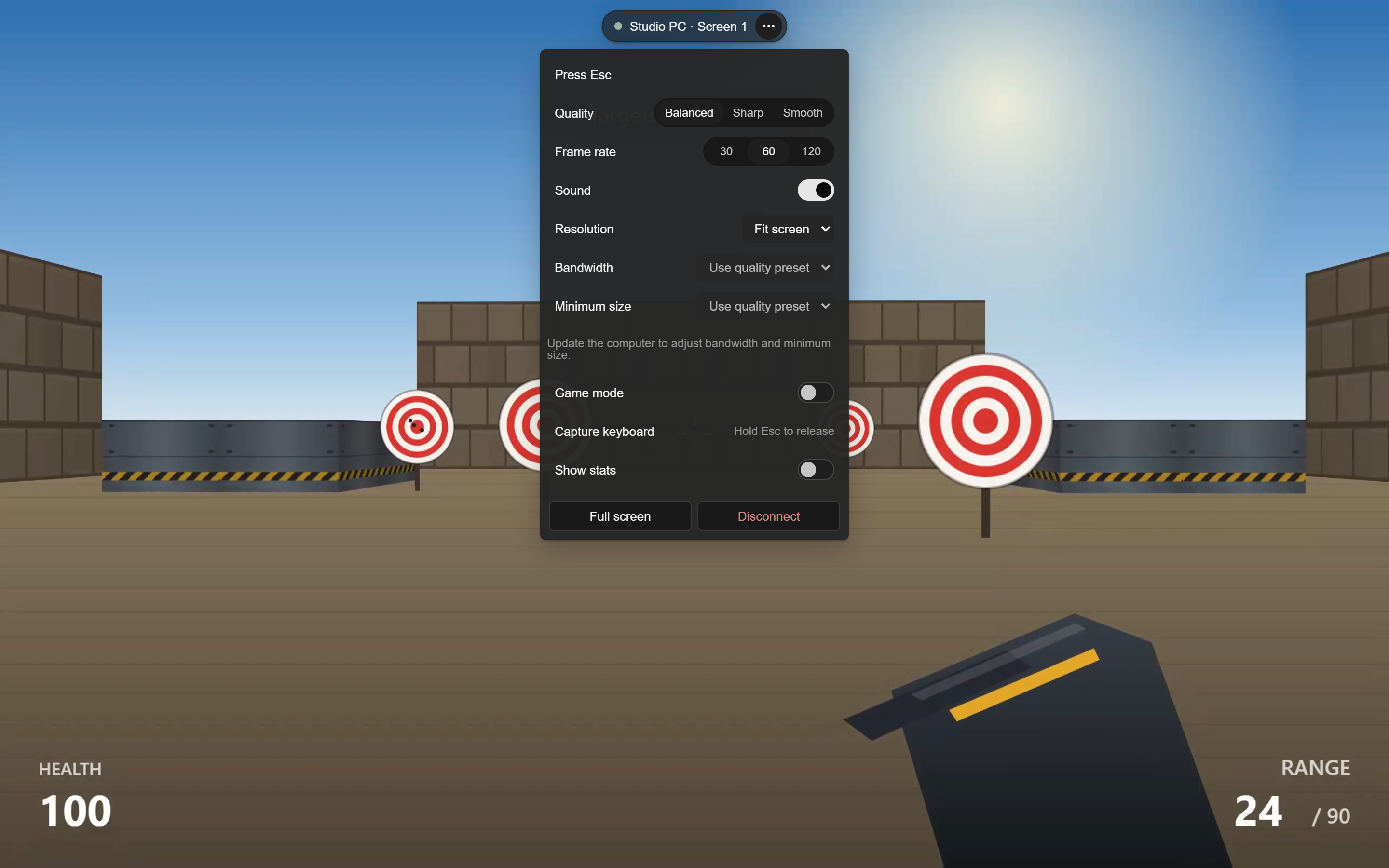
Click into the picture and the keyboard is captured, so shortcuts go to your PC. Hold Esc for a second to let go. The ··· menu sets quality, frame rate, sound, and resolution.
Code
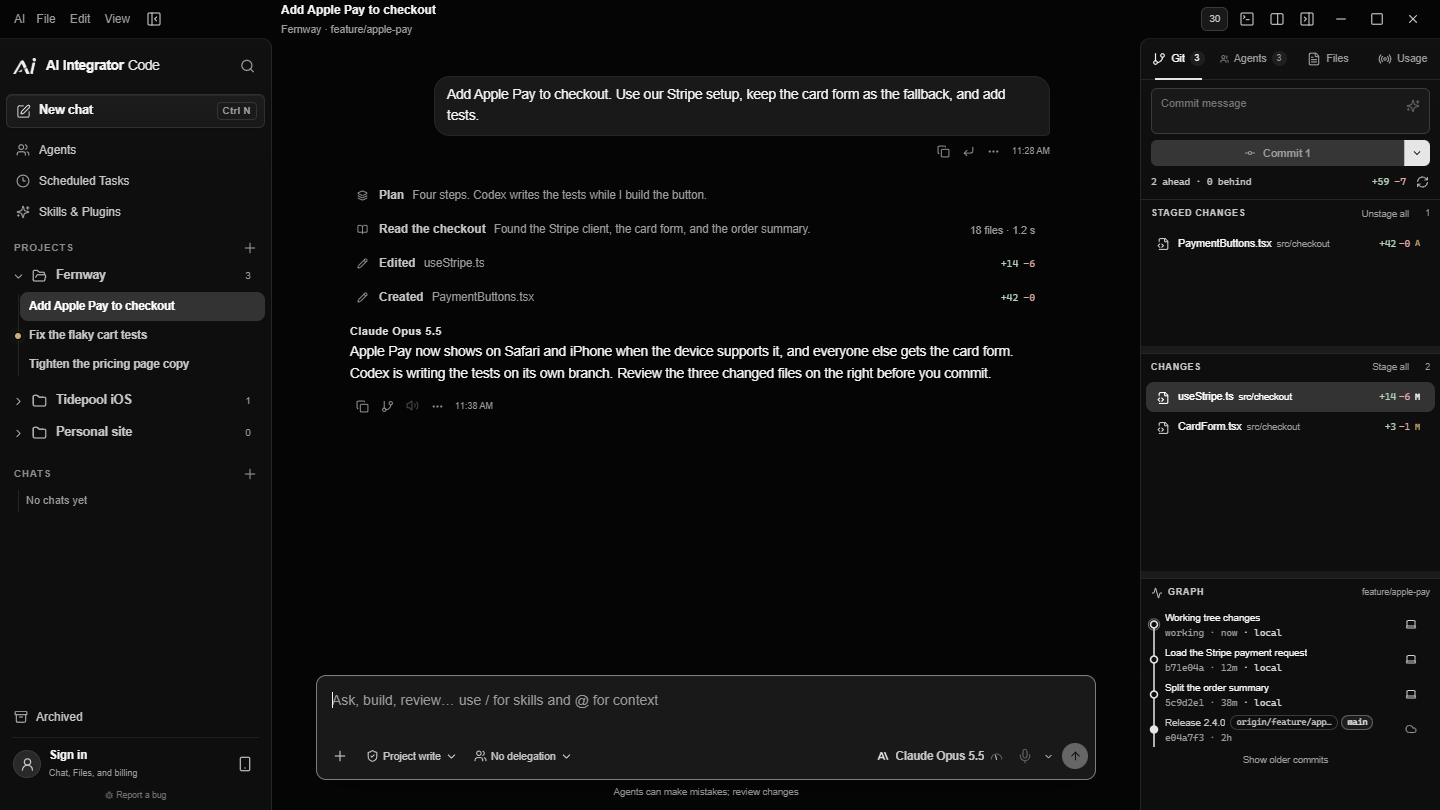
Code chats in the browser
- Start and follow chats
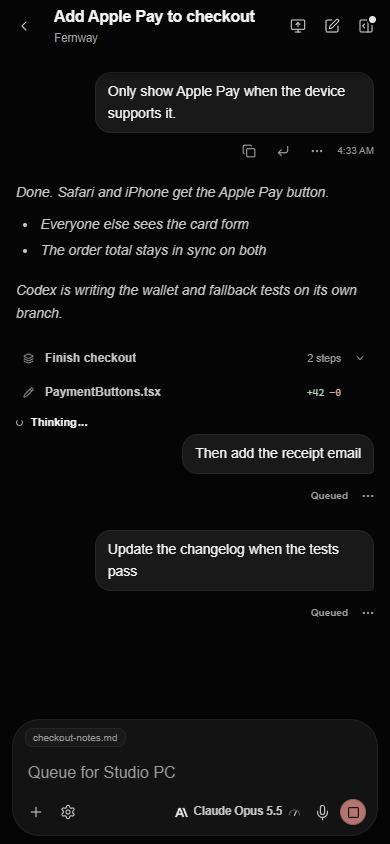
- Start a chat on your computer from the browser, pick the runtime and model, and read the reply as it arrives.
- Git
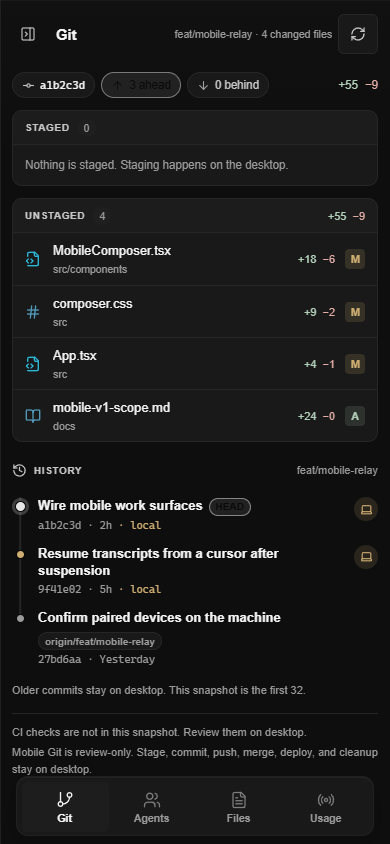
- Stage, commit, and push from the Git panel, if the browser has the Git switch.
- Files
- Open a project file, rename it, or save a copy to the computer you're on.
Questions
A browser only trusts the secure address Tailscale gives your computer. Your local network and ZeroTier work from the apps, not a browser.
Yes. Capture keyboard sends the shortcuts your browser would keep. Hold Esc for a second to get the keyboard back.
Yes. The browser keeps its own key, so you pair once and it reconnects next time.
Remote Access
Other ways in
 GamepadPlay your PC's games from your phone with a touch stick and buttons.
 iPhone to PCUse your computer by touch and follow every Code chat on it.
 PC to PCUse your desktop's screen and Code chats from your laptop.
 Mac to WindowsUse your Windows PC on a Mac, including its games.
 Agents on your PCLet agents use the apps on your PC after you allow each one.