

Remote Access · iPhone to PC
Your computer, from your iPhone
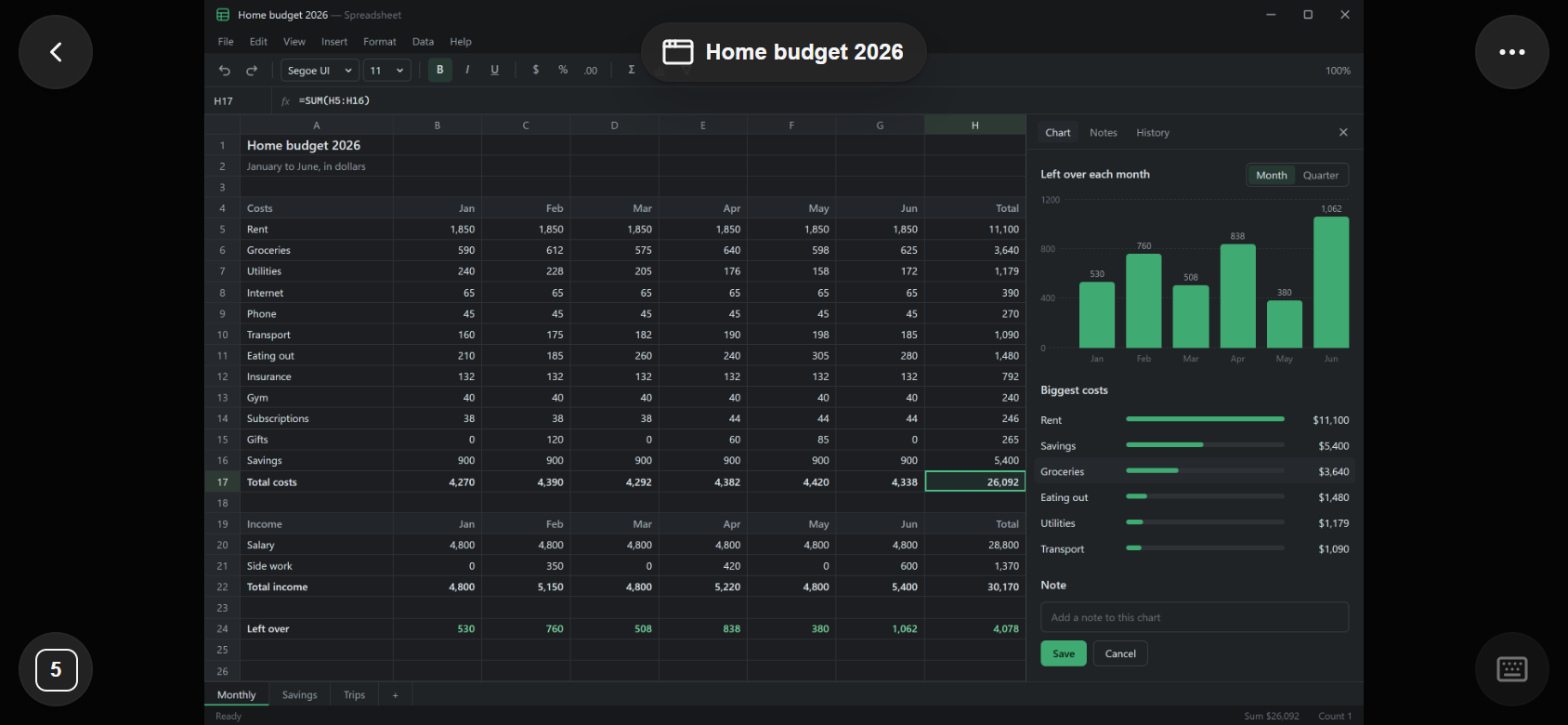
AI Integrator for iPhone opens your PC or Mac. Use its apps by touch or as a trackpad, and keep your coding agents moving while you're away from the desk.
Pointer
Three ways to use the screen
Switch any time from ··· → Pointer.
- Touch
- Tap to click, touch and hold to right-click, two fingers to zoom and scroll, three fingers to switch apps.
- Trackpad
- Slide to move the pointer, tap to click, tap with two fingers to right-click, hold then slide to drag.
- Gamepad
- A W, A, S, D stick, drag to look, and buttons for Fire, Aim, Jump, and the number keys.
Code
Every Code chat on your computers
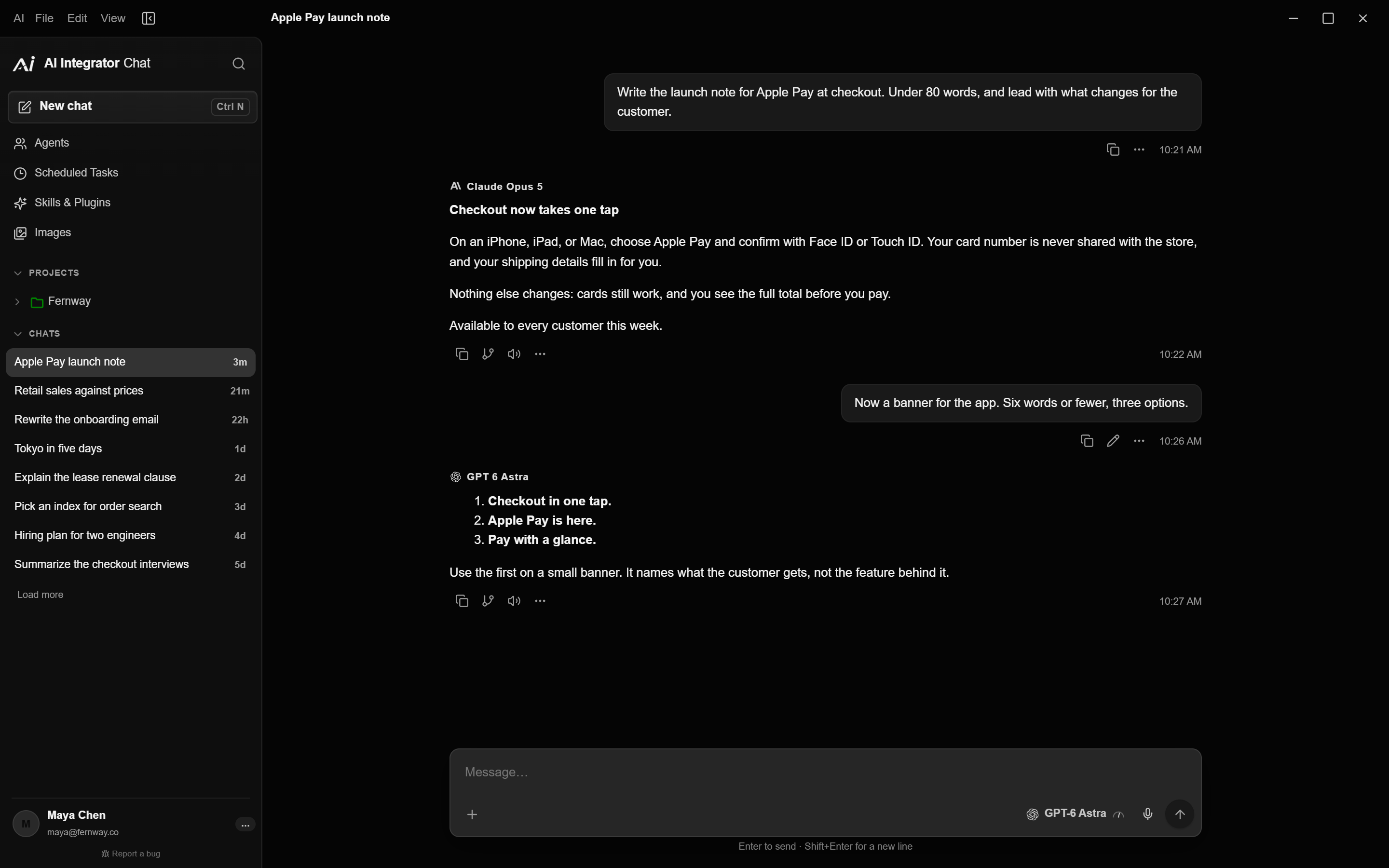
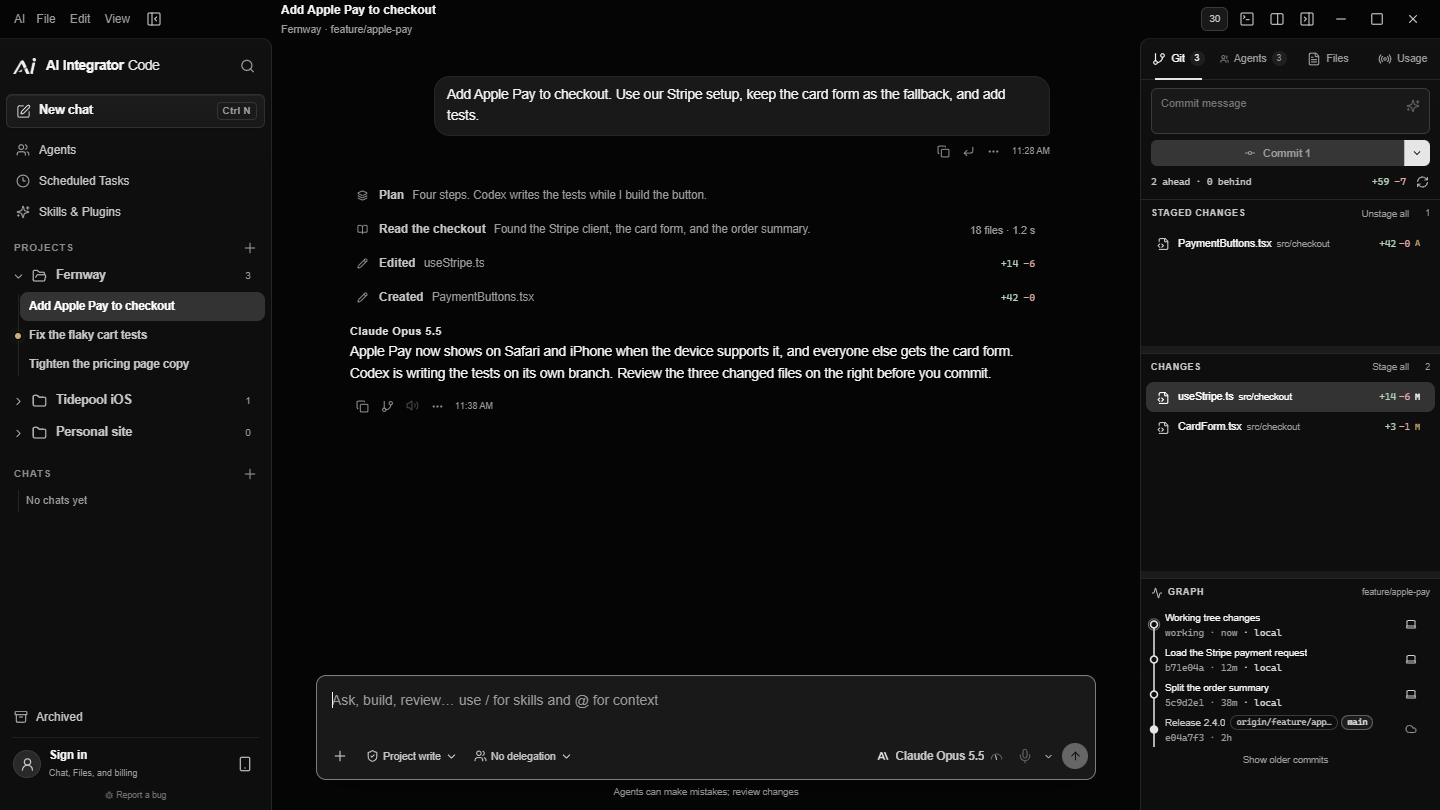
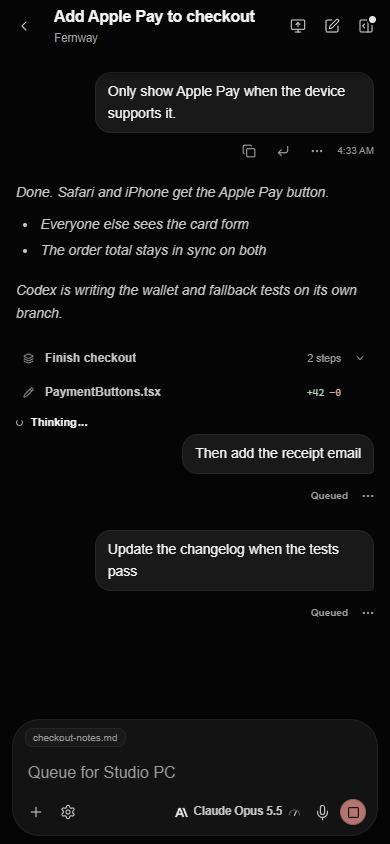
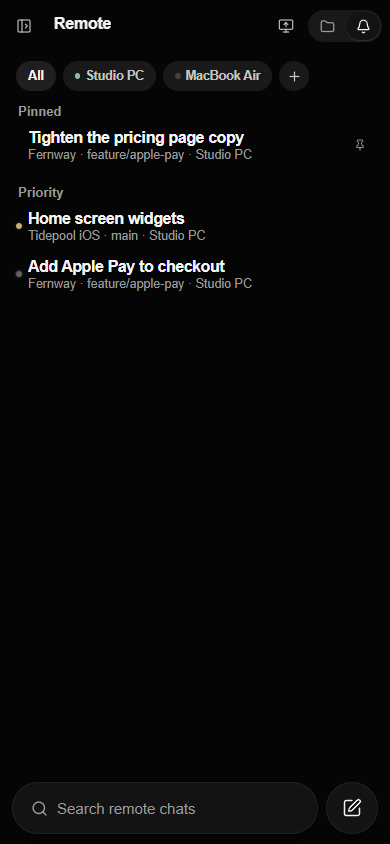
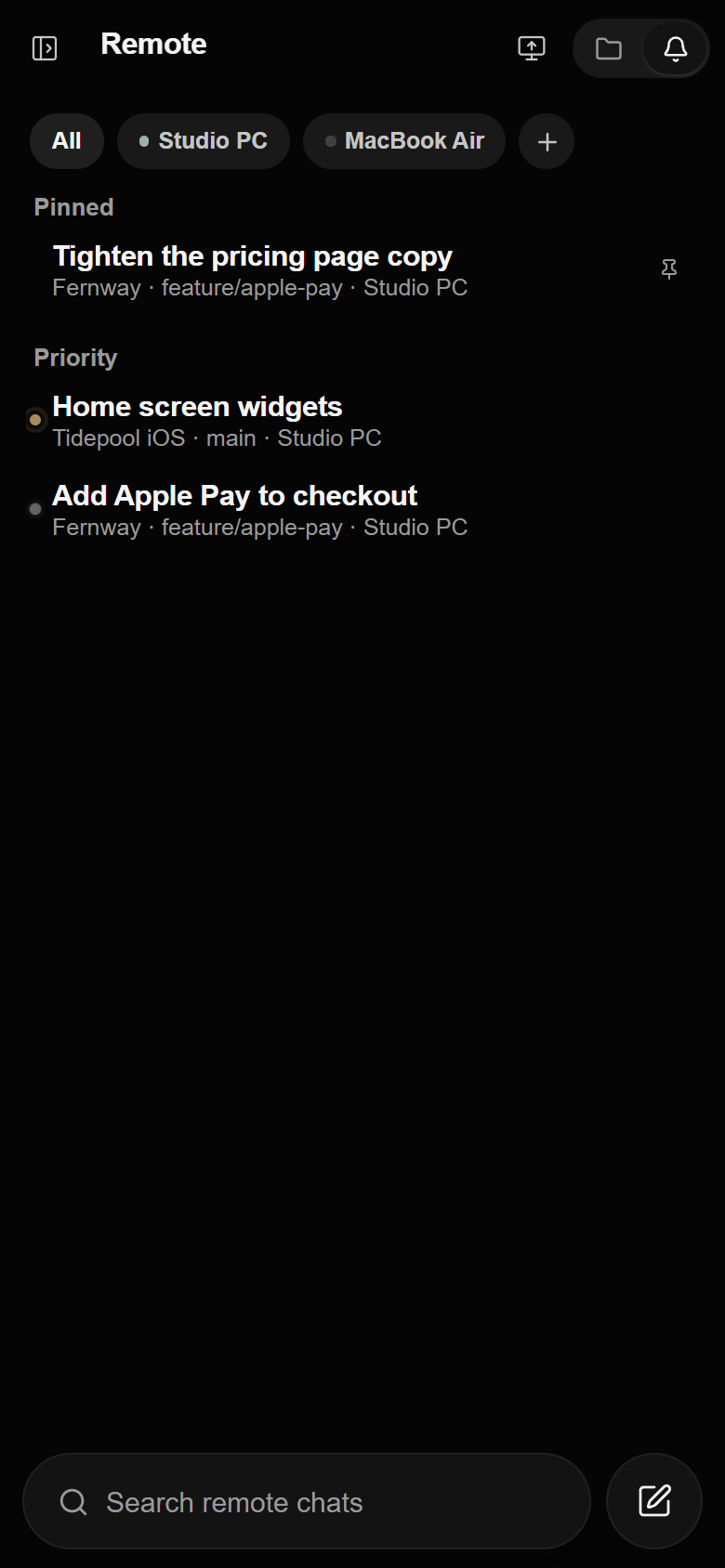
Remote lists the chats on each paired computer by project or by priority. Start a new one, answer approvals, queue the next message, or steer a running turn.
Set up
Pair your iPhone
Install both apps
Install the desktop app on your PC or Mac, and AI Integrator for iPhone from TestFlight. Sign in to the same account on both.
Add a device
On the computer, open Settings → Remote Access, turn on Allow remote access, and choose Add a device.
Scan and allow
In the iPhone app, tap Remote → Pair a computer and scan the QR code. Choose what the phone can do, then Allow.
Questions
Yes. The desktop app runs on the computer you want to use, and the iPhone app connects to it.
Yes. Tap Show phone keyboard, and what you type goes to the app or screen you have open.
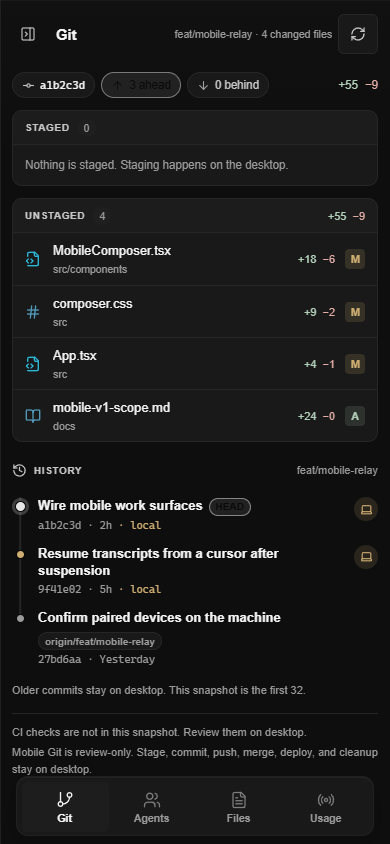
Not yet. The iPhone shows Git status, diffs, and history. Commit and push from another computer, a browser, or the computer itself.
Remote Access
Other ways in
 GamepadPlay your PC's games from your phone with a touch stick and buttons.
 PC to PCUse your desktop's screen and Code chats from your laptop.
 Browser to PCOpen your computer from any browser on your tailnet.
 Mac to WindowsUse your Windows PC on a Mac, including its games.
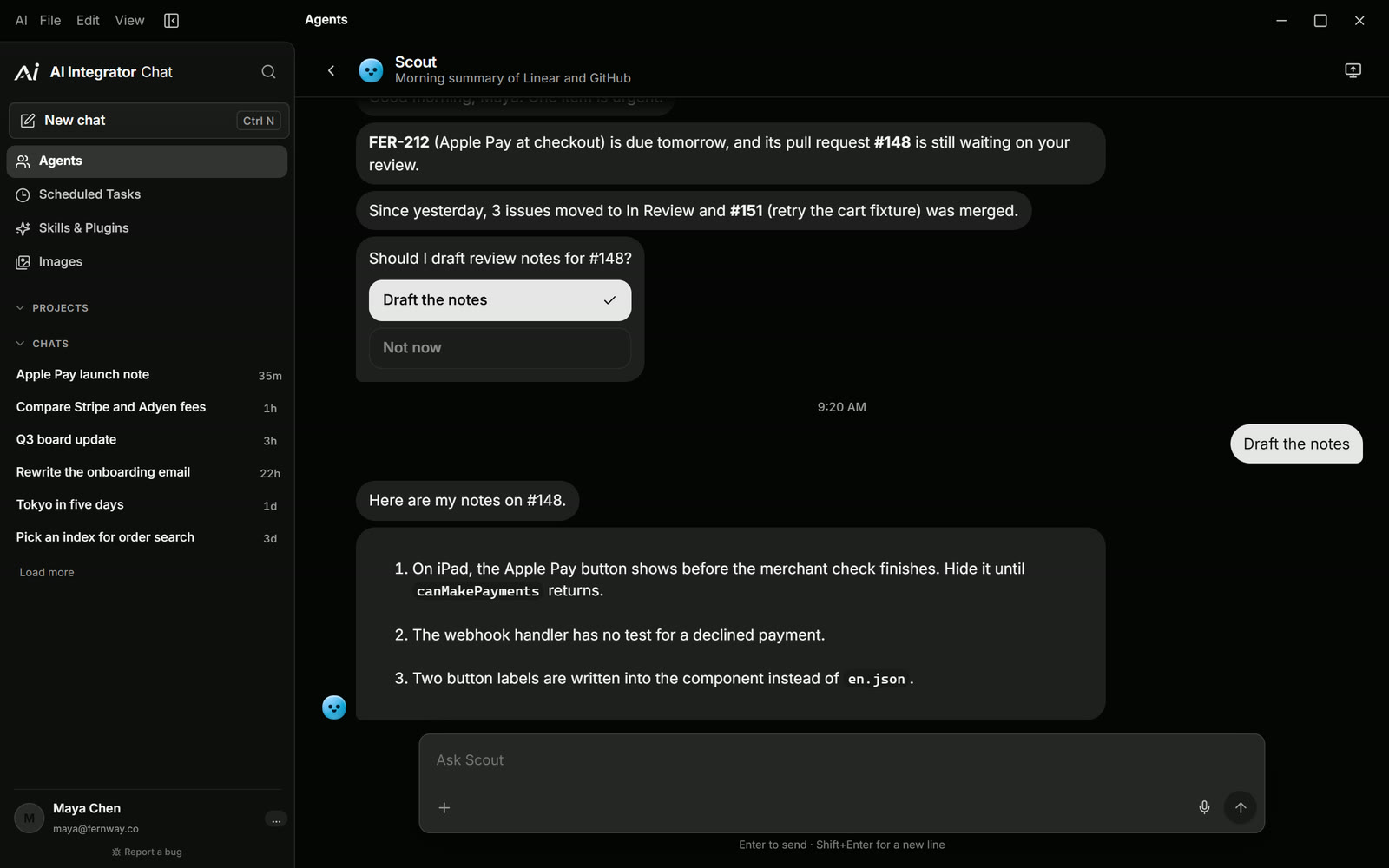
 Agents on your PCLet agents use the apps on your PC after you allow each one.