Remote access
Use a computer from your iPhone, another computer, or a browser: pair a device, run Code tasks, and use apps and screens.
What Remote does
Remote lets you use a computer that runs the desktop app from your iPhone, from another computer, or from a browser. You can follow and run Code tasks there, review and commit changes, and see or control its apps and screens. The work runs on that computer. Your repositories, coding agents, terminal, and vendor logins stay there, and the computer decides what each device can do.
Before you start
- The computer is awake, the desktop app is open, and Settings → Remote Access → Allow remote access is on.
- The computer and your device are signed in to the same account.
- In Connections, turn on Local network, choose a ZeroTier network, or choose Publish on Tailscale. A browser connects only through Tailscale, so publish the computer on Tailscale and use a browser on a device in the same tailnet.
- On a Mac, turn on Screen Recording and Accessibility in Remote Access → This Mac before you share apps or screens. Reopen AI Integrator after you turn on Screen Recording.
On the Free plan, Remote works with Code on one computer. Apps and screens, and Remote on more than one computer, need Pro or Max.
Pair a device
You pair each device once. After that, it reconnects on its own.
- On the computer, open Settings → Remote Access and choose Add a device. The computer shows a QR code and a six-character code. A new code appears every 30 seconds, and each code works for 60 seconds.
- On the device you want to use:
- iPhone: open the drawer, tap Remote → Pair a computer, and scan the QR code. To enter the code instead, tap Type a code.
- Another computer: in the desktop app, choose Remote in the sidebar, choose Pair next to the computer, and type the code. Settings → Remote Access → Your computers has the same Pair button.
- Browser: sign in to AI Integrator on the web, choose Remote in the sidebar, choose Pair next to the computer, and type the code.
- On the computer, the request names the device, for example Chrome on Windows wants to connect. Choose what it can do, then choose Allow. To turn it down, choose Not this browser, Not this phone, or Not this computer.
 The computer shows a QR code and a code that changes every 30 seconds.
 On another computer, type the code in Remote.
 The computer names the device and asks what it can do.
Pair to any device in the network is on by default. When it’s on, a device you allow on this computer can also connect to your other computers that have the setting on, without pairing with each one. To take a device off every computer at once, choose Remove from all computers.
Choose what a device can do
New devices start with View chats and Send prompts. To change a paired device later, open Paired devices in Remote Access and choose Access.
AI Integrator Access covers Code.
| Switch | What it allows |
|---|---|
| View chats | See projects, Code chats, Agents, usage, and file previews. |
| Send prompts | Start chats, send messages, stop a run, answer an agent’s questions, attach files, and message or stop Agents. |
| Approve commands | Answer approval requests. |
| Git | Stage, unstage, revert, and commit changes, create and switch branches, and push. |
| Rename files | Rename files in a project. |
| Integrator Browser | See and use the browser tabs in a Code task. |
PC Access covers the computer itself. On a Mac, it’s Mac Access.
| Switch | What it allows |
|---|---|
| View apps | See an app window that’s open on the computer. |
| Control apps | Click and type in that window. |
| View screens | See a whole screen. |
| Control screens | Click and type anywhere on a whole screen. |
Send prompts, Approve commands, Git, and Rename files turn on View chats. Control apps turns on View apps, and Control screens turns on View screens. Turning a view switch off also turns off the switches that need it. App and screen switches are separate: allowing apps doesn’t allow whole screens, and allowing screens doesn’t allow apps.
In Paired devices, you can also Rename a device, Remove it, or Remove all. Use Rotate lost identity only if the computer’s key is lost or stolen. Every paired device must pair again after you rotate it.
Follow and run Code tasks
Remote shows the Code chats on the computer and updates them as the agent works. Chat conversations on your account are in a separate list.
On iPhone, open Remote. Filter by computer, and use Projects view, Priority view, or Search remote chats to find a task. Start a new chat with the pencil. In a chat, use Send message when the task is idle. While it runs, use Queue message, Steer this turn, or Stop. You can attach files to a message and change a message you already sent. Work surfaces shows Git status, diffs, and commit history, Files previews, each Agent’s transcript, and Usage. To commit or push, use the computer itself, another computer, or a browser.
On another computer or in a browser, choose Remote in the sidebar. The menu above the list shows All computers or one computer, with Priority and Projects views. Open a chat to read it as it updates, send a message, stop a run, and answer approvals and questions. A message you send while the chat is running waits in the queue. To start a chat on that computer, choose New chat on its row, or choose the computer from the menu next to the project in New chat.
The panel beside the chat has Git, Agents, Files, and Usage, as on the computer. With Git, you can stage files, write a commit message, commit, and push. Review push shows what will be sent before you push. In Files, you can open a file, rename it with Rename files, and save a copy with Download file.
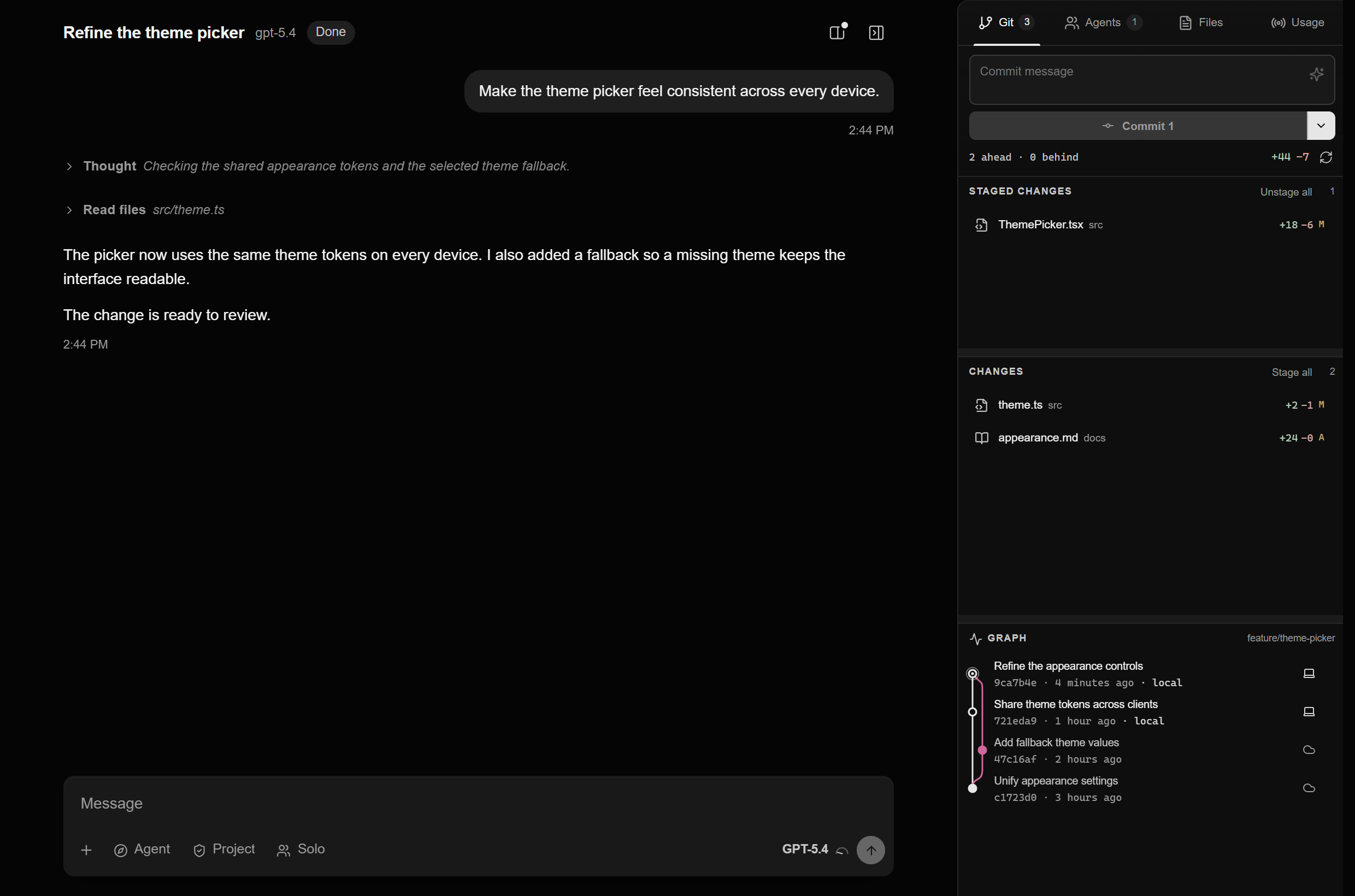 A Code chat on another computer, opened in a browser.
Some approvals ask for Face ID. Answer those on your iPhone.
If you see Waking…, Reconnecting, or Stopped, wake the computer and check the connection. Then read the transcript before you send again, because your last action may not have reached the computer.
Use an app or a whole screen
Turn on View apps for app windows, or View screens for whole screens. To click and type, also turn on Control apps or Control screens. Integrator Browser covers only the browser tabs in a Code task, not other apps.
- Open the computer’s apps and screens:
- iPhone: in Remote, tap Control a computer, or the button with your computer’s name. Then choose an app under On your PC or a screen under Screens on your PC. In a Code task’s browser, New tab → On your PC shows the same list.
- Another computer or a browser: in Remote, find the computer and choose a screen under Screens or an app under Apps.
- The app or screen fills the view. A small bar at the top names the computer and shows whether you’re in control.
- Choose ··· in the bar for Quality, Frame rate, Sound, Resolution, Show stats, Full screen, and Disconnect.
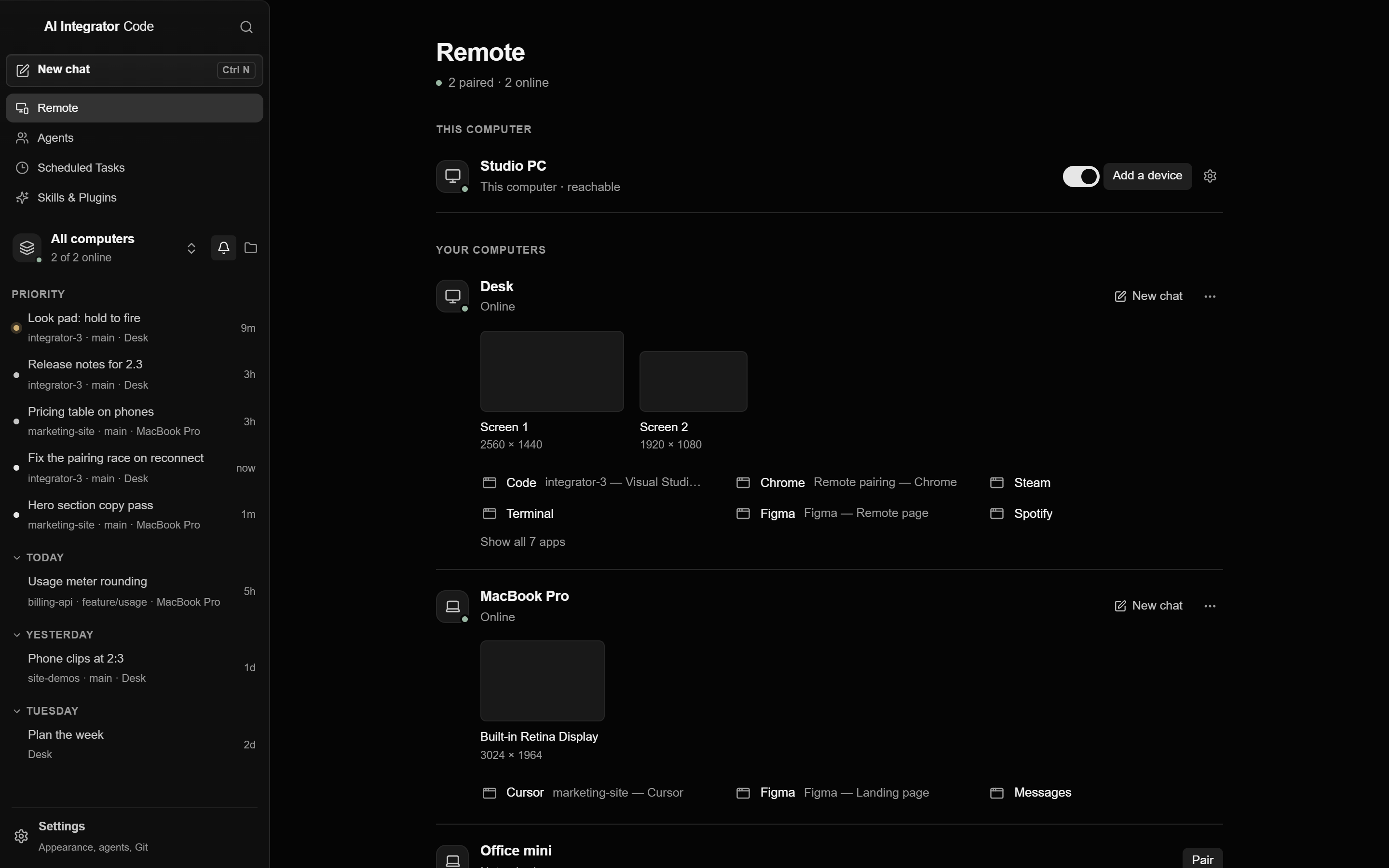 Remote on a computer, listing paired computers with their screens and apps.
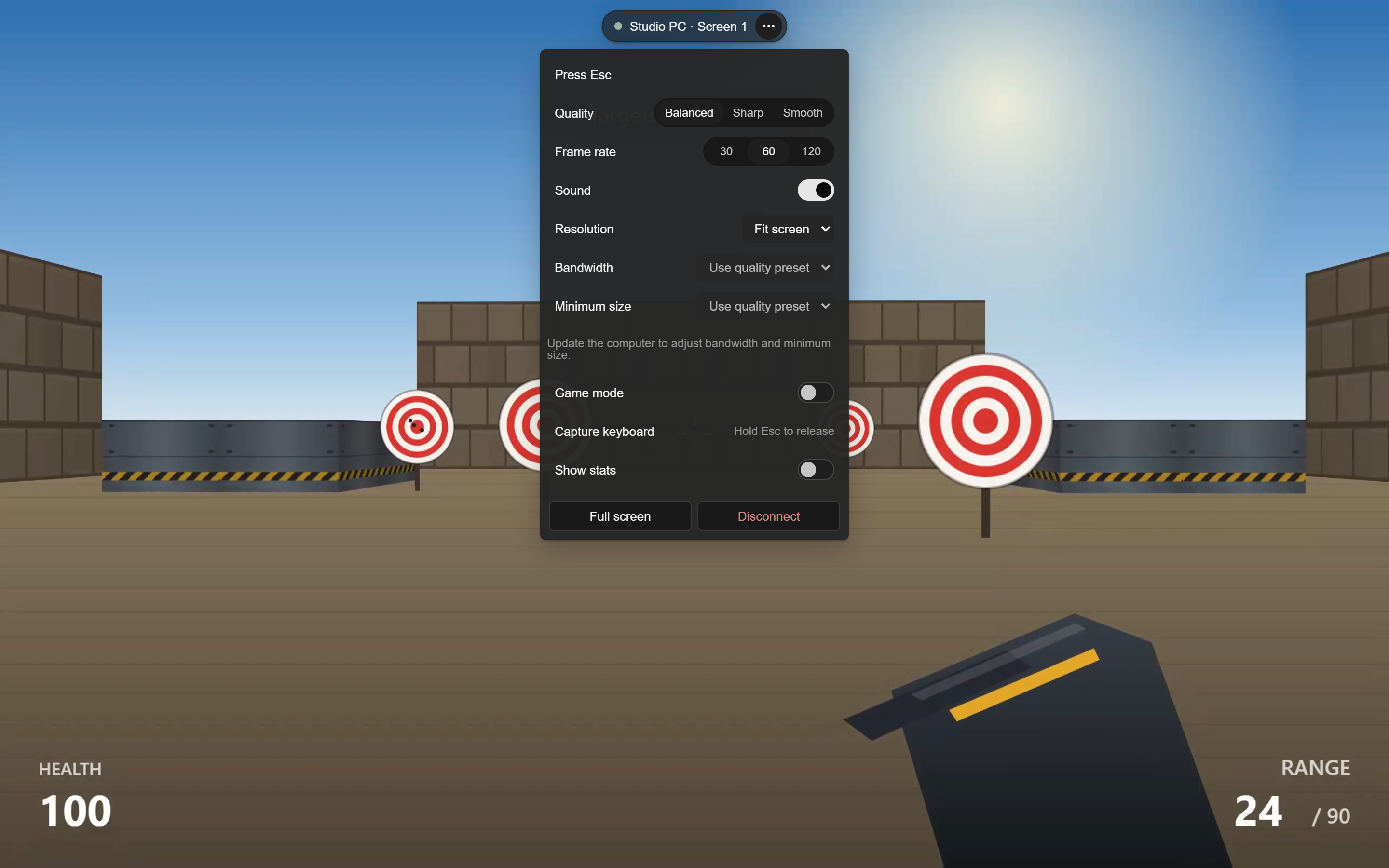 A game on another computer’s screen, with the ··· menu open.
On iPhone, choose Touch, Trackpad, or Gamepad under Pointer in the app menu:
- Touch: tap to click, double-tap to double-click, touch and hold to right-click, and drag to drag. Use two fingers to zoom, move around, and scroll. Swipe with three fingers to go to the next app or screen.
- Trackpad: slide to move the pointer, tap to click at the pointer, tap with two fingers to right-click, and hold, then slide to drag.
- Gamepad: the left stick presses W, A, S, and D, and pushing it to the edge adds Shift. Drag anywhere else to look. Buttons include Fire, Aim, Jump, Ctrl, C, R, Q, E, F, and the number keys 1 to 5. Edit layout lets you move any control and set a button to Hold or Toggle.
To type, tap Show phone keyboard.
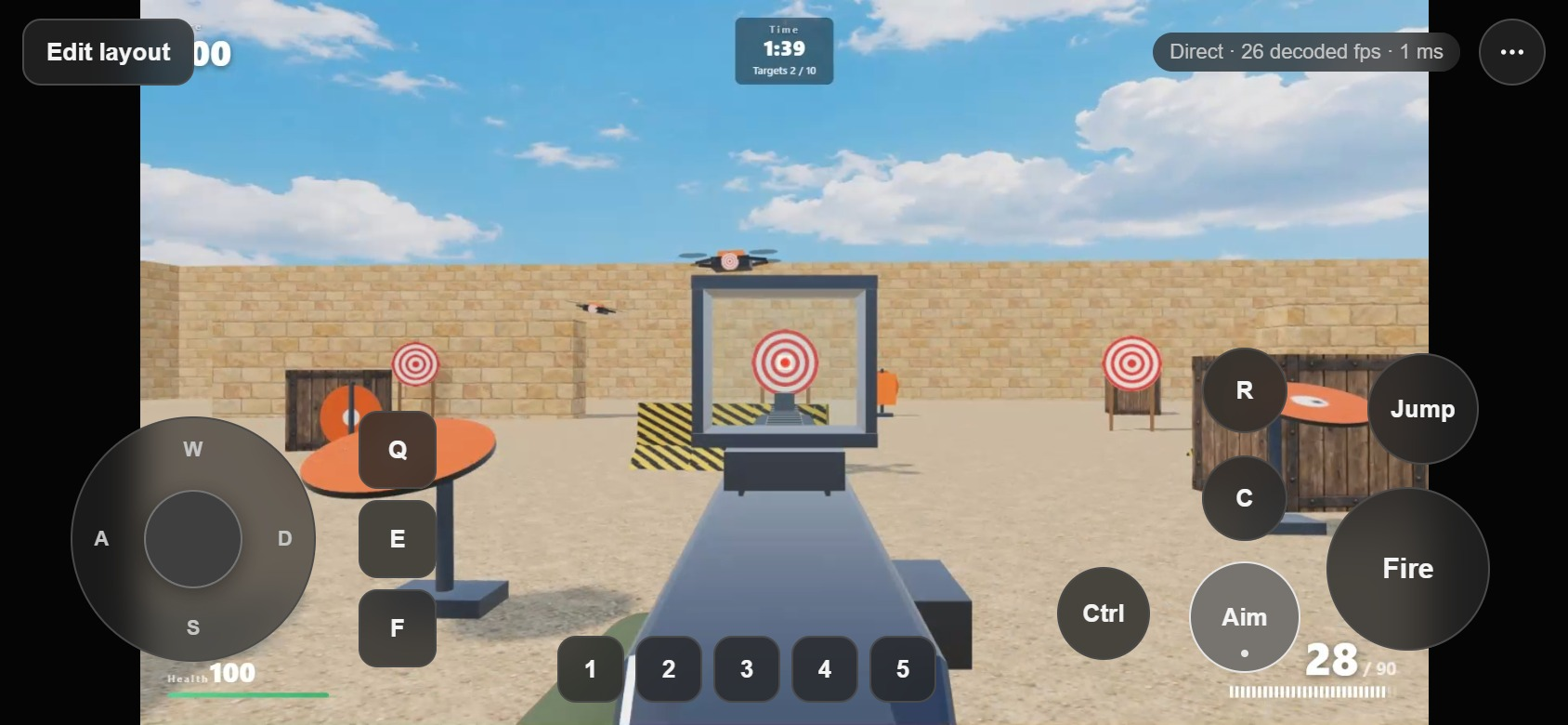 Gamepad mode on iPhone, playing a game on the computer.
On another computer or in a browser, use your mouse and keyboard. Capture keyboard sends shortcuts the app or browser would otherwise keep. Hold Esc for one second to release the keyboard; a quick Esc still reaches the computer. Game mode locks the pointer to the view for games. On a touch screen, the browser also offers Touch, Trackpad, and Gamepad.
The Windows key and shortcuts like Alt+Tab work on a whole screen, not in a single app window.
When two people are connected
Up to two devices can view a computer at the same time. The first device to open a view is in control. The second can watch, and its input goes through once the first has been idle for 3 seconds, until the first acts again. The ··· menu lists who is watching.
Someone at the computer always comes first. While they use the mouse or keyboard, input from other devices pauses, and the bar shows Someone is using this computer. Control returns one second after they stop.
While another device has a whole screen open, the computer shows a bar that names it, such as Your phone is controlling this screen, with Stop. Stop ends every screen session at once. The bar stays on top of other windows and isn’t included in the picture sent to the device. If the device reaches for the spot the bar covers, the bar moves to the other end of the screen first.
Limits
- The desktop app must be open and the computer awake. Code keeps running on the computer while your device is offline.
- Remote uses the computer’s own pointer and the apps that are already open. It doesn’t create a second desktop or open apps for you.
- Copy and paste use the computer’s clipboard, which isn’t shared with your device.
- You can’t drag a file from your device into an app on the computer. Attach it to a Code message instead.
- Ctrl+Alt+Del can’t be sent. On Windows, the sign-in screen, administrator prompts, and apps running as administrator need someone at the computer.
- A browser connects only through Tailscale.