
AI Integrator for the web
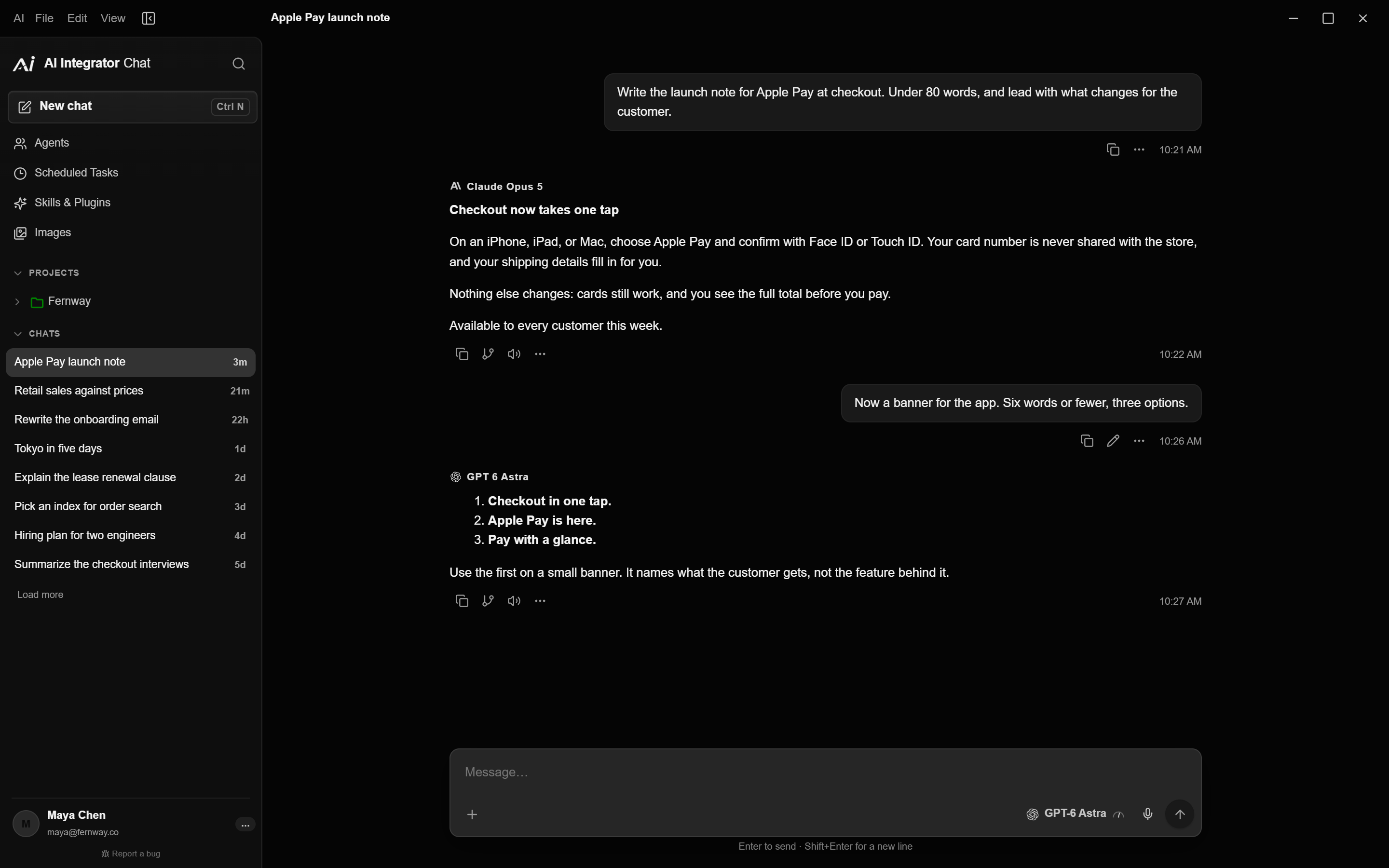
Chat with 101 models, use your Agents, and make images. The desktop app is for Mac and Windows.
Open Chat- Nothing to install
- Free plan
All downloads
Version 0.2.15, released Oct 18, 2026.
Mac
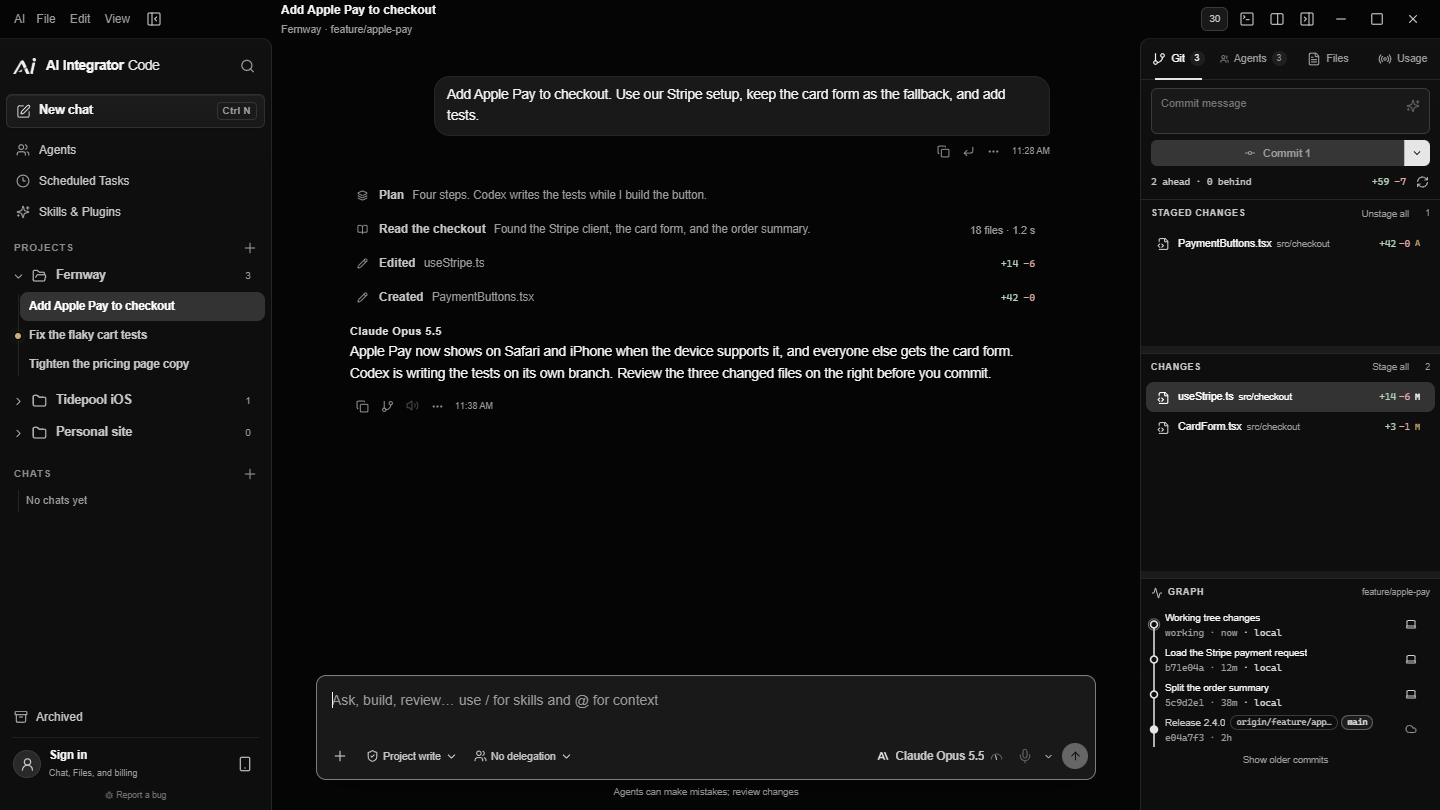
Chat, Code, Files, and Remote.
Apple silicon and Intel48 MB
Windows
Chat, Code, Files, and Remote.
Windows 10 and 1117 MB
iPhone
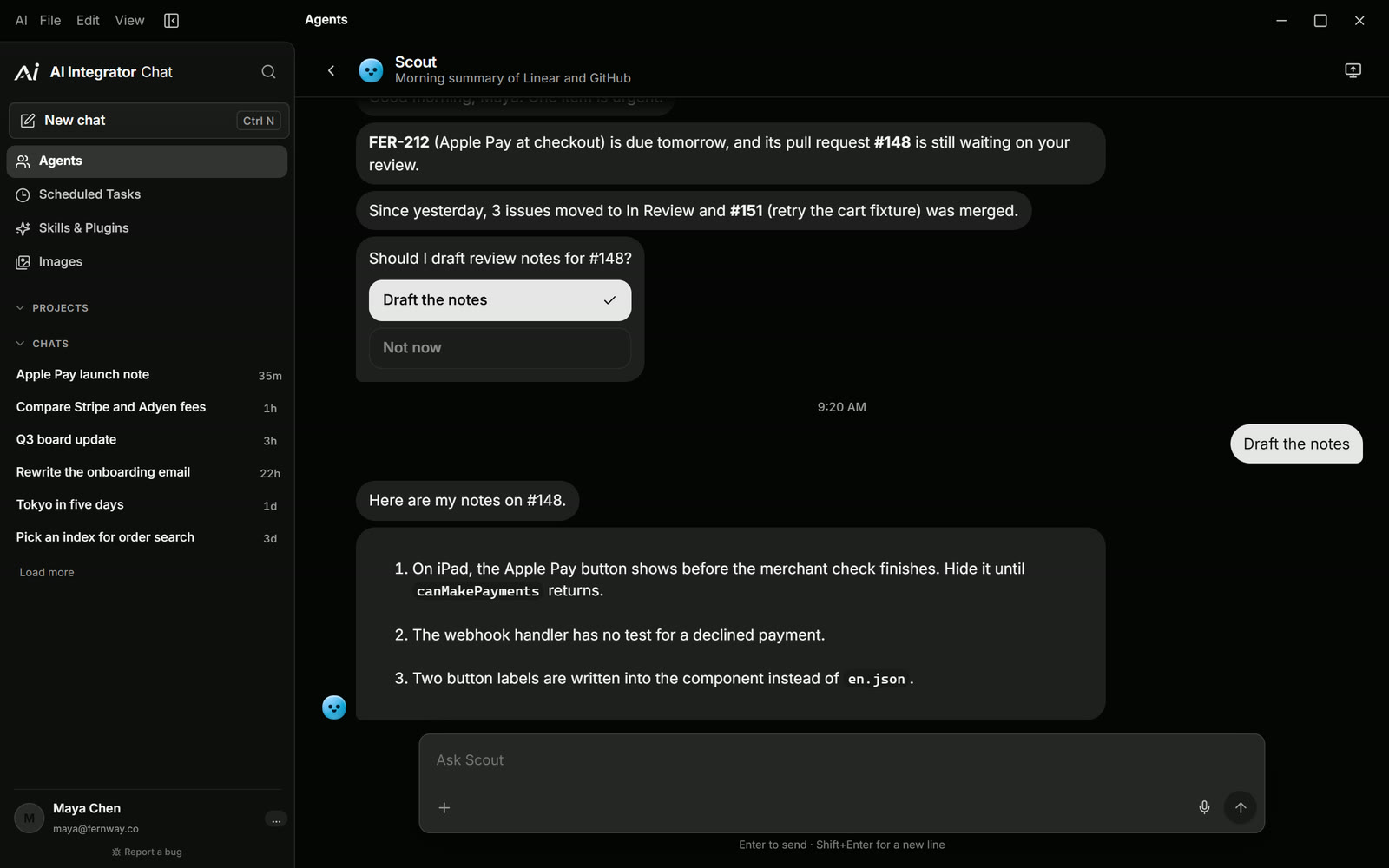
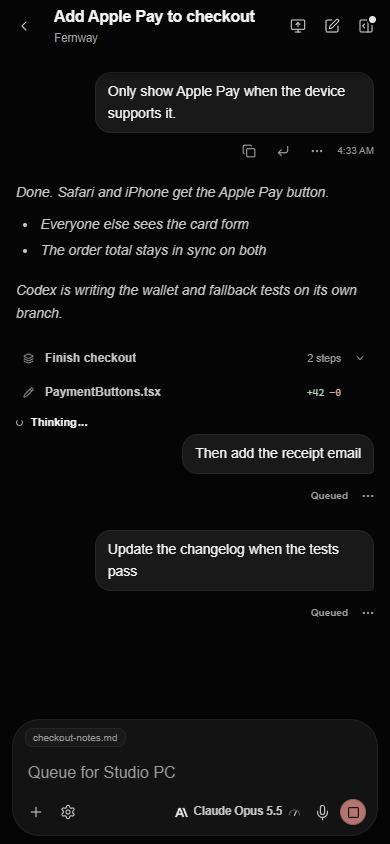
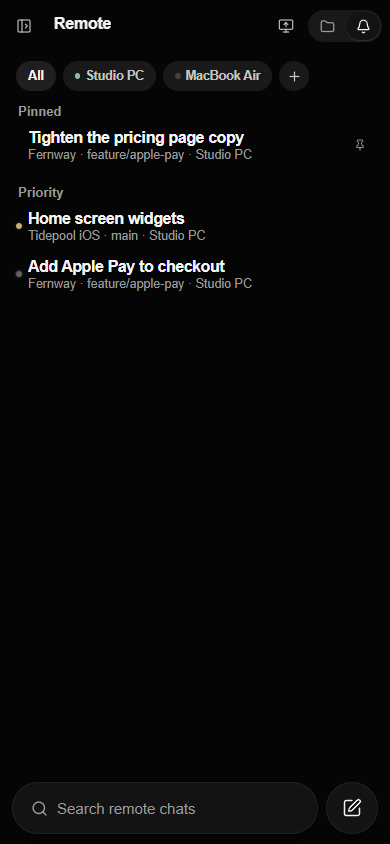
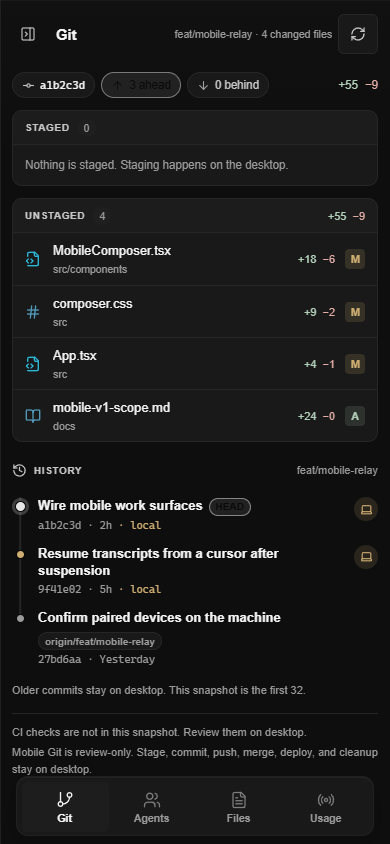
Chat and Agents, plus Remote for your computer.
Public beta through Apple's TestFlight app

Scan with your iPhone camera WebThis device
Chat, Agents, Images, and Files.
Any current browser
Remote Beta
Pair a device
- Install the desktop appDownload AI Integrator for Mac or Windows and sign in.
- Turn on Remote AccessIn the desktop app, open Settings → Remote Access, turn on Allow remote access, and choose Add a device.
- Pair the other deviceScan the QR code with AI Integrator for iPhone, or type the six-character code in Remote on another computer or in a browser. Then choose Allow on the computer.
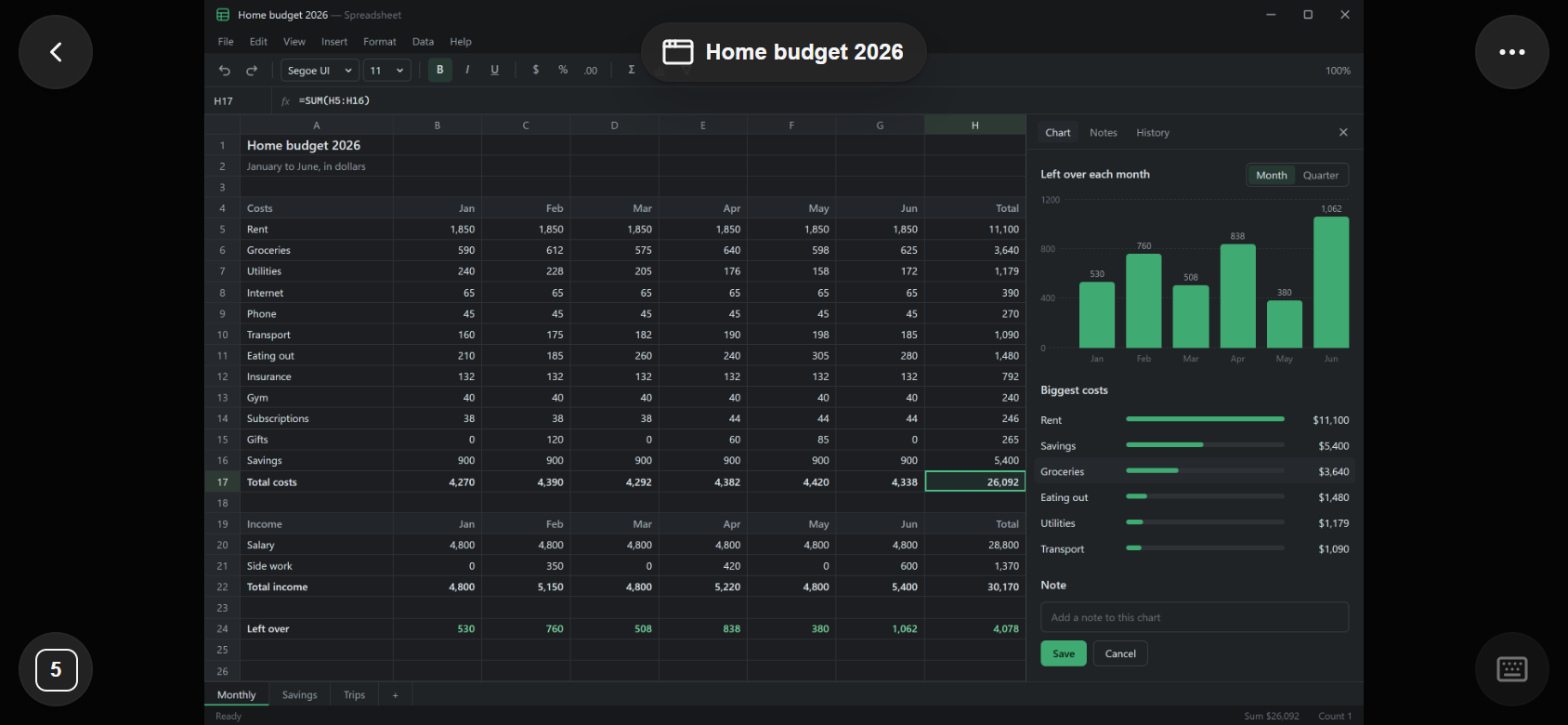
After pairing, you can run Code tasks on the computer and use its apps and screens. On iPhone, choose Touch, Trackpad, or Gamepad.
How Remote works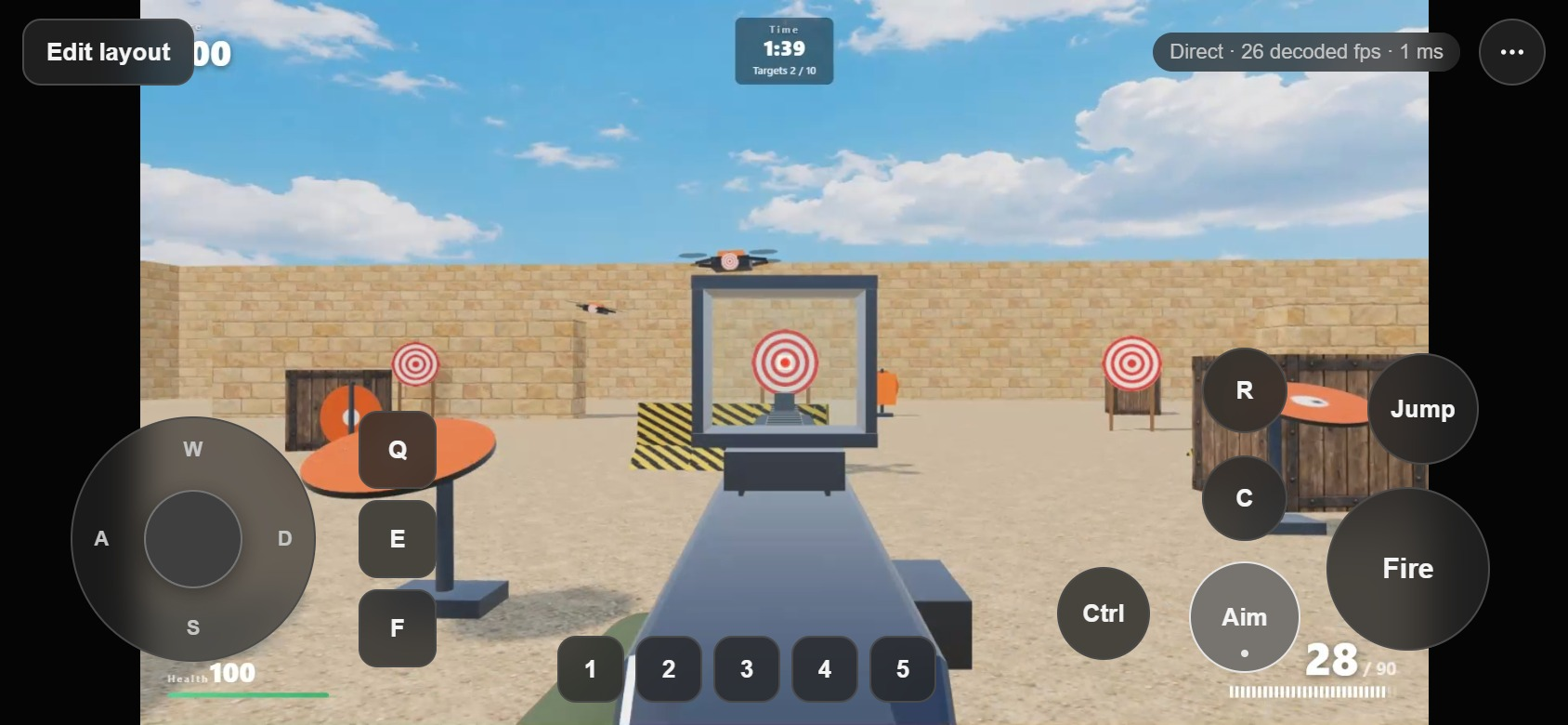
Patch notes
The desktop app checks for updates every six hours, and you choose when to install them.
- 0.2.15Latest
You can see where an agent is pointing, and we've unified permissions for computer use.
Show 4 changesHide changes
Chat
- The computer card stays up while the chat works, with Pause, Resume, and Stop.
- View shows another computer. This computer is already in front of you.
- Computer use has one set of permissions.
Computer
- A cursor shows where the agent is acting, including on another display.
A chat can use a paired computer, and you can choose the model that decides each step.
Show 4 changesHide changes
Chat
- A chat can start work on a computer, watch it, and stop it.
- When the computer asks to continue, you can allow it in the chat.
Computer
- Choose the decision model that picks each step in the browser and on the computer.
Files
- Uploads stop when you reach your plan's file limit.
Download 0.2.14:Mac 48 MBWindows 17 MBMSI package 24 MBStandalone app 75 MB
An agent can use a paired computer when that computer allows it.
Show 8 changesHide changes
Agents
- Turn on "Let Agents use this computer." The agent can work in the browser or on the screen, and you can follow the run.
- The same run shows on the phone and the web.
Remote Access
- Open your computer from your phone, another computer, or a browser.
- Use its apps and screens with touch, a trackpad, a gamepad, or a keyboard and mouse.
- Screen control, and Remote on more than one computer, are on Pro and Max.
Billing & Plans
- The Files library and notifications are on Pro and Max.
- During TestFlight, the first month is 75% off with code TESTFLIGHT.
Chat
- A reply can show on your other devices while it is still being written.
Download 0.2.13:Mac 48 MBWindows 16 MBMSI package 23 MBStandalone app 72 MB
You can open a project on a paired computer from the phone or the web. The computer keeps the repo.
Show 4 changesHide changes
Phone and web
- Open the project, read a file, and review a change.
- Send a file to the computer, or save one from it.
- Code settings sit with the rest of your settings.
Phone
- Change a message you already sent.
Download 0.2.12:Mac 46 MBWindows 16 MBMSI package 23 MBStandalone app 72 MB
This release shows when the computer picture is struggling.
Show 1 changeHide changes
Phone
- The computer view can say how the picture is doing, so a weak connection is visible.
Download 0.2.11:Mac 46 MBWindows 16 MBMSI package 23 MBStandalone app 71 MB
This release rebuilds how you reach a paired computer.
Show 4 changesHide changes
Computers
- Pair with a code. The camera can blur while that code is on screen.
- A paired computer has a home for its projects and a new chat.
- This computer has its own card, with its name.
Phone
- The on-screen controls stay with the picture while you look around.
Download 0.2.10:Mac 46 MBWindows 16 MBMSI package 23 MBStandalone app 71 MB
Show 29 older versions, back to 0.1.0
This release lets you mention a connector in a message, and open a paired computer's screen.
Show 3 changesHide changes
Chat
- A connector you mention keeps its mark in the message box.
Phone
- You can open a paired computer's screen and work with its files.
- An Agent's profile tucks away as you scroll the conversation.
Download 0.2.9:Mac 46 MBWindows 16 MBMSI package 23 MBStandalone app 70 MB
This release names each paired computer, and starts a new phone chat on the computer you pick.
Show 6 changesHide changes
Phone
- A Mac shows its computer name, so two computers are not both called Desktop.
- New chat is created on the computer you pick. Its folders are that computer's folders.
- The phone keeps checking your other paired computers, so their connection state stays current.
- On a Mac, pairing can ask for screen recording and accessibility. You can remove a device or change what it can reach.
Chat
- You can attach a file to a message.
Code
- A closed project folder stays closed. A running task still shows.
Download 0.2.8:Mac 35 MBWindows 13 MBMSI package 18 MBStandalone app 55 MB
You can bring in your Claude and ChatGPT history, use your phone sideways, and control your computer from your phone like a trackpad.
Show 28 changesHide changes
New
- Import your Claude and ChatGPT history from Settings → Import on desktop, web, and iPhone. Upload the export file from either app and your chats come in.
- Personalization is in Settings on desktop and iPhone. Set your profile, tone, and instructions there.
- On desktop, the Code setting for memories saved on your computer is now called Memory.
Phone
- The app works sideways. Chat sits in a column that stays clear of the screen edges, and sheets open in the middle.
- The computer view has a Touch and a Trackpad mode. In Trackpad mode, slide to move the pointer, tap to click, tap with two fingers to right-click, and hold then slide to drag. Your phone remembers which mode you picked.
- Download files from Files and save them to your iPhone.
- Messages and new chats you start on your phone reach Code on your computer, even if the app there was busy. They no longer sit as Queued.
- When your phone is back online, the chat loads replies you missed.
- Reopening a chat keeps your place.
- The connection warning only shows if reconnecting takes more than a moment.
- In Images, swipe back from a picture to return to the Images home.
- The microphone shows moving bars while you talk.
- Taps in the side menu and top bar give a short vibration.
- Notes you add to a web page show as cards in your message.
- The computer's window view no longer closes on its own.
Agents
- The Agents list has one New agent button. Each Agent has a settings button and a menu with Rename, Customize, Pin, and Delete. Swipe to delete, then tap Undo if you change your mind.
- On your phone, leave an Agent's chat by swiping back or tapping Back, the same as a Remote chat.
- The top of an Agent's chat shows only its picture and name.
- Messages in an Agent's chat are grouped, with the time above each group.
- An Agent's picture stays full size on its routines.
Notifications
- A new chat has its name before its first notification.
- Tapping a notification no longer puts another chat's messages in the chat it opens.
Chat
- Uploads and downloads have separate daily limits, and a file only counts once a day. When you hit a limit, the message says which one.
- Fish Audio shows its current price.
Code
- A small notice at the top of a task shows when it's connecting, resuming, or catching up, and tells you if updates were missed.
Desktop
- Last checked sits next to the update status.
- Send report sits next to Add a screenshot.
Images
- The first picture in the row of versions is no longer cut off.
Download 0.2.7:Mac 35 MBWindows 13 MBMSI package 18 MBStandalone app 55 MB
Chat replies now reach your phone, browser, and computer. This release also fixes Agent Home in the installed app.
Show 25 changesHide changes
Notifications
- You get a notification on your iPhone, in your browser, and on your computer when an Agent replies, a routine finishes, or a chat reply takes more than a few seconds.
- It shows the Agent or chat name and the first line of the reply. On iPhone, tap it to open the chat.
- You don't get one for a chat you have open on any device.
Chat
- The sources button sits next to the time, at the right end of the reply.
- The message box floats over the conversation, so the chat stays visible around it.
- Images is now part of Chat instead of Files.
Images
- A low balance no longer blocks a cheap image. Starting an image sets aside about what it costs, not a fixed amount.
- Usage set aside for an image that never finished is given back.
- Usage left now counts images that are still running.
- When you're out of usage, the message says what to do.
Agents
- The computer button and browser controls in Agent Home work in the installed desktop app.
- The computer button only shows while your computer is online.
- Agent Home no longer freezes when it opens.
- Agent Home uses GPT-6 Luna.
- Agents have new faces to choose from.
- Skills and Plugins has search, an All, On, and Off filter, and sorting.
- Connecting a trading plugin from Agent Home asks you to confirm the risk first, the same as in Plugins.
- If a plugin you signed in to is off for this chat, the Agent asks you to turn it on.
- A failed Connect no longer leaves a broken card in the chat.
Bug reports
- The microphone sits in the corner of the text box.
Phone
- The side menu is more compact, and chat rows are easier to tap.
- When you control your computer, a drag keeps the mouse button held until you lift your finger. Press and hold is more reliable.
- If your computer can't be controlled right now, the message says what to do.
- Copying, sending, regenerating, and opening a message menu give a short vibration.
Desktop
- The Windows icon no longer has a dark square behind it, so it shows up on light taskbars.
Download 0.2.6:Mac 35 MBWindows 13 MBMSI package 18 MBStandalone app 55 MB
Settings and bug reports are simpler, and you can see which skills and plugins an Agent can use.
Show 14 changesHide changes
Settings
- Each settings page has a one-line hint. Text that repeated a heading is gone.
- Appearance options have plain names. If a font is missing, the app uses a system font.
- Compact tightens spacing without changing text size.
- Reduced motion shortens animations. None turns them off.
- When there's no update, Updates says AI Integrator is up to date.
Bug reports
- The form opens with the area you were in already picked. You can change it.
- Sign in to send a report. A new bug we can act on earns you extra usage.
Agents
- Each Agent has a Skills and Plugins screen where you can browse and open them.
- Agent icons use updated colors.
Chat
- GPT-6 Sol, GPT-6 Luna, and Claude Opus 5.5 are available.
- A new Agent's starter notes are written by GPT-6 Luna.
Images
- The prompt box floats over the grid, and you can still scroll the last row into view.
- Stop ends an image that's still being made.
Phone
- Report a bug, voice typing, and Agent profiles work the same as on desktop and web.
Download 0.2.5:Mac 35 MBWindows 13 MBMSI package 18 MBStandalone app 54 MB
You can switch Agents in the middle of a chat, and switching models no longer breaks the next reply.
Show 10 changesHide changes
Chat
- The Agent picker is a regular dropdown, like Provider and Model, with each Agent's icon next to its name. New Agent is at the bottom.
- You can switch Agents mid-chat on your phone, the web, and desktop. The next reply uses that Agent's instructions, memory, skills, and plugins. An Agent's Home chat always stays with that Agent. If the switch doesn't save, the picker goes back.
- In Code, the chat shows where you switched Agents. Removing the Agent also removes its instructions from the rest of the chat.
- If a message can't be sent, it goes back into the message box. If you're offline, it says so. Otherwise it says it couldn't reach Chat.
- A chat that moved from one provider to another no longer fails. If a model still refuses, it tells you to switch models or start a new chat.
Agents
- The Agents list shows each Agent's latest reply, not just your last message. A reply shows up there once it's finished, and the list catches up when you come back to it.
Phone
- In the chat list, the folder arrow turns in place. Chats has a + button for a new chat, like Projects. The selected chat stays highlighted when a folder above it opens.
- In Remote, swiping back from a chat shows the list underneath.
- Tapping in your computer's browser now works on pages that ignored taps before.
Fixes
- On Windows, a screenshot of a browser tab shows the page even when the window is covered or the monitor is off.
Download 0.2.4:Mac 35 MBWindows 13 MBMSI package 18 MBStandalone app 54 MB
Images keeps your pictures, and controlling your computer from your phone has its own place.
Show 11 changesHide changes
Images
- Images opens on your sessions, then the pictures you made and uploaded. Typing a prompt there starts a new session, and so does picking a picture.
- Sessions are saved. Open one later or delete it.
- Press and hold a photo an Agent sent to copy it or save it.
Phone
- Controlling your computer from Remote opens its own browser instead of a chat. With one paired computer it opens right away. With several, you pick one. Pages you open there get their own window and don't show up in your chats.
- The computer button on an Agent opens that Agent's computer in a new tab. If the computer is asleep, it tells you to open AI Integrator on it.
- While you're viewing a window, tap its name to hide the controls. Tap the arrow to bring them back.
- A chart in a reply shows once, where the reply puts it. Opening a chart keeps it on screen.
- On Windows, keys or mouse buttons left held down from an earlier session are released before the phone types or clicks.
Agents
- Skills on an Agent's profile show their publisher's logo.
- Plugins you haven't signed in to stay off.
Fixes
- Bug reports mention that reporting a bug can earn extra usage, with a link to details.
Download 0.2.3:Mac 35 MBWindows 13 MBMSI package 18 MBStandalone app 54 MB
Make pictures in the new Images section, and see your computer more clearly from your phone.
Show 24 changesHide changes
Images
- Open Images on desktop, web, or phone. Describe a picture, pick a model, and it's made there. Models include GPT Image, Nano Banana, Grok Imagine, Flux, Qwen Image, Krea, and Seedream.
- Add pictures to work from by dropping, pasting, uploading, or picking one you saved. Each model only offers the sizes it can make.
- Every version of a picture stays in a strip, so you can go back to an earlier one. Download the one you're viewing, or start a new one.
- If the main image service is down, a backup finishes the picture, and the picture says so.
- Pictures you make open in Images, not Files.
Charts
- Charts with more than one series use eight colors that stay easy to tell apart, including for people with color blindness. The first color matches your theme.
- Charts still save as PNG, SVG, or CSV. The model sees the same colors you do.
- In an Agent's chat, tap a chart to open it full width. Close it to go back.
Phone
- Zooming in on a window or screen from your computer stays sharp.
- Typing and taps show up sharp right away, and the picture no longer flickers with the blinking cursor.
- Wide monitors stream at a higher resolution, and movement no longer lags a frame behind.
- On Windows, menus and dialogs an app opens show up on the phone, so you can see a right-click menu.
- A tap still clicks when Windows won't bring the app to the front. Typing waits until it's in front, and the phone tells you to tap once and type again.
- Opening a minimized app on Windows restores it, unless someone is using the computer.
- A tap lands on the window you're viewing. If that window has closed, the phone no longer shows it as open.
- Links in a chat open in your browser.
Agents
- In the Agents list, an Agent's icon moves while it's working, and the row shows its latest message.
Chat
- If your phone asks for a model your computer doesn't have, the computer uses its own model instead of not replying.
- Editing or deleting your messages works again.
Fixes
- An error during a reply no longer shows up more than once.
- Bug reports can include recent scrolling and, on desktop, details about a private network connection that failed.
ZeroTier
- Networks you've joined now show up reliably.
- If ZeroTier is installed but not ready, you see ZeroTier's own error.
- Taps over ZeroTier no longer lag.
Download 0.2.2:Mac 35 MBWindows 13 MBMSI package 18 MB
Control the computer you already use from your phone, and set up your own Agents.
Show 17 changesHide changes
Charts
- Charts over time have range buttons (1M, 6M, 1Y, 5Y, 10Y, 25Y) when there's enough data. Drag the strip under the chart to look at any period. The scale adjusts smoothly.
- A chart an Agent makes stays in that Agent's chat, the same as in Code.
Agents
- Each Agent has a profile. Change its name and description, pick an icon shape and color, or upload a picture.
- Instructions set how the Agent behaves. The Code setting decides whether the Agent can only read your project or can also change files in it. Memory can follow your account, be read-only, or be off.
- The Agent's routines are listed on its profile. Add or open one there.
- Turn skills and plugins on or off for each Agent. A plugin you haven't signed in to says Not signed in, and you can sign in from the profile.
- You can hide or delete an Agent from its profile.
Phone
- On a paired Mac, go to Browser → New tab → On your PC to open an app that's already running, the same as on Windows. Pinch to zoom, drag to move around, and type with the phone keyboard.
- The first time, your Mac asks for Screen Recording so the phone can see the window, and Accessibility so it can click and type. After you allow Screen Recording, quit and reopen AI Integrator. Without Accessibility you can look but not click or type.
- You can also view a whole screen if you turn on Control screens in the desktop's Mobile Gateway settings. While your phone controls a screen, the computer shows a notice with a Stop button.
- The phone keyboard opens when you tap a text field.
- The message box and sheets no longer leave a gap above the keyboard.
Sign-in
- Signing in to a plugin from an Agent's profile works, and the profile shows Signed in, Not signed in, or Not now.
Chat
- New models include Grok 4.7, DeepSeek V4.1 Flash, Qwen 3.8 Omni Flash, GLM 5.3 FlashX, and Nemotron 3.5 Lightning.
Data
- Before pulling government or market data, an Agent can read the source's guide so it picks the right series and dates.
Fixes
- Bug reports no longer warn about an empty box as soon as you click away. Reports you've sent stay collapsed until you open them.
- On the web, hovering the + next to a sidebar section no longer highlights the whole row.
Download 0.2.1:Mac 35 MBWindows 13 MBMSI package 18 MB
Charts can compare things, not just show change over time. Your iPhone can view and control an open window on your Windows PC. Signing in on the phone stays in the app.
Show 18 changesHide changes
Charts
- Ask to compare models, companies, or countries and you get a scatter chart of labeled points. Points can be colored by group and sized by a third number.
- A chart can highlight the best options: the points no other option beats on both measures.
- Cost can use a log scale so cheap and expensive options are both readable. Labels sit next to points when there's room.
- A chart can have a short note under it, such as a caveat or "illustrative values."
- A chart can show a calculated result, like free cash flow or a margin, while still citing and refreshing its sources.
- Some charts lock options that would make them misleading.
- Click a bar or slice to ask about it. Save or copy as PNG, SVG, or CSV.
- A chart with missing data no longer breaks the chat.
Code
- Charts an agent makes in Code now show up in the reply and stay there after it finishes.
Phone
- On a paired Windows PC, go to Browser → New tab → On your PC and pick an open app. It fills the phone screen, and you can zoom and move around. Use the keyboard button to type. Right-click and double-click are under More.
- Closing the tab stops viewing. The app keeps running on your PC.
- This is off by default. Turn on View app windows and Control app windows in the desktop's Mobile Gateway settings.
- One phone at a time. If someone is using the PC's mouse or keyboard, the phone waits. Copy and paste use the PC's clipboard.
- Windows only for now. It only shows apps that are already open, and minimized ones need to be restored first. Some windows, like apps running as administrator and the sign-in screen, can't be controlled. Dragging files, app sound, and clipboard sync aren't supported yet.
Sign-in
- Google sign-in on iPhone stays in the app instead of opening Safari.
- Signing in on your phone no longer hides Chat on your computer.
Fixes
- Sheets on the phone fit the screen better.
- Screenshots in bug reports load and send more reliably.
Download 0.2.0:Mac 33 MBWindows 12 MBMSI package 17 MBStandalone app 50 MB
Show 7 changesHide changes
Sign-in
- Sign in with Apple on desktop, web, and iPhone.
iPhone
- The iPhone app is available through TestFlight.
- Pairing your phone with your computer is more reliable.
Updates
- When you update AI Integrator, you can also update the coding agents it uses.
Skills
- Agents can search your skills to find the one that fits.
- Yahoo Finance is available as a skill.
Bug reports
- Dictate a bug report on desktop and phone.
Download 0.1.99:Mac 33 MBWindows 12 MBMSI package 17 MB
Show 13 changesHide changes
Charts
- Ask for a chart and the model makes one: line, area, bar (grouped, stacked, 100%, or horizontal), pie, donut, or scatter, with up to eight series. Charts look the same on desktop, web, and phone, and appear where the reply mentions them.
- Every chart says where its numbers came from. Live data shows the source and date. Numbers the model supplied are labeled as such.
- Change a chart without asking again: switch the type, stack or compare side by side, narrow the time range, use a log scale, or show percent change or year over year. It only offers chart types that fit the data.
- Save or copy a chart as PNG, SVG, or CSV, copy the image, or refresh its live data.
- Click a bar or slice to ask about it.
- Charts follow your theme, including dark mode.
Bug reports
- Attach up to three screenshots to a report by choosing, dragging, or pasting them.
- Screenshots are kept only if we keep the report, and are deleted after 30 days. Written reports are kept for 90 days.
- Extra usage earned from reports shows as its own part of the usage bar.
Chat
- When the model uses several tools in a row, they collapse into one line you can expand, so long answers are easier to read.
- While Chat is updating, your chat list stays put and you see a message to try again in a minute.
Code
- If an agent can't pick up where it left off, the app starts a new session and sends your message instead of failing.
Data
- Government and market data returns only the periods you asked for, and revised SEC figures come from the filing for that period.
Download 0.1.98:Mac 33 MBWindows 12 MBMSI package 17 MB
Show 7 changesHide changes
Chat
- Your past chats stay in the sidebar after you sign in. If they can't load, you see an error instead of an empty list.
- Sending a message no longer fails when you have an Agent Home.
Bug reports
- Include diagnostics is on by default. It adds details about the app, your device, and recent errors, but not your chats, files, or passwords. You can turn it off before sending.
- You can send a report once a minute, instead of once every 30 minutes.
- The automatic review only reads what you wrote. Diagnostics are only seen by our team.
Code
- In Auto mode, AI Integrator's own read-only tools no longer ask for approval. Anything that makes changes is still reviewed.
Chat history
- A message you just sent stays visible at the top instead of fading into the edge, on desktop, web, and phone.
Download 0.1.97:Mac 33 MBWindows 12 MBMSI package 17 MB
Show 9 changesHide changes
Bug reports
- Report a bug from desktop, web, or phone without leaving what you're doing. On your phone, you can also shake to open a report.
- Anything that looks like a password or key is blocked before you send. Reports are reviewed by a model that doesn't keep or train on them, and a new bug we can act on earns you extra usage.
Updates
- New app icons, new Windows and Mac installers, and a redesigned update screen.
- After an update downloads, choose Restart and install now, or keep working and install it next time you open the app. You can still cancel a scheduled update.
- Signing in to plugins works with more services, and one plugin that's down no longer stops the others from loading.
Phone
- Tasks you've opened in Remote stay marked as read after a refresh, and the app opens on the Chat home screen.
- You can delete your account from Settings.
- The app is for iPhone only.
- Chats with an Agent show that Agent's name in the sidebar on desktop, web, and phone.
Download 0.1.96:Mac 33 MBWindows 12 MBMSI package 17 MB
Show 8 changesHide changes
Chat and Code
- A message you haven't sent yet stays in the chat when you switch between Chat and Code or leave and come back. This works on your phone too.
- Skills you signed in to keep working in both Chat and Code.
- Stop only shows where something is actually running, so Chat and Code no longer take it from each other.
- The Agent you pick stays selected when you change the model. Agent Home opens that Agent's chat.
Models and search
- GPT-6 Astra is in the Codex model list.
- Search your chats from the sidebar and open one without scrolling.
Updates
- A slow or offline update check no longer delays opening the app.
Help
- The help pages on the website show diagrams and are easier to browse.
Download 0.1.95:Mac 33 MBWindows 12 MBMSI package 17 MB
Show 7 changesHide changes
Updates
- When an update is ready, an Update available button appears next to your account. Open it to read what's new, then download. The update installs the next time you open the app.
- The app checks for updates after it opens and every six hours. It only downloads and installs when you say so.
Agents
- Agent Home shows routines on desktop, web, and phone.
- Code and Chat use the same picker for choosing an Agent and model.
- The New chat button is the same on desktop, web, and phone.
Installing
- Mac: the first time you open the app, macOS blocks it. Right-click the app and choose Open.
- Windows: SmartScreen may show a warning. Choose More info, then Run anyway.
Download 0.1.94:Mac 33 MBWindows 12 MBMSI package 16 MB
Agents now work the same in Chat and Code, and memory is more reliable.
Show 11 changesHide changes
Agents
- One Agent works across Chat and Code, including when Code hands work to another agent.
- Each Agent's memory can follow your account, be read-only, or be off.
- Agent Home is on the web and your phone.
- Agents you made on desktop move into your shared Agents list.
- In desktop Settings, Subagents is now called Agents and stays in sync with Chat.
Memory
- A saved fact can be up to 4,000 characters.
- Chat recalls memories that fit the current project and Agent.
- An Agent without memory access can't save memories.
- Each memory shows which Agent saved it.
Installing
- Mac: the first time you open the app, macOS blocks it. Right-click the app and choose Open.
- Windows: SmartScreen may show a warning. Choose More info, then Run anyway.
Download 0.1.93:Mac 32 MBWindows 12 MBMSI package 16 MB
Show 6 changesHide changes
Chat
- Links in a chat open in an AI Integrator browser window. You can turn this off to use your regular browser.
- Desktop Chat shows each project's icon and color in the sidebar, the Move menu, and project settings, the same as web and phone.
- Model and provider logos on desktop match the website.
Code
- Project folders in the sidebar start closed. Only the project you're in opens.
Installing
- Mac: the first time you open the app, macOS blocks it. Right-click the app and choose Open.
- Windows: SmartScreen may show a warning. Choose More info, then Run anyway.
Download 0.1.92:Mac 32 MBWindows 11 MBMSI package 16 MB
Show 11 changesHide changes
New
- Settings show whether you're signed in to each coding agent separately from whether it's working, and keep both up to date.
- On web and phone, the name of the section you're in (Chat, Code, or Files) appears next to the logo.
- You can sign in to plugins from the desktop app.
- Links to Cursor cloud agents open in the app, and Cursor agent threads show the title of the task they came from.
- Skills are easier to manage on desktop, and the warning before turning on a plugin is clearer.
- Your phone's connection to the desktop updates when you switch accounts.
Fixes
- An open Cursor agent stays up to date when you change its tools.
- The fast mode button no longer covers the close button.
- Extra buttons are gone from Files on the mobile web.
Installing
- Mac: the first time you open the app, macOS blocks it. Right-click the app and choose Open.
- Windows: SmartScreen may show a warning. Choose More info, then Run anyway.
Download 0.1.91:Mac 32 MBWindows 11 MBMSI package 16 MB
The first public release: a website you can sign in to, AI Integrator Chat in your browser, plans and billing, and the desktop app for Mac and Windows.
Show 25 changesHide changes
AI Integrator Chat and AI Integrator Code share one account. Chat runs online and can't touch your computer. Code runs on your computer, and your projects, logins, and Code history stay there.
Website
- Read about the product, pricing, privacy, and terms.
- Create an account, use Chat in your browser, manage your plan, and download the desktop app.
Chat
- Sign in, pick a model, and see what each reply cost.
- More than 70 models on one plan, including Claude, GPT, Gemini, Grok, DeepSeek, Kimi, GLM, Qwen, Mistral, and MiniMax. You can switch models for each message. You don't need your own API keys.
- Talk instead of typing, and have replies read aloud.
- Projects group chats, files, and memories.
- Make your own Agents with a name, instructions, and a default model, and start a chat with one.
- Skills Chat can use, and scheduled tasks that run on their own.
Files
- Keep files on your account in folders, and attach the ones you want Chat to see.
- Free: 5 projects and 500 MB of files.
- Pro: 25 projects, 5 GB, and files up to 50 MB.
- Max: 100 projects, 25 GB, and files up to 100 MB.
Memory and privacy
- Chat can search a project's documents and use only what's relevant.
- Memories are facts saved to a project. You can search, tag, and delete them, and search or delete your chat history.
- By default, Chat only uses providers that don't keep or train on your data. Models that can't promise that stay locked until you turn that setting off.
Plans
- Free: $0. Limited monthly usage, Chat on the web, standard models, voice, and the full desktop app.
- Pro: $20 a month. Every Chat model, voice, importing your Claude and ChatGPT history, and larger uploads.
- Max: $100 a month for 5× Pro usage, or $200 for 10×. The highest file limits.
- Usage resets each month. Extra usage you buy doesn't expire.
- The desktop app is included on every plan and doesn't use Chat usage.
Desktop app
- Open a project and work with the coding agents you already have installed, like Claude Code, Codex, and Cursor, in one place.
- Commit and Push are separate steps. You sign in to each agent with its own account.
Installing
- Mac: the first time you open the app, macOS blocks it. Right-click the app and choose Open.
- Windows: SmartScreen may show a warning. Choose More info, then Run anyway.
- The iPhone app isn't part of this release.
Download 0.1.9:Mac 30 MBWindows 10 MBMSI package 15 MB
A web page no longer goes blank when something covers it, like the address bar suggestions or a dialog. It shows a recent picture of the page that updates every couple of seconds.
Show notesHide changes
You can drop the mini browser anywhere, including over a page. Move it away and the page comes back.
Download 0.1.8:Mac 24 MBWindows 8.5 MBMSI package 12 MB
Show 12 changesHide changes
Fixes
- Clicking a tab in a browser window switches to it again.
- The X button always closes the tab. To keep a page running, use the minus button instead.
- The project label sits in line with the tabs.
Browser
- A screenshot of a tab shows the page itself, even when the tab is covered or hidden. This is new on Mac.
- Sites like Google sign-in treat the built-in browser as a regular browser.
- Agents use web pages more reliably, including pages that are still loading or change size.
- Pages move with the sidebar as it slides.
Schedules
- Move a schedule to a different chat from its edit screen.
- Finished or canceled schedules can be edited and run again. Only a running schedule is locked.
- Schedules run even when the main window is closed.
Chat
- Claude in Chat no longer loads your personal Claude Code settings, and keeps AI Integrator's tools.
- The model picker fits in narrow windows.
Download 0.1.7:Mac 24 MBWindows 8.5 MBMSI package 12 MB
Browser windows group tabs by project, come back after a restart, and let you drag tabs between them.
Show 16 changesHide changes
Groups
- Tabs you pop out are grouped under their project's label. Chats share one Chat group.
- Click a label to collapse the group. Hover a tab to see the site and which agent is using it.
Sign-ins follow the project
- Sign in to a site once and every task in that project stays signed in.
- Sign-ins from older tasks are still listed in Settings → Browser if you want to clear them.
Sharing tabs
- Any agent working in a project can use that project's popped-out tabs. Tabs still in the side panel stay with their task.
- Two agents can't use the same tab at once. The second one is told who has it.
- You can have up to 8 open tabs per group and 24 in total.
Windows
- Open as many browser windows as you want and mix groups in them.
- Drag a tab to reorder it, drag it off to open a new window, drop it on another window to move it, or drop it on the app to put it back.
- Resize from the edges. Double-click an empty part of the tab bar to maximize.
- X closes a tab. The minus button puts it back in the side panel.
- Ctrl+T, Ctrl+W, Ctrl+Shift+T, Ctrl+Tab, and Ctrl+1–9 work, and skip collapsed groups.
After a restart
- Windows reopen where you left them. Tabs don't load until you click them.
- Tabs you haven't used in 7 days, or past 100 popped-out tabs, move to Recently closed. Right-click a group label to reopen one.
Agents
- Agents can pop tabs out, put them back, and see which group and window each tab is in.
Fixes
- Searching inside a folder no longer comes back empty on Mac.
Download 0.1.6:Mac 24 MBWindows 8.4 MBMSI package 12 MB
A security pass and a lot of browser improvements.
Show 16 changesHide changes
Security
- Each task has its own browser sign-ins. Chats share one set.
- Saved passwords go straight between the page and your system's password store without passing through the app.
- Agents can only reach the tabs, windows, and files that belong to their task.
Chat
- Chat can use the browser, and can sign in to sites with your saved logins.
Browser windows
- Tabs you pop out of a chat share one window. Each task gets its own window.
- Tabs shrink to fit instead of scrolling off the edge. Ctrl+T, Ctrl+W, Ctrl+Tab, Ctrl+1–9, and middle-click to close all work.
- The tab bar was redesigned to match the rest of the app.
New tab
- Back, forward, reload, and the address bar are there before a page loads.
- The new tab page was redesigned, with a search box, bookmarks, recent pages, and local servers.
- Suggestions only show once you start typing.
- Files and reviews in the side panel use the same color as their tab.
Site icons
- Sites show their real icons, even while loading and after a restart. Bookmarks fill in their icons too.
Agents
- Agents can take a screenshot of a popped-out tab, and show you screenshots in their replies.
- The ••• menu no longer hides the page behind it.
Other
- Antigravity works better, and model lists are up to date.
- The browser tabs panel is smoother.
Download 0.1.5:Mac 23 MBWindows 8.3 MBMSI package 12 MB
Browser improvements, and automatic review for every coding agent.
Show 16 changesHide changes
Browser
- Each chat remembers its tabs. They stay asleep until you or an agent open one.
- A task's tabs are its own. Other tasks can't see them. If you're typing in a tab, the agent has to wait.
- Pop a tab out into its own AI Integrator window with the address bar, history, and screenshot tools. Several tabs can share a window. Close it and the tabs go back to the side panel.
- Saved logins are kept in your system's password store, one per site. An agent can sign you in but can never see the password.
- Dialogs no longer freeze a tab. Dropdowns, dragging, hover menus, and pressing Enter work the way they should.
Agents
- Subagents can use the browser, on tabs they opened or were given.
- Open tabs are shown as a stack of cards.
- An agent working on a hidden tab sees a normal-sized page.
Automatic review
- When an agent tries to run a command, use the network, change a file outside the project, or call a tool, a fast reviewer checks it first.
- Codex uses its own reviewer. Every other agent uses ours.
- If the reviewer doesn't answer within about 10 seconds, it asks you or denies the action, depending on your setting. It never allows it.
- Every decision shows in the chat: approved, denied, or asked you.
Fixes
- Closing a popped-out window no longer loses the tab.
- The side panel divider is a single line with a handle, and the page stays still while you drag it.
- Hidden and sleeping tabs no longer report that they're closed.
- The browser declines cookie banners instead of accepting them.
Download 0.1.4:Mac 23 MBWindows 8.0 MBMSI package 11 MB
Show 7 changesHide changes
Browser
- You can watch the agent's cursor. It moves to what it's clicking, marks the spot, and says what it did.
- A tab an agent opens gets its own tab in the side panel without taking focus from you.
- When you mark up part of a page, it's added to your message as a small tag instead of a block of code.
Fixes
- The browser no longer flickers when you scroll.
- You can drag the side panel's edge while a page is showing.
- A console window no longer flashes when a new tab looks for local servers.
- You can drag the window from the right side of the title bar.
Download 0.1.3:Mac 20 MBWindows 7.5 MBMSI package 11 MB
A browser inside AI Integrator that you and your agents use together.
Show 10 changesHide changes
Browser
- Web pages open in a tab next to your work. Sign-ins and cookies are kept between sessions, and video plays at full speed.
- The toolbar has history, an address bar, mark up, screenshot, record, pop out, and open in your regular browser. A popped-out tab keeps running, and the agent can still use it.
- A new tab lists the local servers running on your computer.
- Mark up part of a page to send it to the chat with a note.
- Agents can open, read, click, type, and scroll in tabs. Each task has its own tabs, and you can turn this off in Settings.
- AI Integrator never sees your passwords. Settings lists the sites you're signed in to and can sign you out of all of them.
Side panel
- Files, reviews, subagents, and browser tabs open as tabs in one side panel. Closing a tab doesn't stop what's running in it.
Schedules
- A scheduled run shows its actual messages.
- The new schedule screen no longer reopens when you move around the app.
Fixes
- Project folder icons show up again.
Download 0.1.2:Mac 20 MBWindows 7.5 MBMSI package 11 MB
Show 5 changesHide changes
Schedules
- Choose the agent and model when you create a schedule.
- A scheduled run can continue in a new chat.
- Pick which plugins and skills each schedule can use.
- The Schedules screen was redesigned with smoother motion and matching dropdowns.
Fixes
- Built-in skills show up in every build of the app.
Download 0.1.1:Mac 19 MBWindows 7.2 MBMSI package 10 MB
The first release of the desktop app.
Show 17 changesHide changes
Projects and agents
- Open a project on your computer, or clone one, and work with the coding agents you already have installed, such as Claude Code, Codex, Cursor, Grok, and Antigravity.
- Set up and sign in to an agent from a built-in terminal.
- Pick an agent and model for each chat, and save your favorites as defaults.
- Hand part of a task to a subagent. Subagents can read your project but can't change it.
Git
- See your project's history as a graph, with branches and tags.
- Generate a commit message from your changes.
- Add remotes and publish a project.
Working in a chat
- Chats get a title automatically.
- Queue a message while the agent is working, or steer it mid-reply.
- Fork a chat, or cut it back to an earlier point.
- Paste images, and preview images in your project and attachments.
- Unsent messages are kept when you switch chats.
- Voice typing and a terminal are built in.
More
- Skills and plugins.
- Memory that carries between chats.
- Usage for each agent.
- Archived chats can be reopened.
Download 0.1.0:Mac 19 MBWindows 7.2 MBMSI package 10 MB
Questions
Yes. The desktop app is free, and Code comes with every plan. Chat has a free plan with monthly usage.
Not for Code. Sign in to use Chat, Agents, Images, and the iPhone app.
Codex, Claude Code, Cursor, Antigravity, OpenCode, Grok, and Kimi Code. AI Integrator runs the ones you have installed and signed in to.
The installer. Use the MSI package if your company installs apps for you, or the standalone app to run it without installing.
The app checks for a new version every six hours. Download it with one click, then restart now or install it the next time you open the app.
It is in public beta. TestFlight is Apple's app for beta testing. Install it from the App Store, then open the AI Integrator invite.