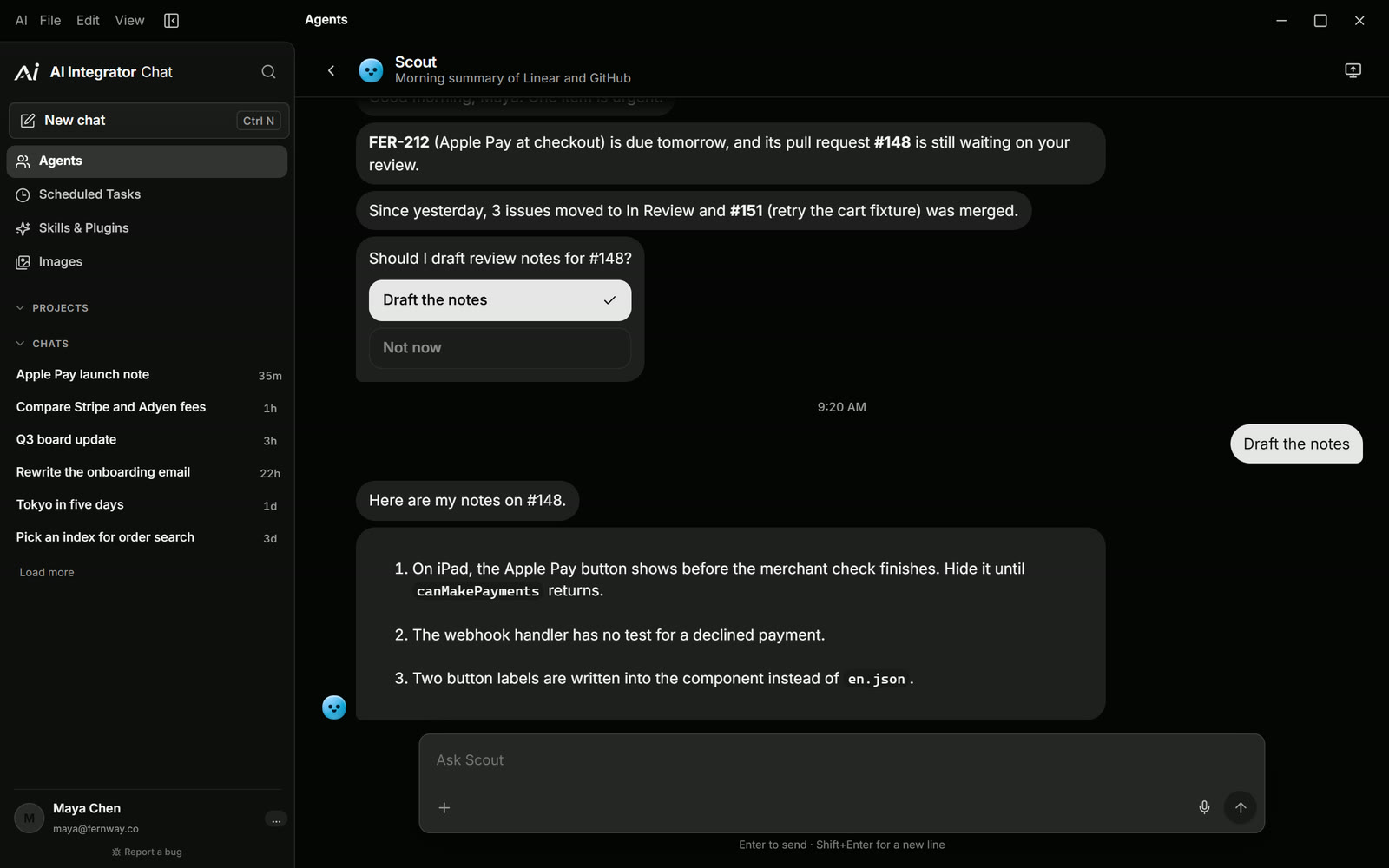
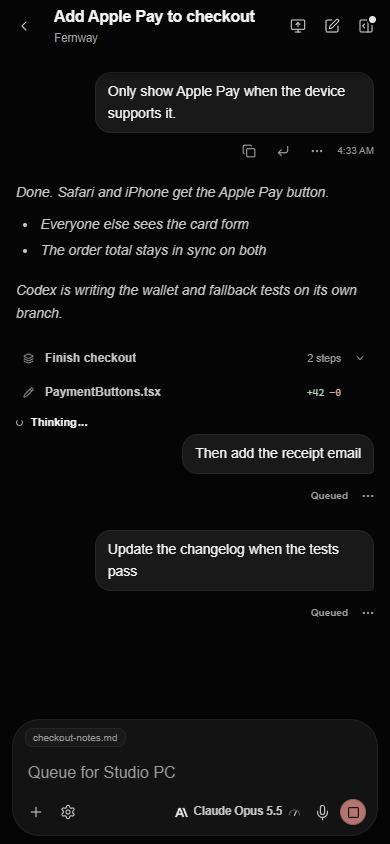
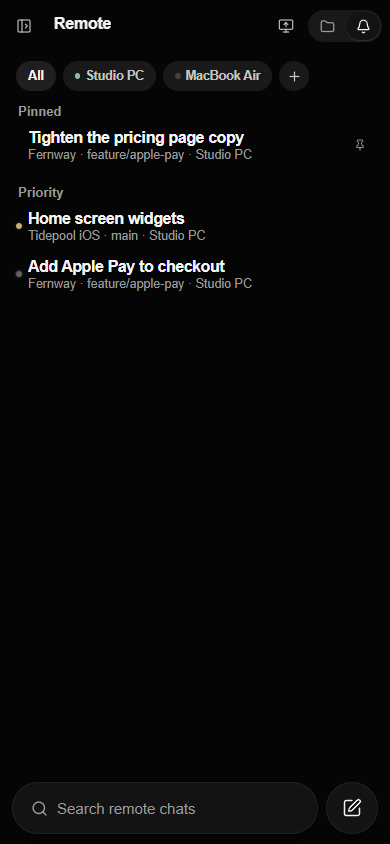
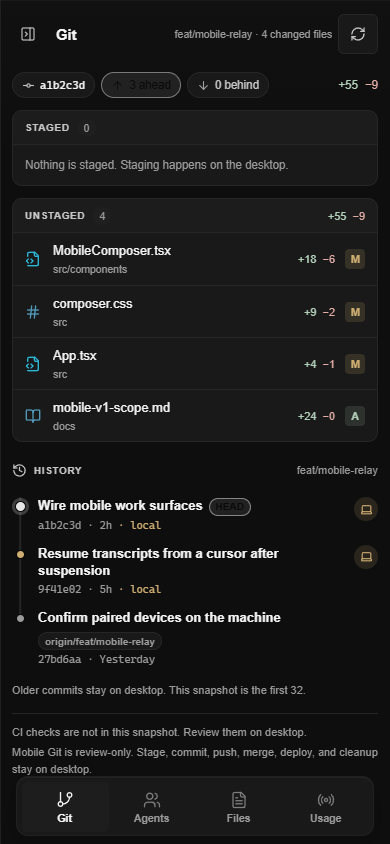

You can now start a Code chat on any computer signed in to your account, or move one there partway through. This release also adds voice calls with Agents and a short setup that introduces the app.
Work on another computer
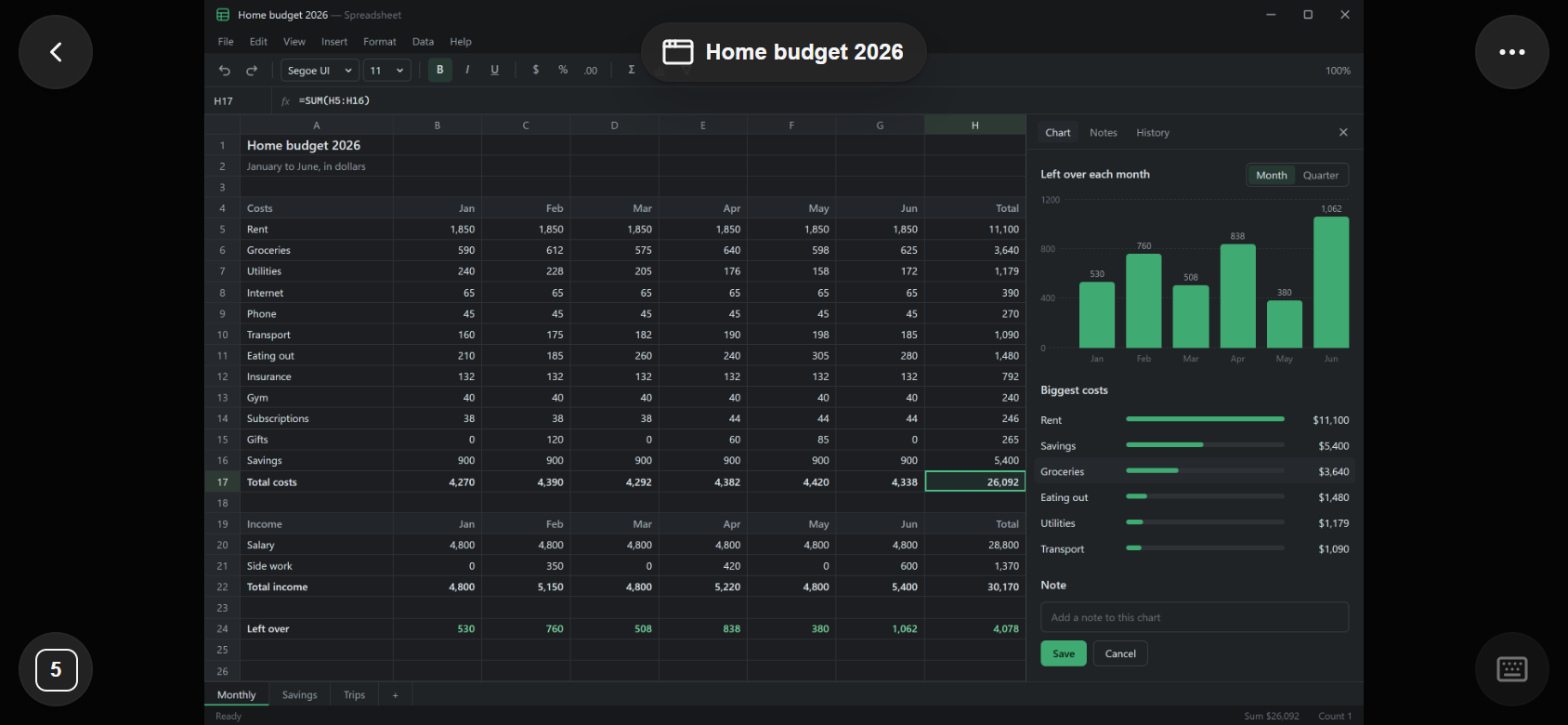
If you use AI Integrator on more than one computer, Code now works across all of them. From any device, including your phone, you can start a new Code chat on another computer, continue an existing chat there, or branch off a copy of a chat from any reply. To set a project up on another computer, choose it from the project's menu.
Call an Agent
Open an Agent's Home and call it to talk out loud. On the phone, calls have their own permissions, so you decide separately what an Agent may do while you are talking.
Agents can also now take a quick action on your computer directly, while longer jobs keep running in the background. Apps you use every day no longer ask for permission each time.
See what a reply changed in Code
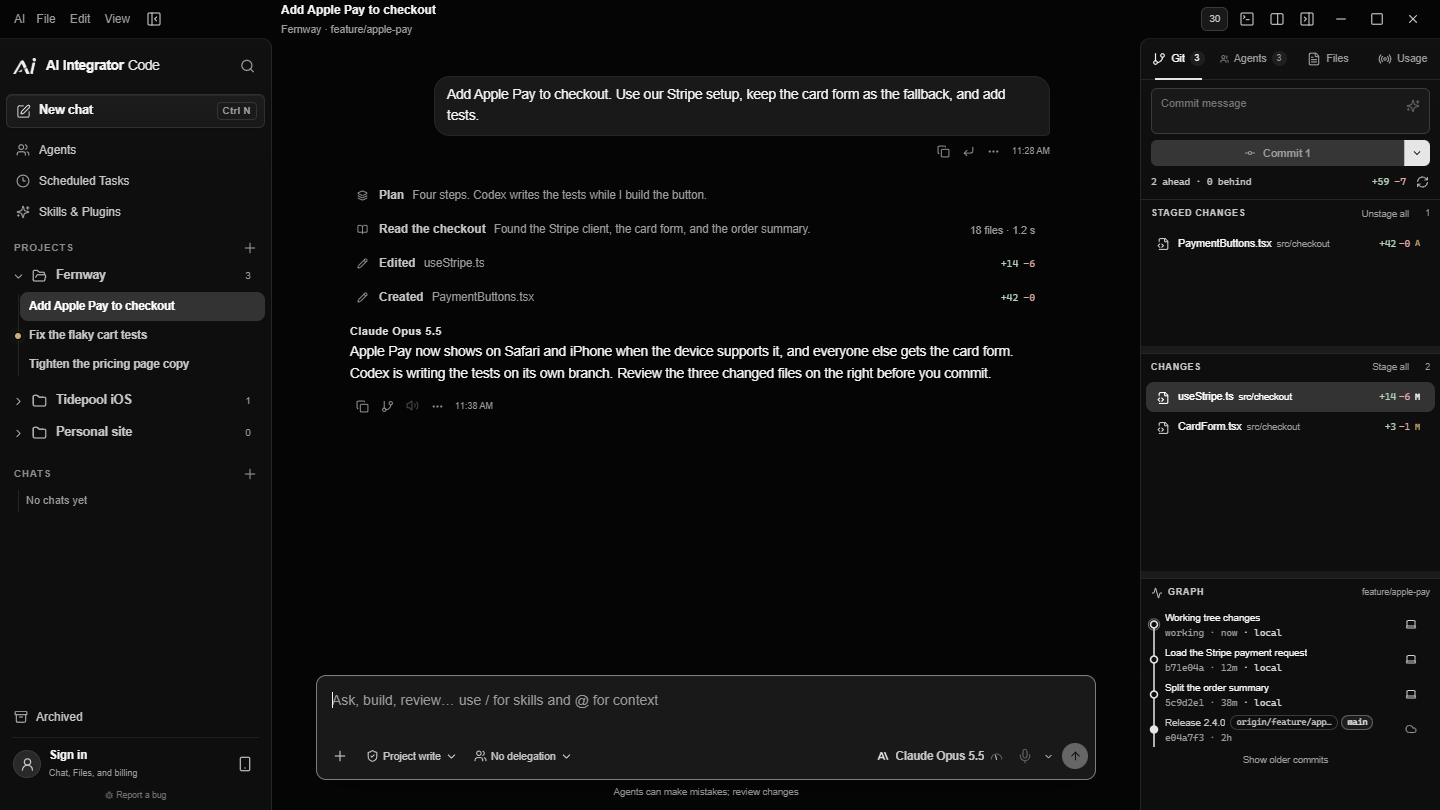
After a reply in Code, the files it changed are listed together in one row on every device. Open a file to see exactly what changed, or undo all of the reply's changes, from the desktop app, the web or your phone.
A short setup
The desktop app now asks you to sign in. A short setup on each device introduces Chat, Code, Files and Remote and lets you choose your Agents.
Other changes
- Scheduled tasks look and work the same in Chat, Code and on the phone.
- Projects can be sorted by recent activity, by name, or in your own order by dragging them.
- Delegation in the message box is now called Subagents.
- If you reach your computer through Tailscale, the phone tries that connection first. The connection details show whether video goes straight between your devices or through a relay.