AI Integrator has a built-in browser.
You open tabs in it next to your work, and the agents you work with use the same tabs to look things up, fill in forms and test websites. The browser now blocks ads and trackers on Windows and Mac, and blocking is on by default. It also keeps each project's sign-ins separate, and it lets an agent sign in to a site for you without ever seeing your password.
Ads and trackers
The browser checks every request a page makes against EasyList and EasyPrivacy, two public filter lists that many ad blockers use. The check happens on your computer. On Windows, the app cancels a blocked request before it is sent. On a Mac, the lists become rules that the system's web engine applies itself. The browser also hides the spaces that blocked ads leave empty, so the page has no blank gaps.
The app downloads the lists over HTTPS and downloads them again once its copy is more than four days old. That download does not include your account, the page you are on, or anything that was blocked. Before the first download finishes, a short built-in list covers the largest ad and tracking networks. The app does not keep a record of what it blocks.
To find the empty spaces, the browser reads the names a page gives its parts, such as "ad-banner", and looks them up in the lists on your computer. Those names are not saved or sent anywhere.
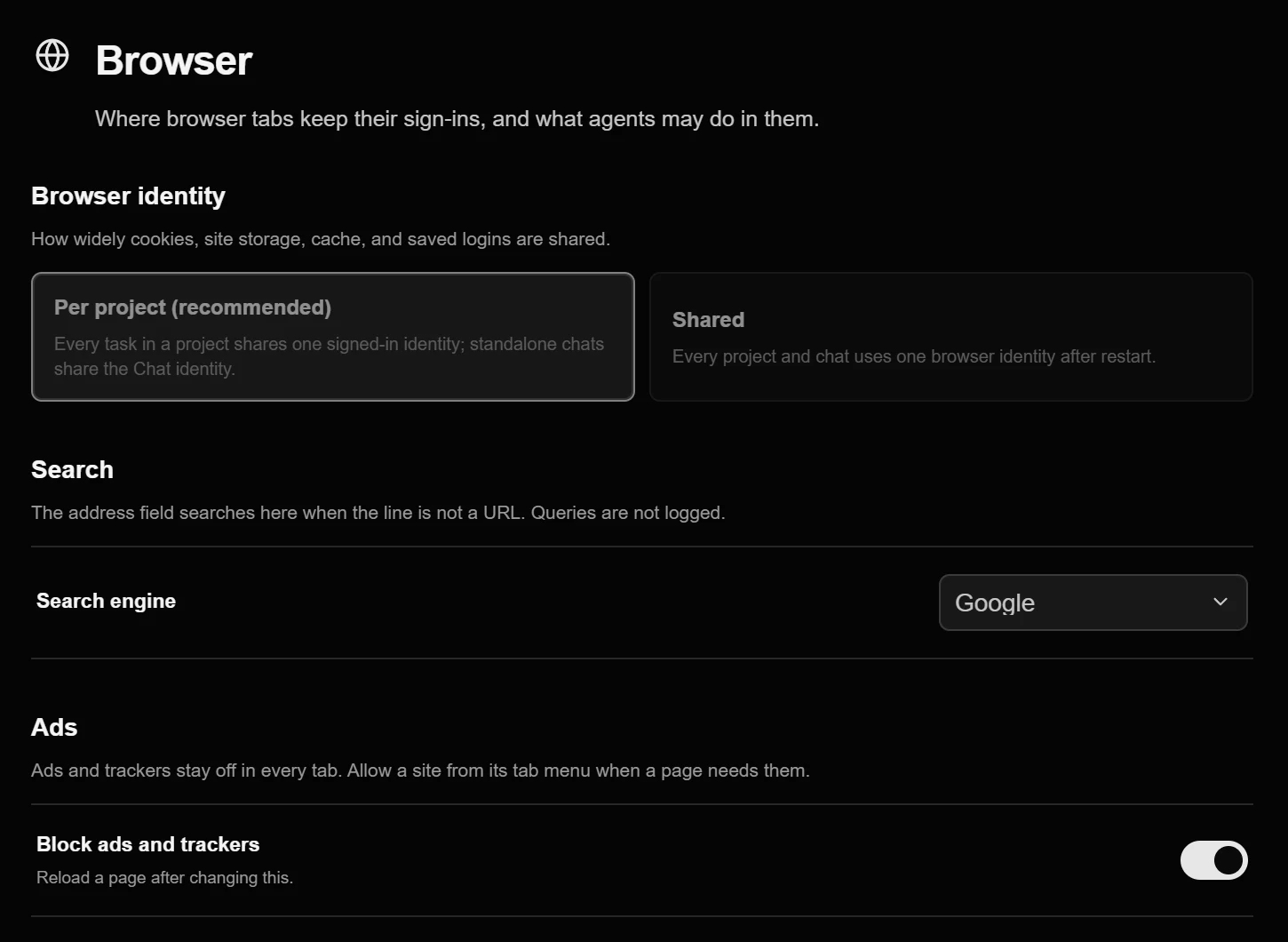
If a site does not work with blocking, or you want to support it, choose Show ads on this site from the ⋯ menu in the browser's toolbar. The app saves only the site's name. Block ads on this site in the same menu turns blocking back on. To turn blocking off for every site, use Block ads and trackers in Settings > Browser.
What an agent reads
An agent working in a tab reads the page as a numbered list of its buttons, links, fields and text. This is the same information screen readers use. Hidden ads are left out of that list and out of the page text, so an agent reads only the page's own content. A password field never reports what is typed in it.
Agents in Code and Chat can hand a routine stretch of clicking to a small, fast model, called the decision model, which picks each step in about a second. The steps go through your AI Integrator account and count toward your usage. The default decision model is d1-ultra from Liquid. If you turn on Zero data retention or No training in the model picker's Privacy section, the steps go to Jev 1.14.0 from Typesafe AI instead, which meets those settings. Jev also handles any step that needs a picture of the screen. How the decision model works is covered in Speeding up computer use.
Cookie banners
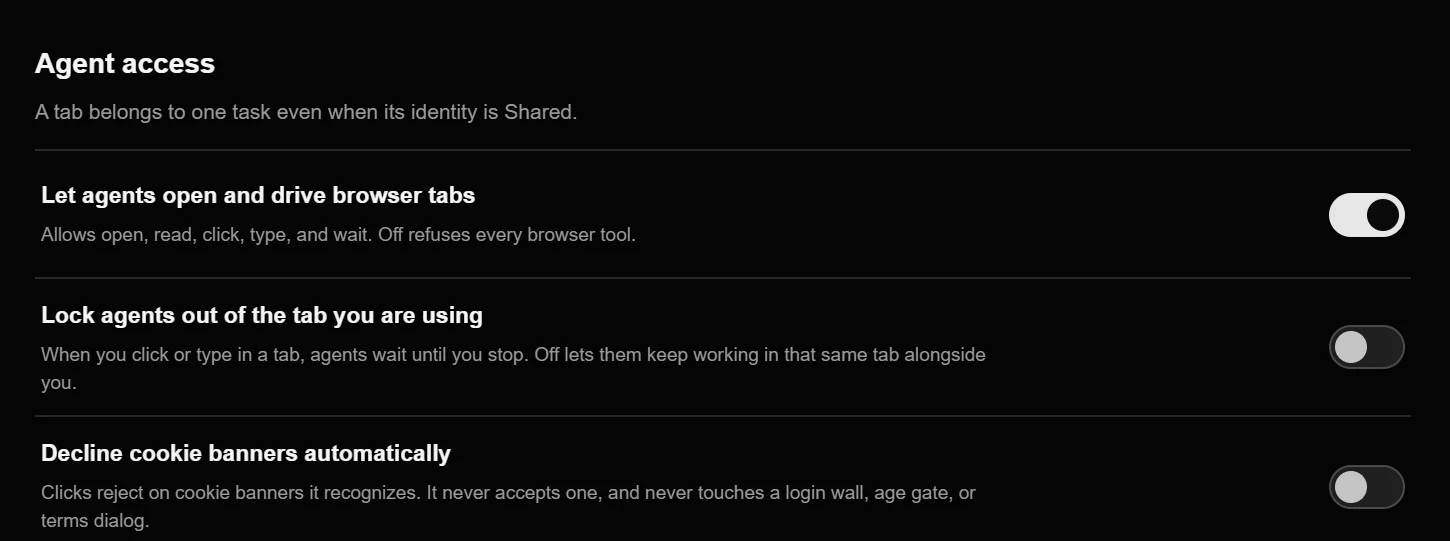
Decline cookie banners automatically, in Settings > Browser, clicks the reject button on banners from six common consent tools: Cookiebot, OneTrust, Didomi, Usercentrics, Quantcast and consentmanager. It never accepts a banner. It never touches a login wall, an age check or a terms dialog. It is off until you turn it on.
Separate sign-ins
Each project has its own browser identity: its own cookies, site data, cache and saved logins. Signing in to a site for one project does not sign you in for another, and Chat has an identity of its own. Every Agent always has its own identity, so one Agent can never use another's sign-ins.
- The browser. On your computer
- Website project. Its own cookies and logins
- Shop project. Its own cookies and logins
- Chat. Its own cookies and logins
- Each Agent. Its own, even when shared
- The browser to Website project
- The browser to Shop project
- The browser to Chat
- The browser to Each Agent
You can choose one shared identity for all your projects and chats under Browser identity in Settings > Browser. Agents always keep their own identities. The same page lets you clear an identity's cookies, site data and cache, or remove its saved logins. With Stay signed in between sessions on, cookies are kept on disk for each identity, so you stay signed in after a restart.
Saved logins
When you save a login in the browser, the password goes into the password store built into Windows or macOS and is kept nowhere else. Settings lists your saved logins without reading the passwords.
An agent can ask the app to sign in to a site. The first time, the app asks you, and you can let agents sign in to that site from then on. The app types the password into the page and tells the agent only which username it used. Until the page moves on, the agent cannot read it or take a picture of it, so the password never appears in anything the agent reads, in a log or in a screenshot. A page cannot choose which login is used: the app only uses a login saved for the exact site the tab is on.
- Agent
- AI Integrator
- Password store
- The page
- Agent to AI Integrator: Sign in to this site
- AI Integrator to Password store: Login for this exact site
- Password store to AI Integrator: Password
- AI Integrator to The page: Types it in
- AI Integrator to Agent: Signed in, username only
Agents in your tabs
A tab belongs to the task that opened it, and other tasks cannot see it. When an agent hands part of its work to a helper, the helper's tabs are hidden from other helpers.
Two switches in Settings > Browser set how far agents reach. Let agents open and drive browser tabs turns agent access off completely. Lock agents out of the tab you are using makes agents wait while you click or type in a tab. An agent can run its own script in a page only on a site running on your own computer, such as one you are developing, and never to read cookies or site data.
Plans
The browser is part of AI Integrator Code, which is on every plan, including Free. Steps chosen by the decision model count toward your plan's usage.