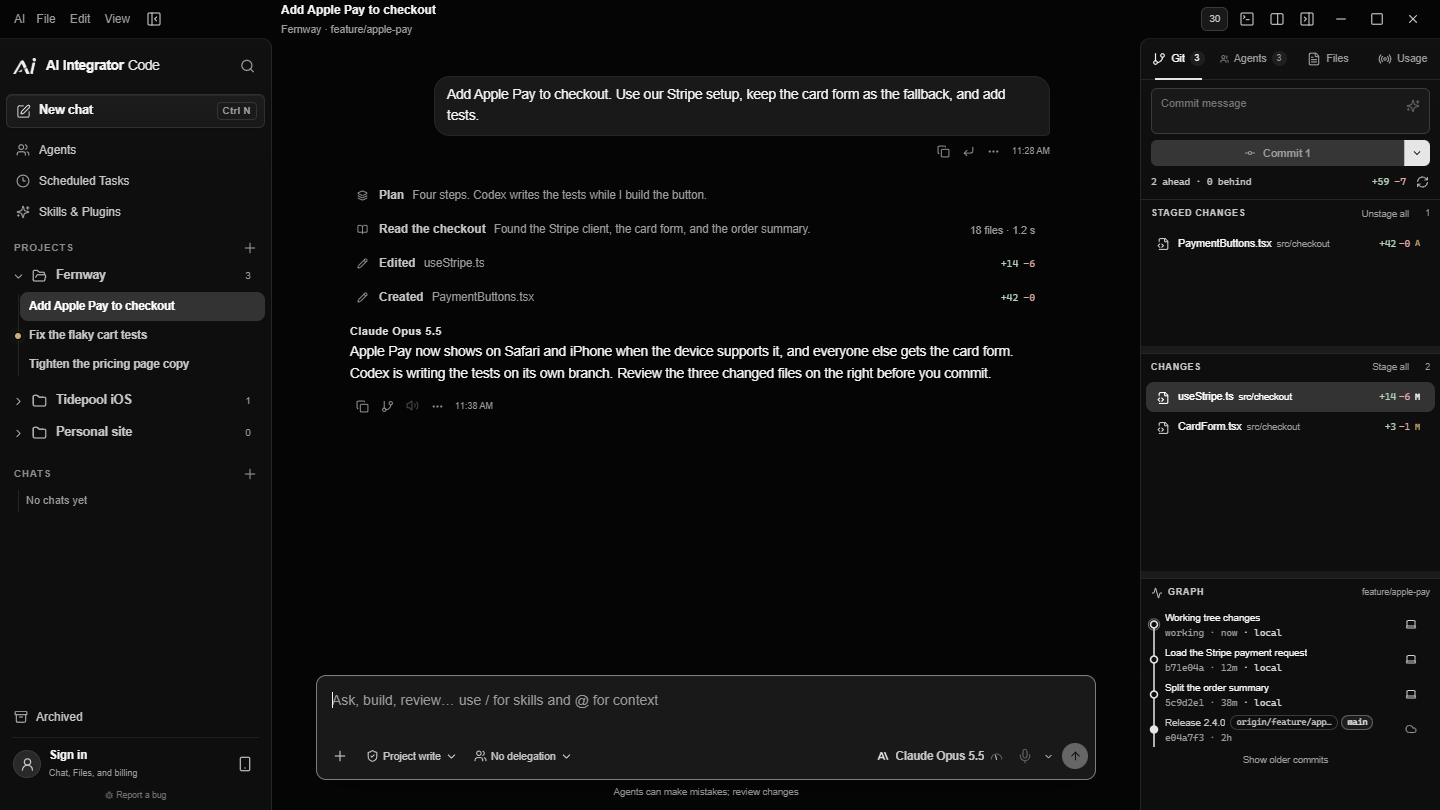
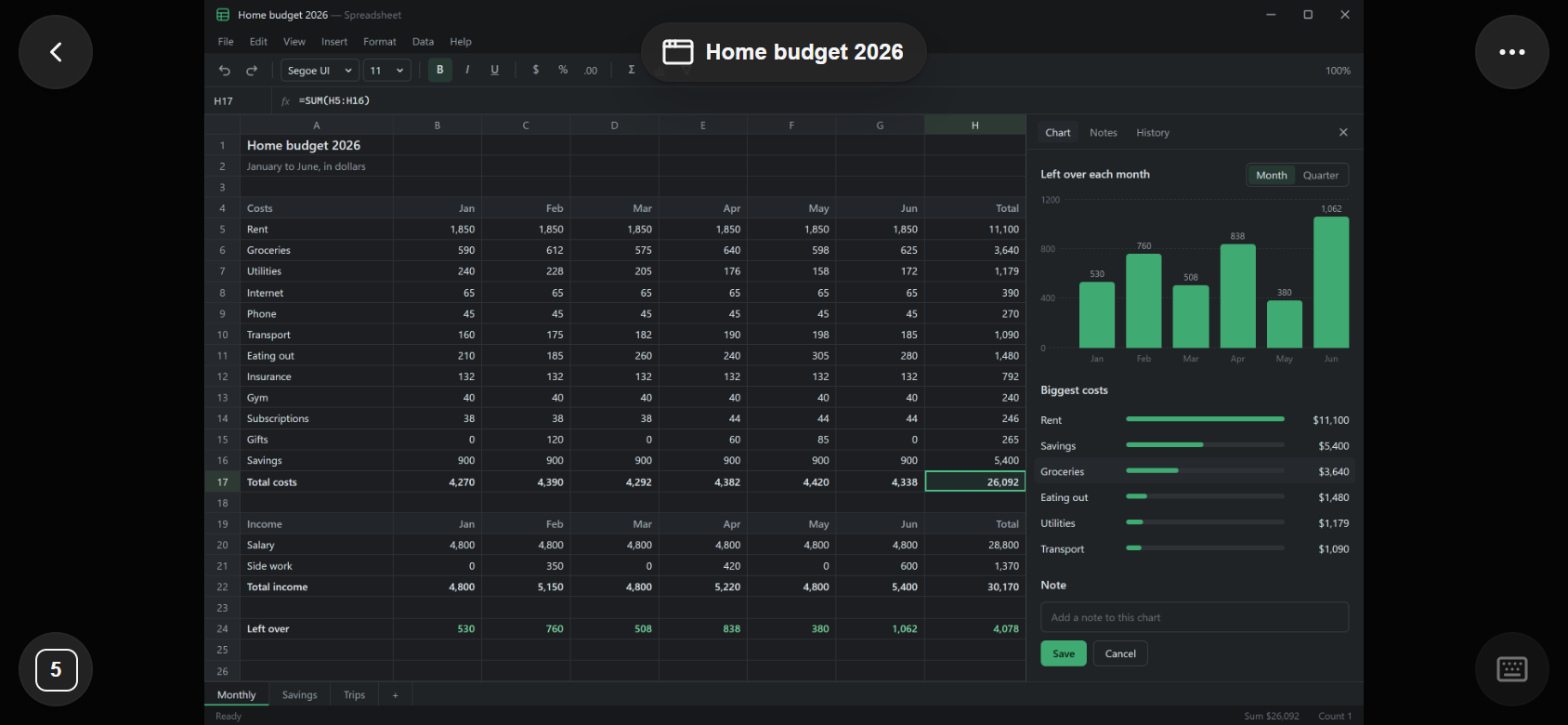
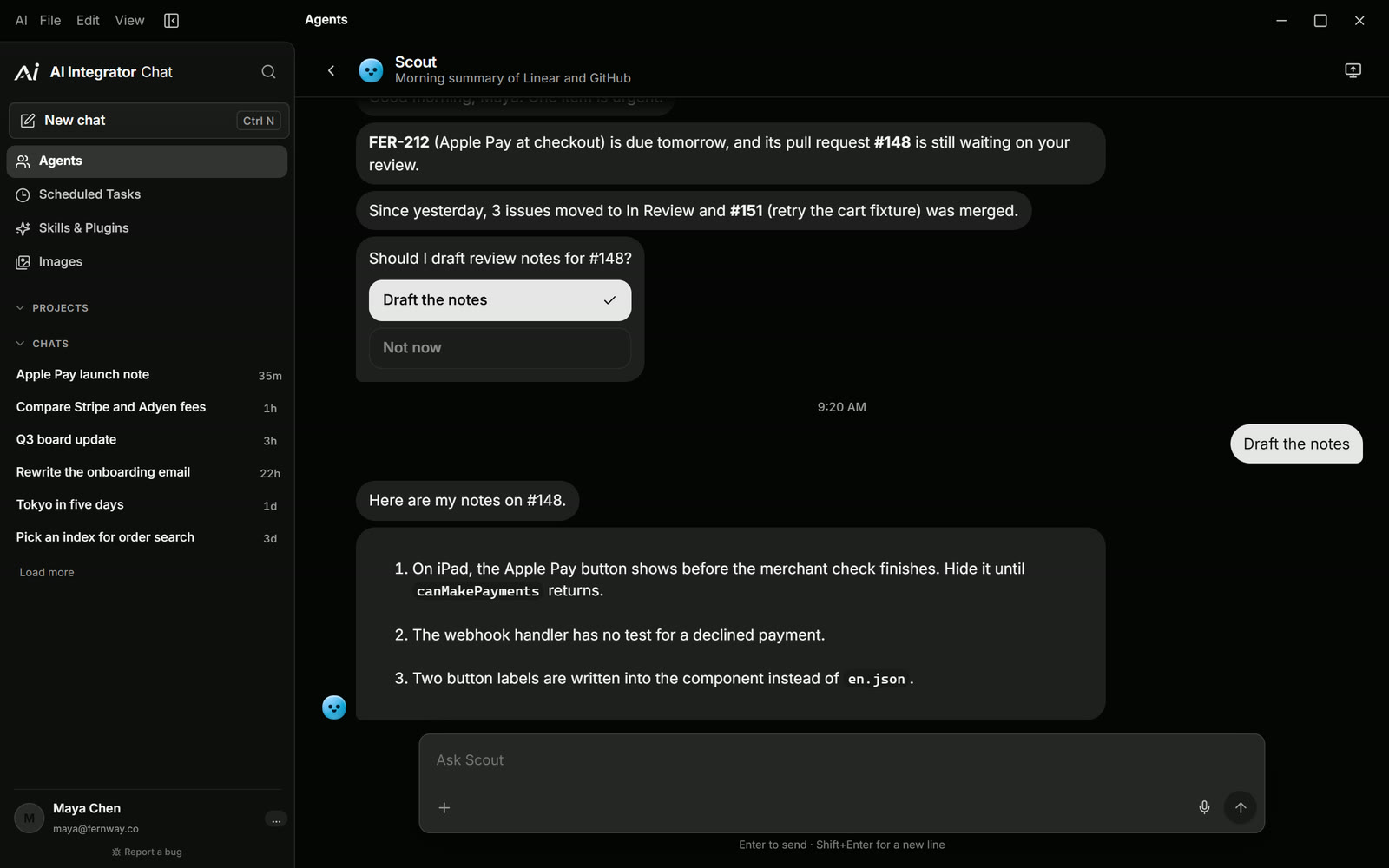
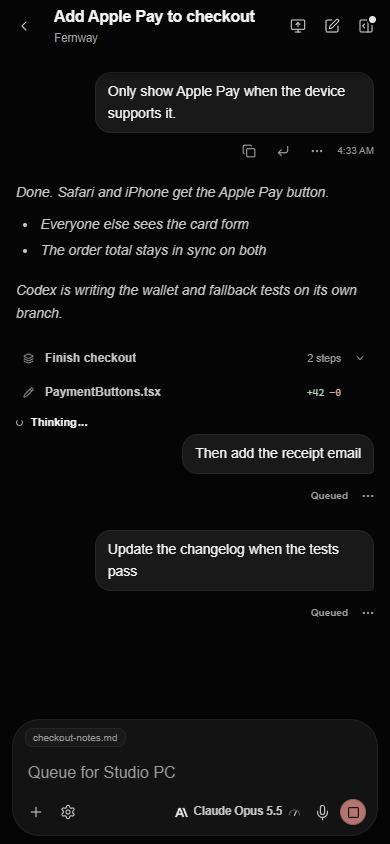
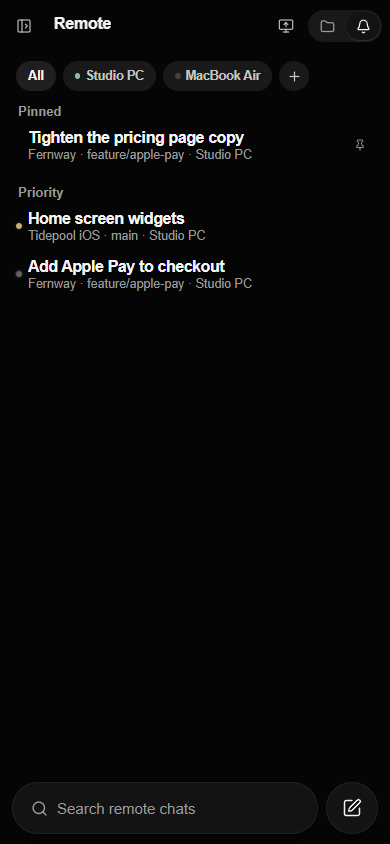
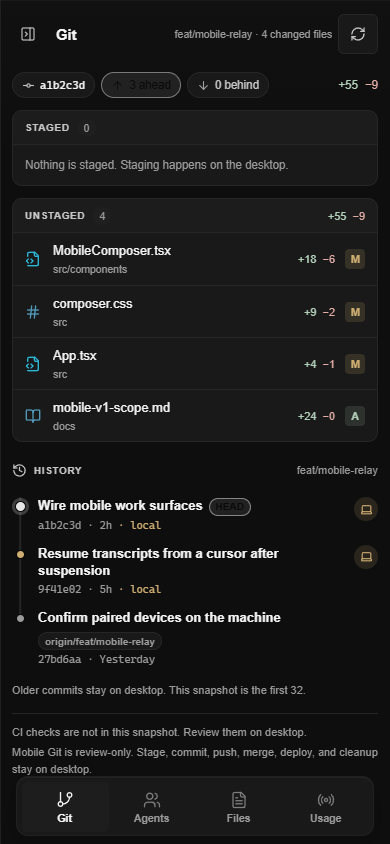

An Agent can now use the apps on your computer, if you let it. Turn it on for a computer, and an Agent or a Chat you start can look at that computer and operate it: its own browser, a single app window, or a whole screen. It asks before it touches an app, you can pause or stop it at any time, and it always asks before a purchase.
This is separate from Remote Access, where you see and control your own computer from another device. Here the one doing the clicking is an AI model, and the rest of this article is about how it is kept on a leash.
Models can use computers. The hard part is everything around it.
Models have learned to use a computer the way a person does: reading the screen, moving a pointer, typing, and trying again when something goes wrong.
The ability keeps improving. Anthropic reports that Claude Opus 5.5 scores 81.8% on OSWorld 2.1, a test of computer tasks, against 74.0% for Opus 5. Those are Anthropic's own numbers. Anthropic has also been open that computer use is imperfect: scrolling, dragging and zooming have been hard for models, and it suggests starting with low-risk work.
A model that can click is the easy half. The other half is control: who allows it, what it may touch, how you watch it, and how you stop it.
It is off until you turn it on
Open Settings, go to Remote Access, and find the section for your computer. Let Agents use this computer is off by default, and it is per computer. Turning it on for your desktop does not turn it on for your laptop.
There are two ways in. An Agent can be given a job, and you follow it from a card on its Home page with Watch, Message, Continue and Stop. A Chat can start work on the computer, watch it, and stop it, and you can answer the computer's questions from the conversation. An Agent's run also shows up on your phone and on the web.
It asks first, and it asks for more when money is involved
Before an agent uses an app, the computer asks you.
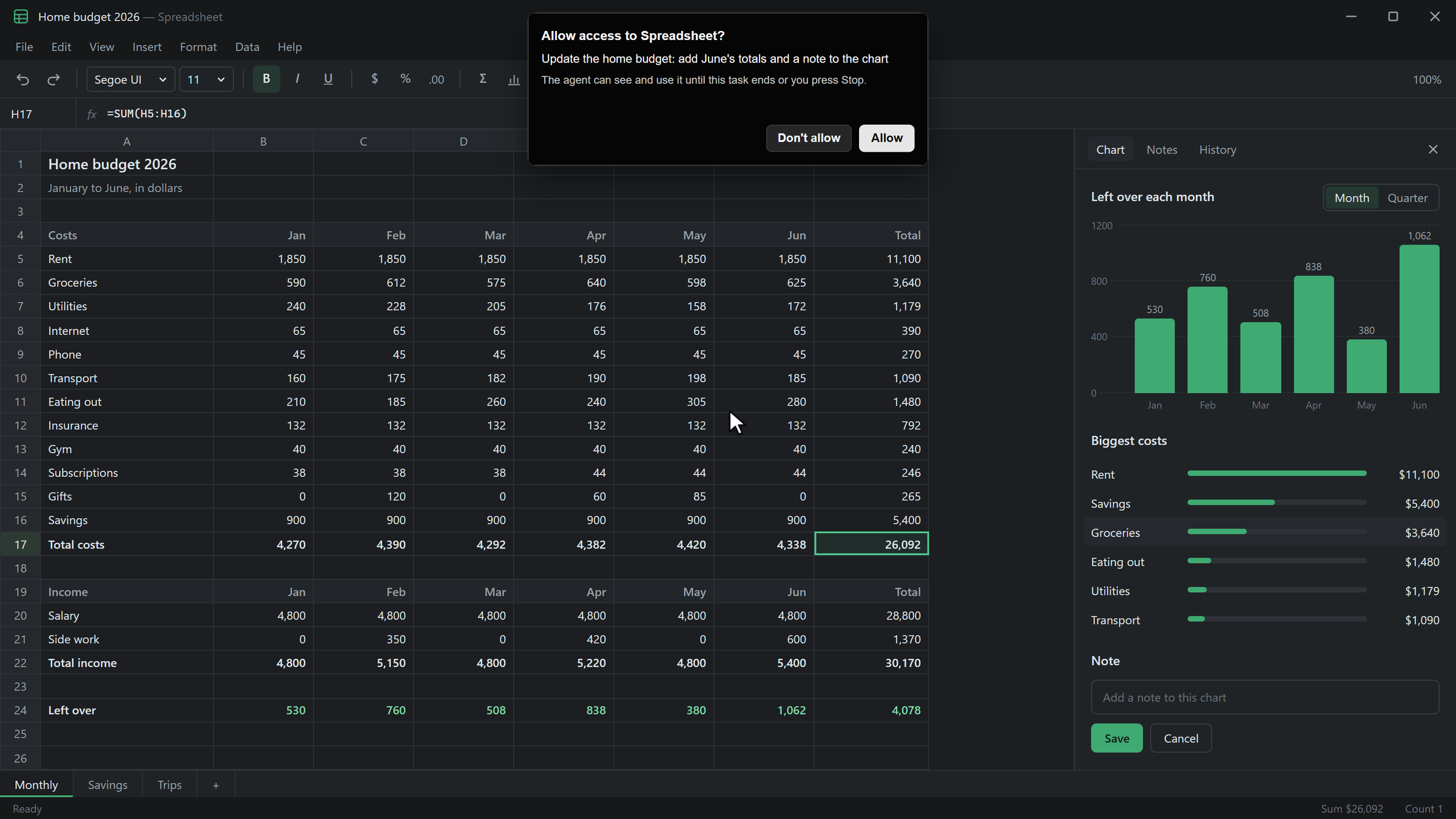
You can choose Allow, Always allow or Don't allow. Always allow is remembered on that computer only. If you do not answer within 90 seconds, the answer is no.
A purchase is different. When the agent is about to press a control such as Buy now, Pay, Place your order or Donate, you are asked every time: Allow a purchase on this app? Always allow does not cover it, full access does not cover it, and an Agent's own settings do not cover it. No answer in 90 seconds is a no.
Some things are never allowed. The agent cannot use AI Integrator itself, or security and password apps. System settings are look-only. Shortcut chords that would switch windows away from the app are refused. Passwords are never read or typed for it.
You can see what it is doing
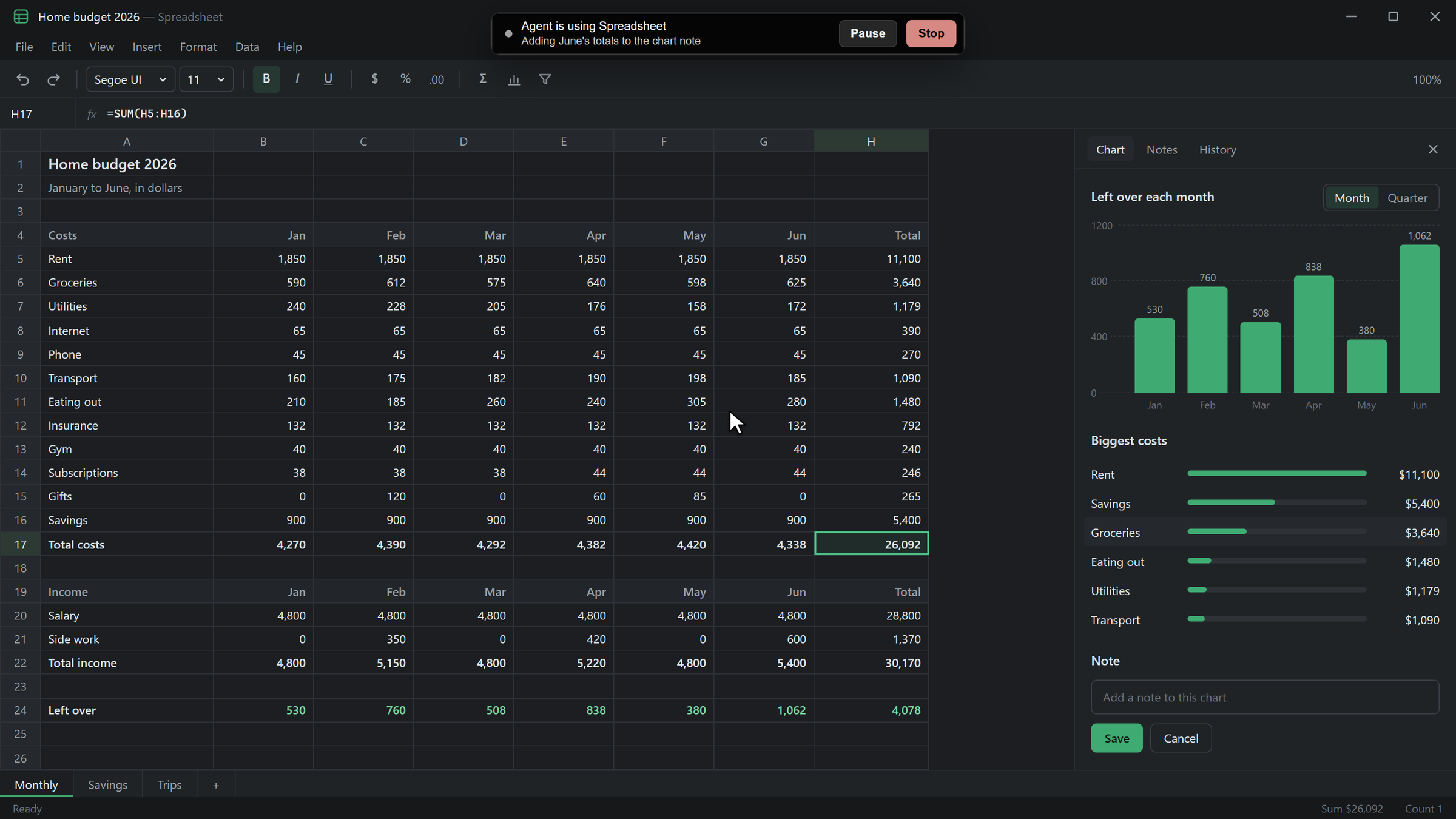
While an agent works, a small sign floats above everything on the screen: Agent is using the app's name, with Pause and Stop. The sign is left out of what the model sees. A cursor shows where the agent is acting, including on a second display, so you can tell what it is about to click.
In the chat, a computer card stays up while the work continues, with Pause, Resume and Stop. Using your own mouse does not stop the agent. The Stop button does.
Who decides each click
Each step in a browser or an app is picked by a fast model, about a second per step. It hands control back when it is not sure, and before a step that looks risky. You can choose which model does this under Decision model in Settings. The default is a small model built for the job, and a different one is used when your privacy setting is zero data retention.
What leaves your computer
Computer use is not like Code, where your code stays put. To decide what to click, a model has to see the screen. Page text, an outline of the window and screenshots go to that model through your account. In a Chat, only the newest screenshot is sent and none are stored. An Agent's run keeps up to 24 previews, with sensitive parts masked, for seven days so you can look back at what happened.
What to know
Windows is where it is built and measured. A Mac version is written but has not been run on a Mac yet. A run is limited to 80 steps, and if the computer goes to sleep, the run waits and picks up again when it wakes. Some Windows apps, such as ones running as administrator, are harder for it to reach. It is a capable helper for small chores, and for anything that matters you should keep your hand near Stop.