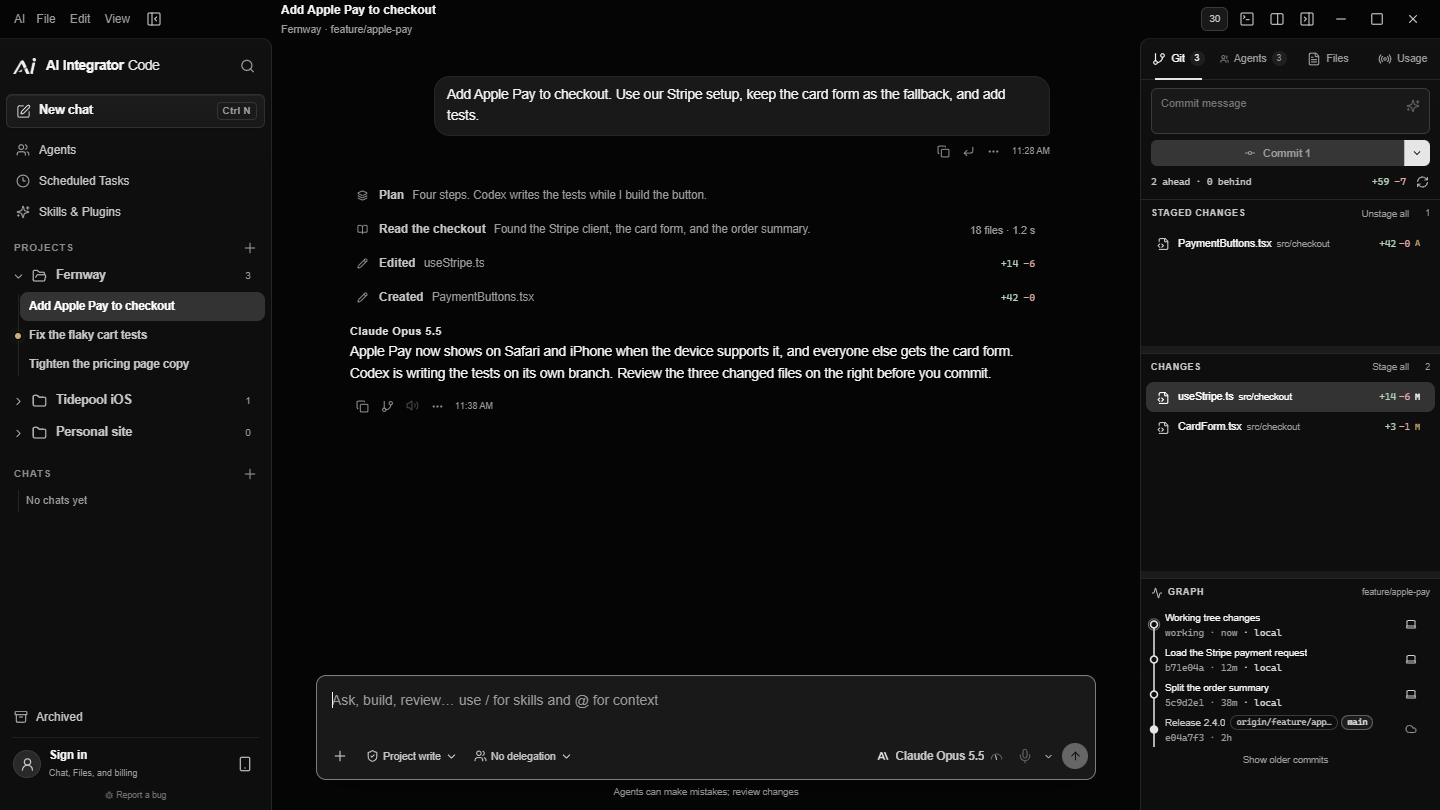
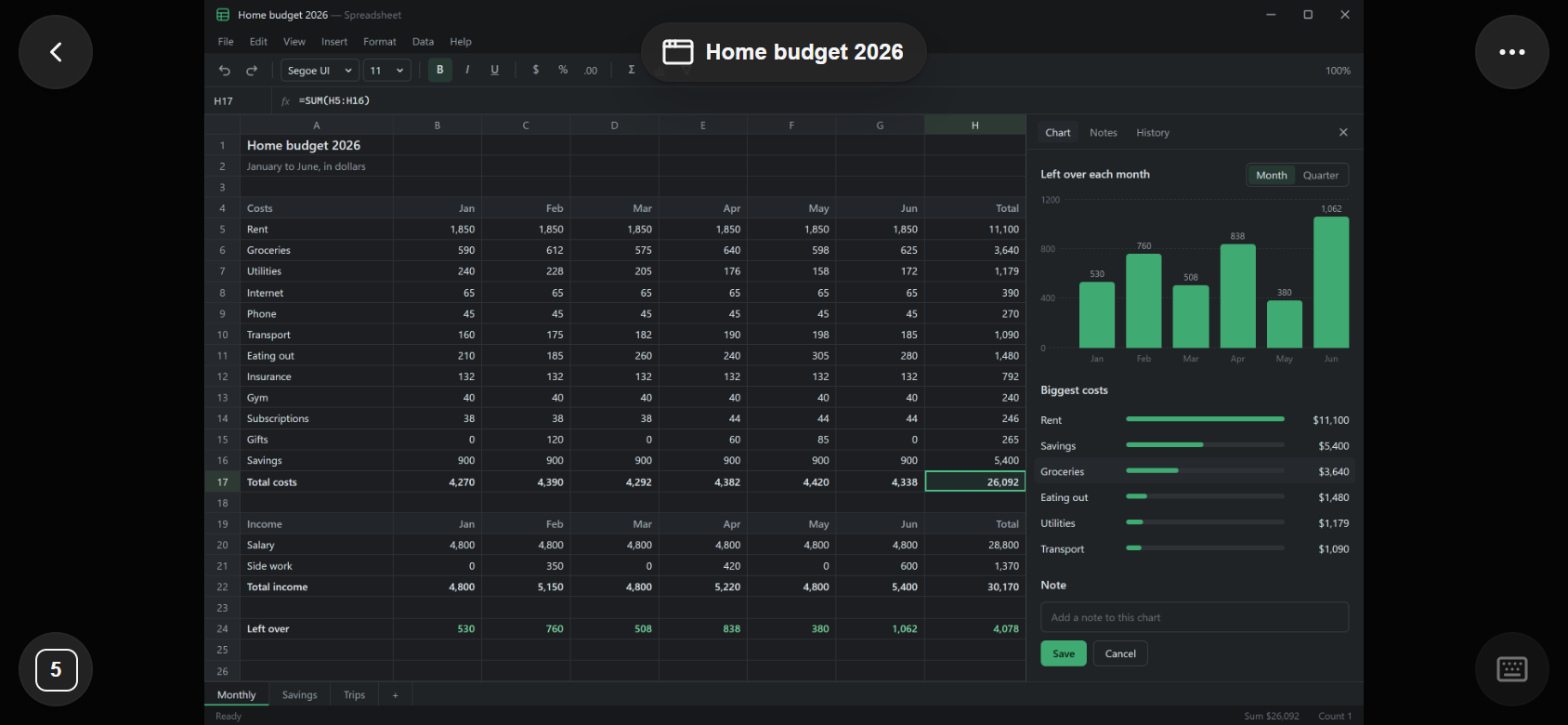
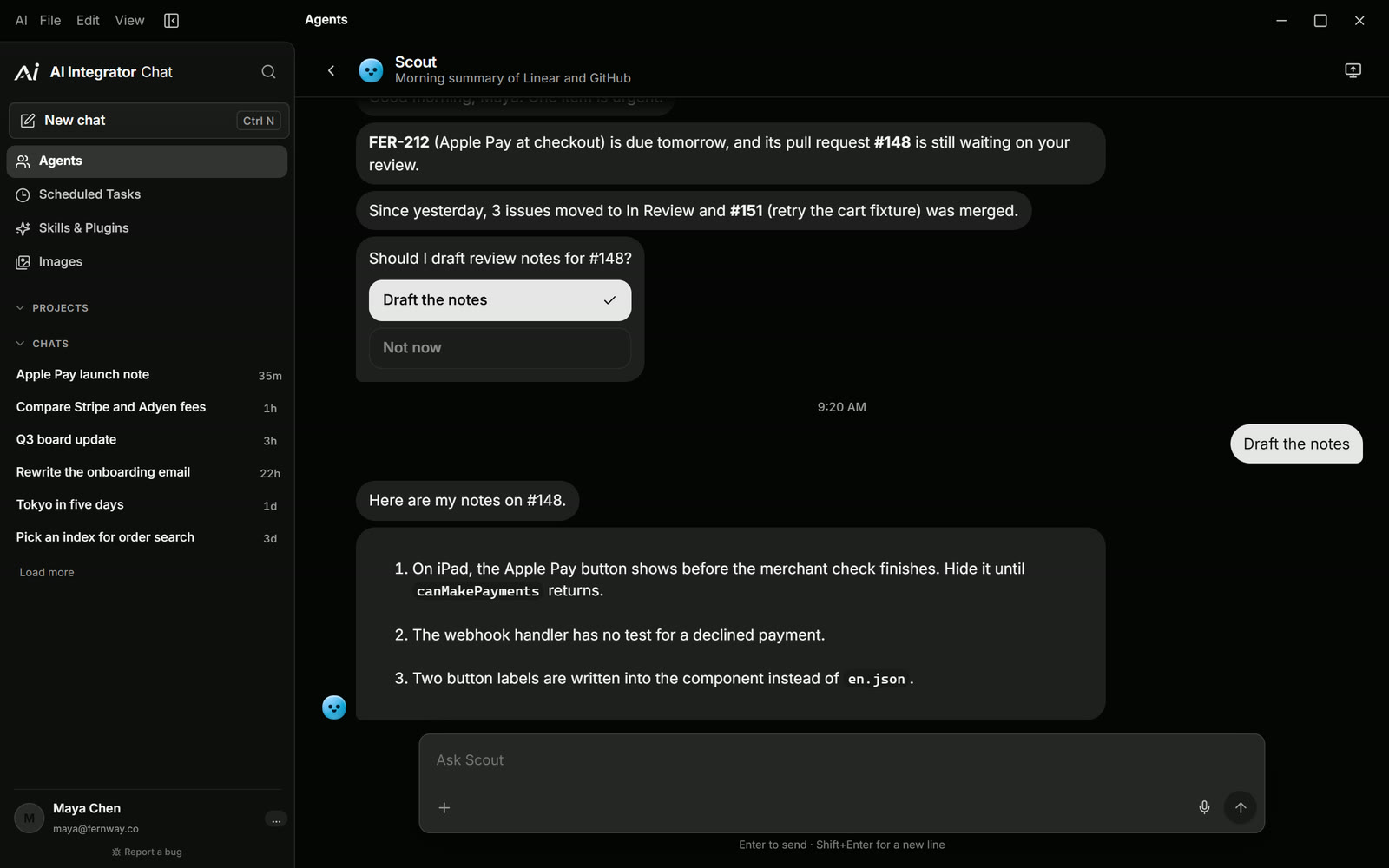
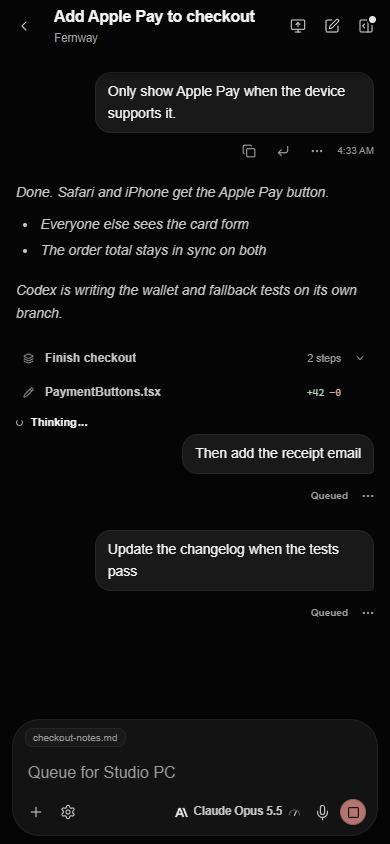
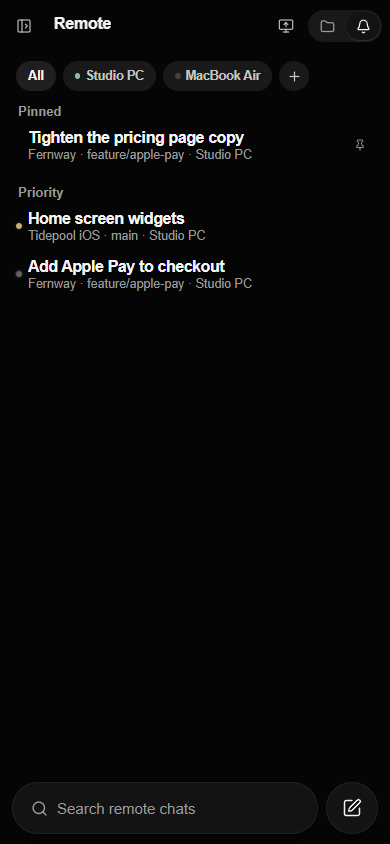
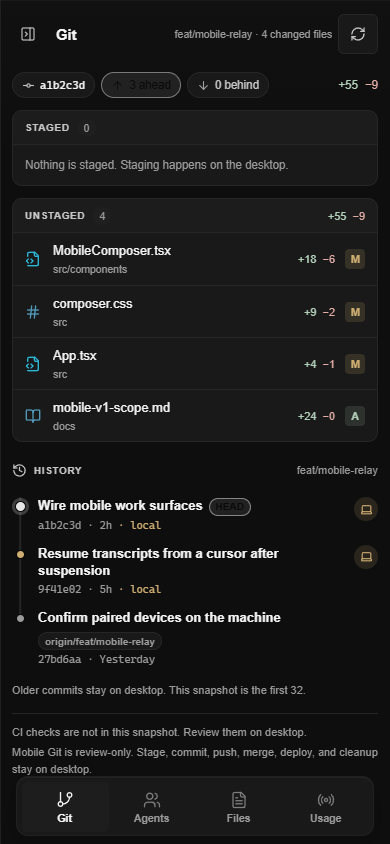

You can now open your computer from your phone, from another computer, or from a browser. You see its apps and screens as live video, with sound, and you can use them: tap, drag, type, or play a game with a controller.
It started as a way to check on a coding agent from the couch. It turned out that once you can reach your computer, you want to reach all of it.
Open an app or a whole screen
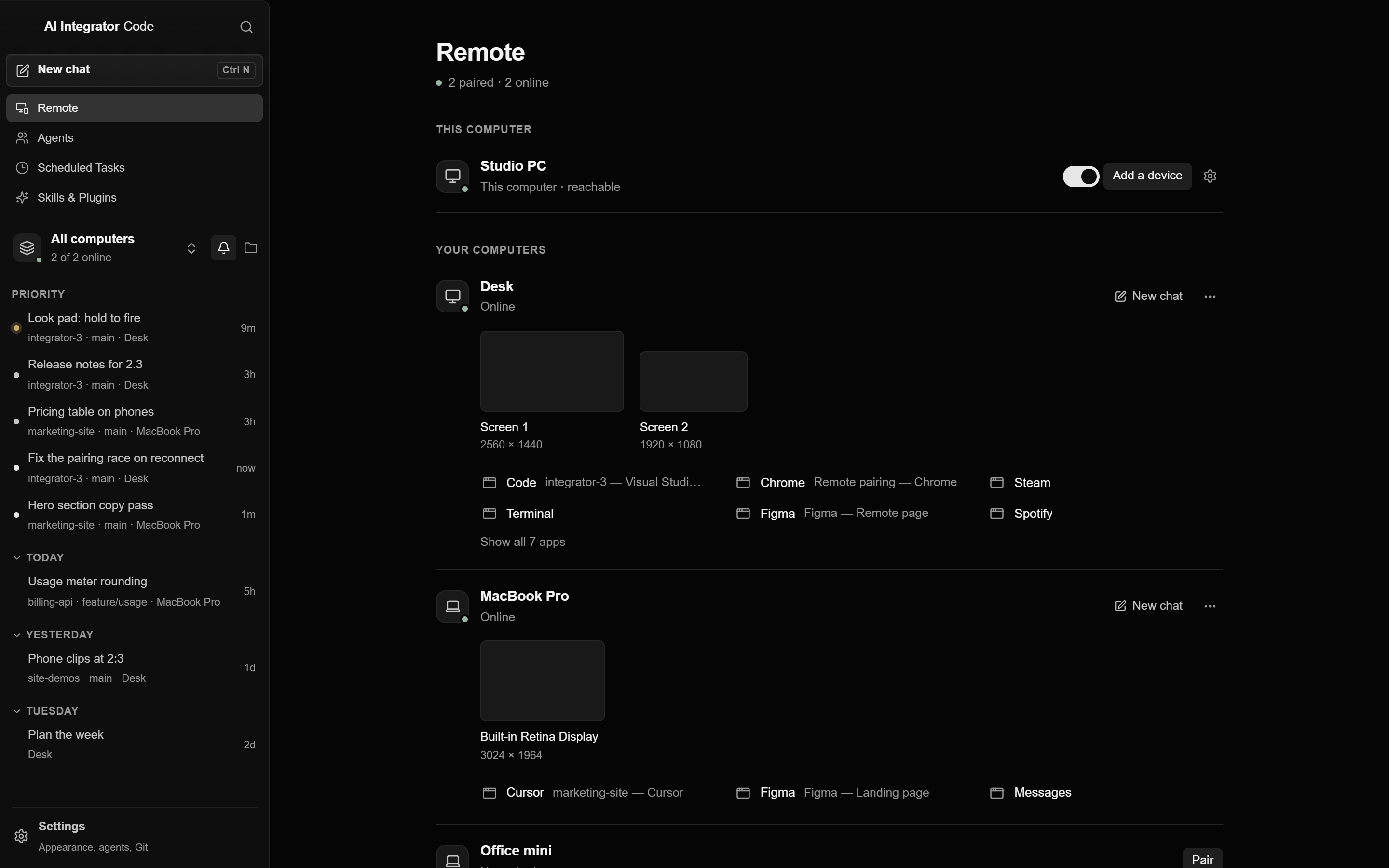
A paired computer shows what is open on it: each app window, and each display. Pick one and it fills your screen. You can zoom and move around, and on a phone the keyboard button opens the on-screen keyboard.
An app window is the lighter choice. You see that window and nothing else on the computer. A whole screen shows everything on that display, so it asks for more trust, and it comes with a safeguard covered below.
Pair once, with a code
On the computer you want to reach, choose Add a device. It shows a QR code and a six-character code. On the device you want to use, scan the code or type it. The code changes every 30 seconds, and a wrong guess counts against a short limit, so it cannot be guessed its way in.

Both devices have to be signed in to your account, and the computer checks that every time you connect. Pairing alone does not give the new device much. A new device can see your chats and send prompts, and nothing else until you switch more on. There are twelve switches in all, including View apps, Control apps, View screens, Control screens and Manage this computer, and you can change them for each device whenever you like.
Control it the way that suits the device
- Touch. Tap and drag on the picture directly.
- Trackpad. The phone becomes a trackpad, so your finger moves a cursor instead of pointing at it. A drag holds the button down until you lift your finger.
- Gamepad. A controller layout on the phone, for anything that expects one.
- Keyboard and mouse. On another computer or in a browser, use them as you normally would.
If you are sitting at the computer, you win. When you touch its mouse or keyboard, input from the remote device pauses, and it comes back after a second of quiet. Up to two people can watch at once. The first viewer is in charge, and the second can take control once the first has been idle for three seconds.
A screen tells you when it is being used
When someone controls a whole screen, the computer shows a bar on top of everything: Your phone is controlling this screen, with a Stop button. The bar is left out of the video, so you see it and the viewer does not.
How the connection works
The picture is H.264 video, with audio, sent between your devices over WebRTC, the same technology as browser video calls. It does not go through a relay and it does not pass through AI Integrator servers. A phone can reach a computer on the same network, or over Tailscale, ZeroTier or another private network that you already use. In a browser, the computers you can pick are the ones that publish a Tailscale address.
When a connection struggles, you can see it. Open the menu and choose Show stats to see the delay and the frame rate as they happen. How the picture was made fast enough to be worth watching is covered in Why Remote ran at 2.4 frames a second.
Plans
Remote screen control, and using Remote with more than one computer, are part of Pro and Max. On the free plan, you can still run Code from your iPhone on one computer, as described in Pair your iPhone with your computer.
What to know
Windows computers come first. Mac support is built, and needs Screen Recording and Accessibility permission in System Settings, but it has been tested far less. The computer has to be on and awake to be reached.
A remote connection shows you and lets you control a screen. It is not the same thing as letting an AI agent use the computer. That is a separate switch, with its own permissions, and is described in Let an agent use your computer.