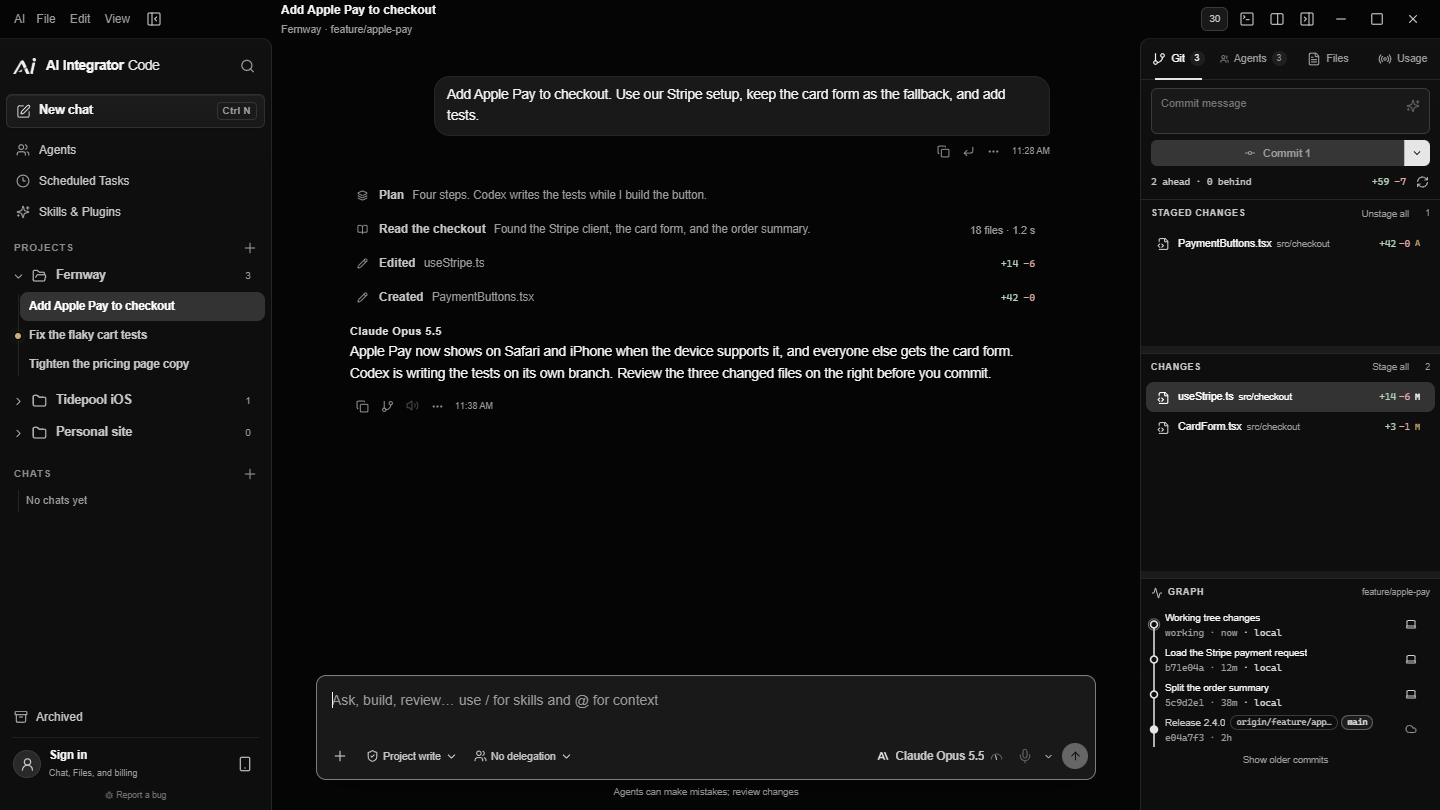
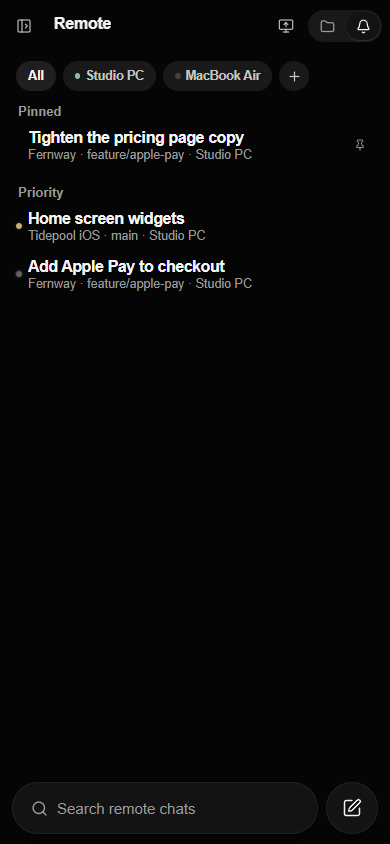
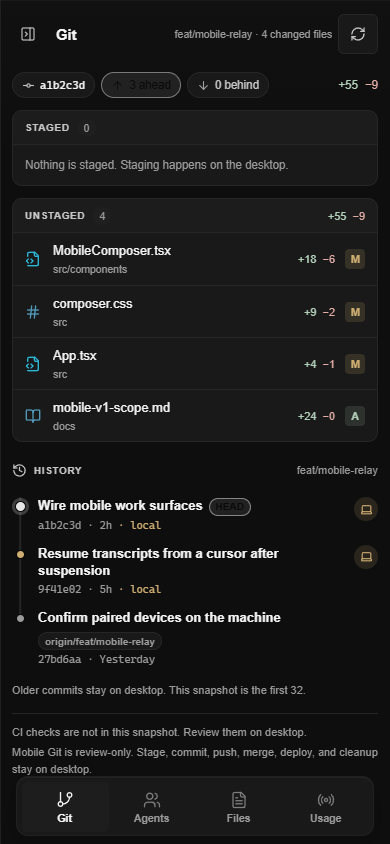

The work you start at your desk does not stop when you leave it. A long refactor is still running, an agent has a question, and you would like to see what it did without walking back to the computer. Pairing is the way to reach the computer from your phone.
You pair your iPhone with your computer once. After that you can open your projects, read and continue your chats, look at a file, review a change, and watch your computer's browser, all from the phone. The work itself still runs on the computer. Your phone is a remote control, not a second copy of the app.
Pairing takes about a minute
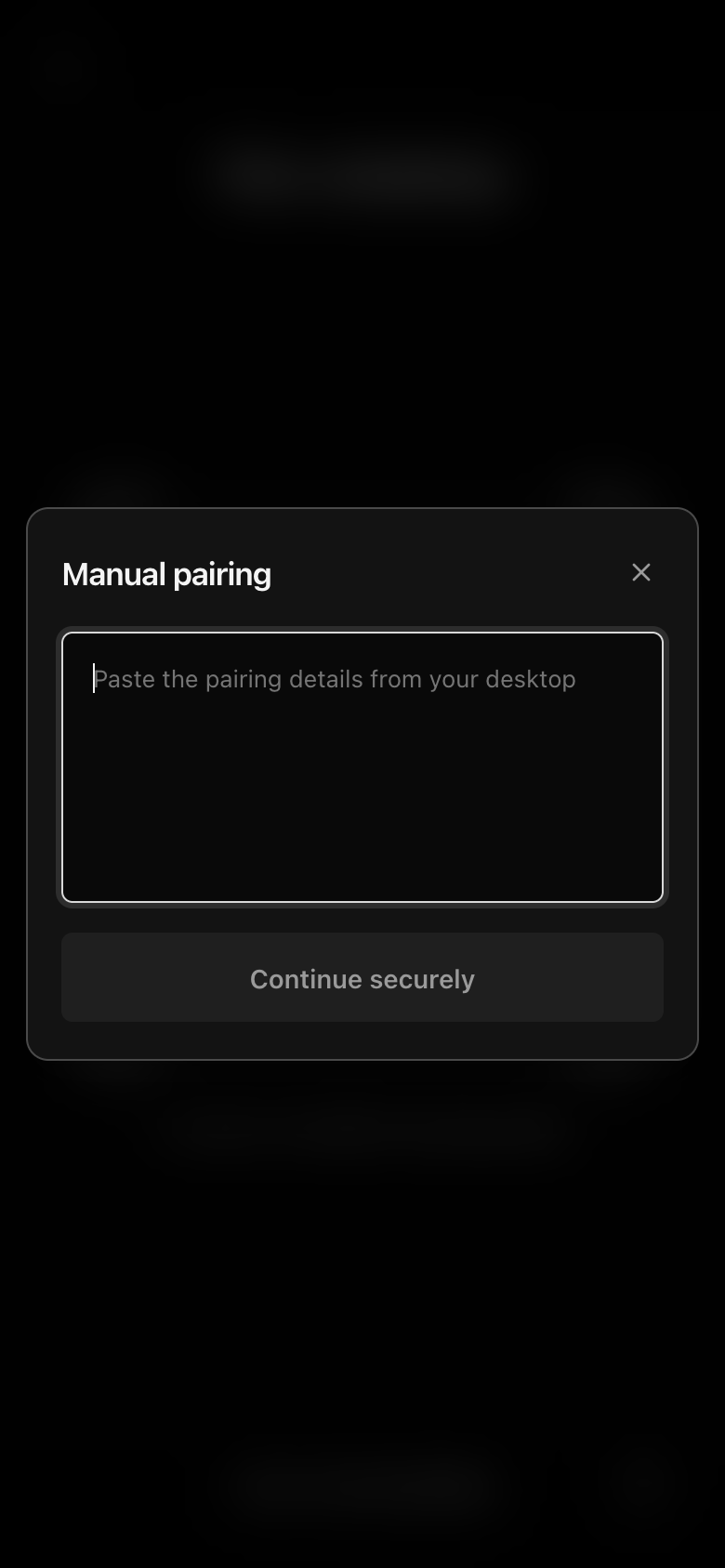
On the computer, open Settings and go to Remote Access, then choose Add a device. The computer shows a QR code and a short code. On the phone, open Pair a desktop and point the camera at the QR code, or choose Type a code and enter it instead.
- You
- Computer
- iPhone
- You to Computer: Add a device
- Computer to iPhone: Shows a one-use QR code
- iPhone to Computer: Scans it and sends its key
- Computer to You: Asks you to confirm
- You to Computer: Confirm
- Computer to iPhone: Grants the access you chose
Nothing sensitive is in that QR code. It is shown only after you click, it works once, and it expires quickly. It carries no password, no repository path and no chat. The computer also waits for you to confirm the new phone before it gives the phone any access.
Pairing also sets up a key on the phone. The key lives in the iPhone's Secure Enclave and cannot be copied out of it, which means a stolen backup or a cloned phone cannot pretend to be yours. On Windows and macOS the computer keeps its half of the pair the same way, in the operating system's protected key storage.
What you can do from the phone
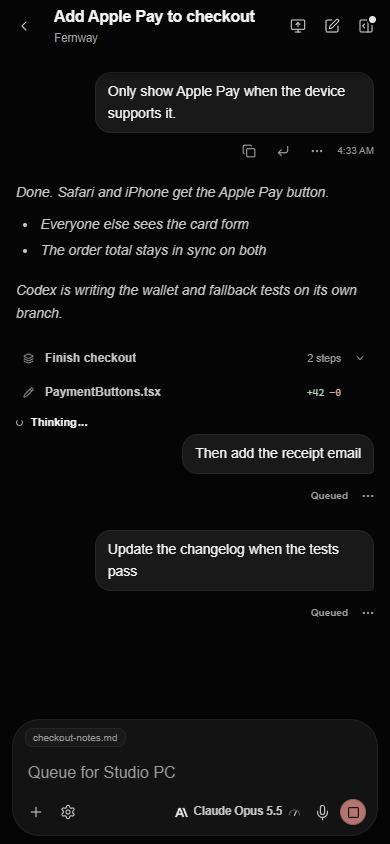
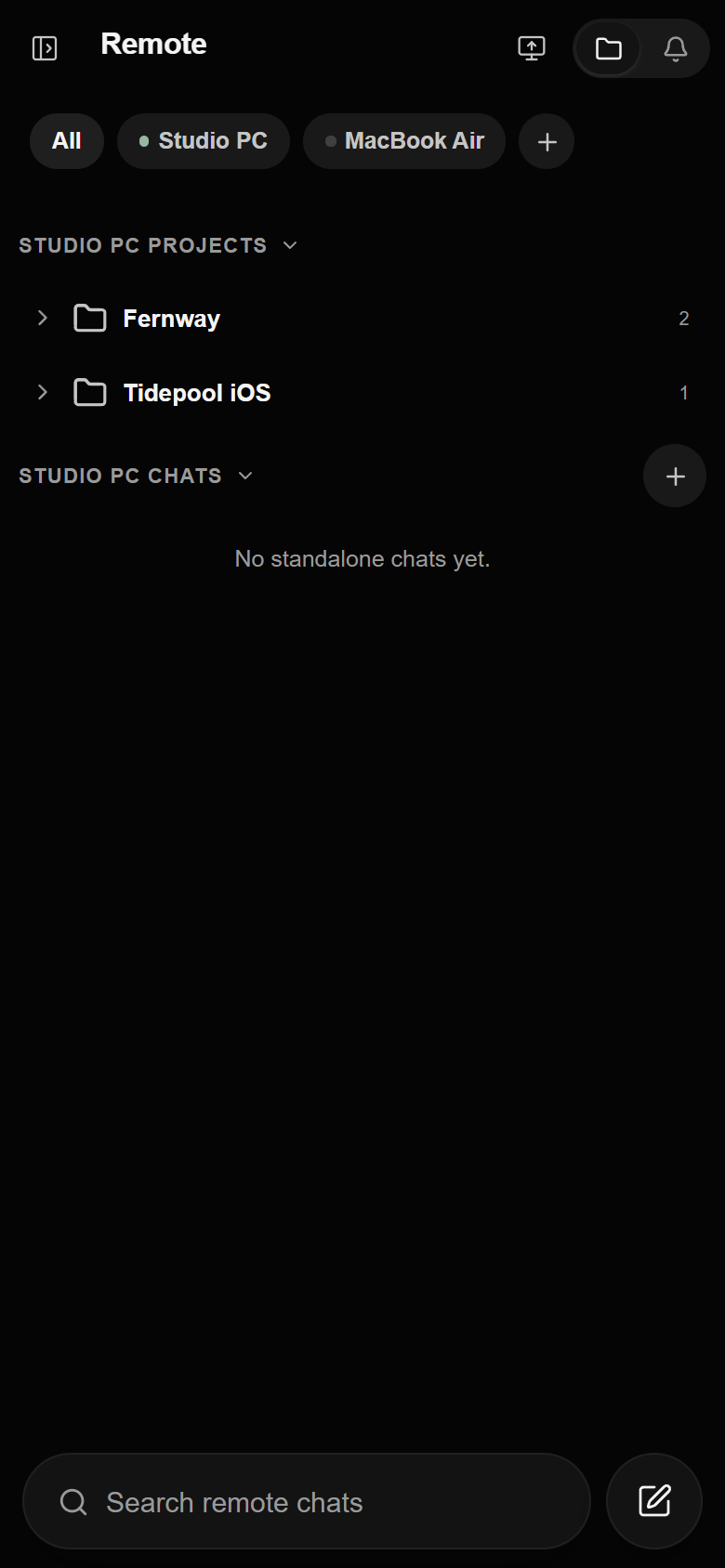
- Projects and chats. Your projects appear grouped by computer. Open one, read the conversation as it streams in, and send the next message.
- Files and changes. Open a file to read it, or open the Git tab to review a change before you decide what to do about it.
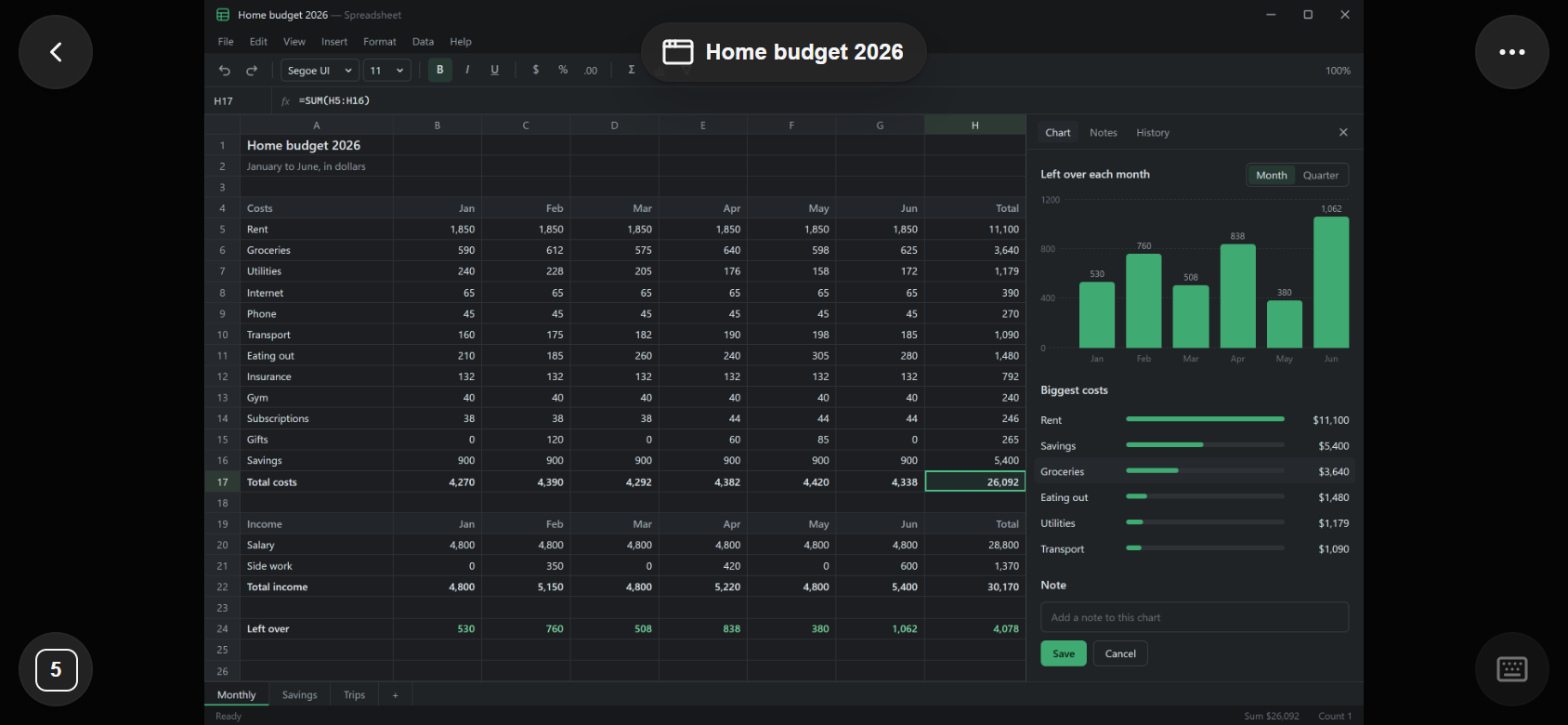
- The computer's browser. The Integrator browser that agents use is visible from the phone, with taps, scrolling and typing. You see a picture of the page. Cookies, passwords and the page itself stay on the computer, and saved logins are filled in there.
- Status that tells the truth. When you send a message, the phone says what is happening to it: sending, confirming, starting, thinking. A message that has not reached the computer does not look like one that has.
Where your work lives
The computer is the source of everything. Your repositories, Git history, tasks, transcripts and vendor sign-ins stay on it and never pass through your AI Integrator account.
The phone and the computer talk to each other directly over Tailscale, which is a private network that only your own devices belong to. AI Integrator publishes the connection on that network with Tailscale Serve. If Tailscale Funnel, the feature that exposes a service to the whole internet, is switched on for it, AI Integrator refuses to publish and says so: "Funnel is on. Publishing stays blocked."
What to know before you try it
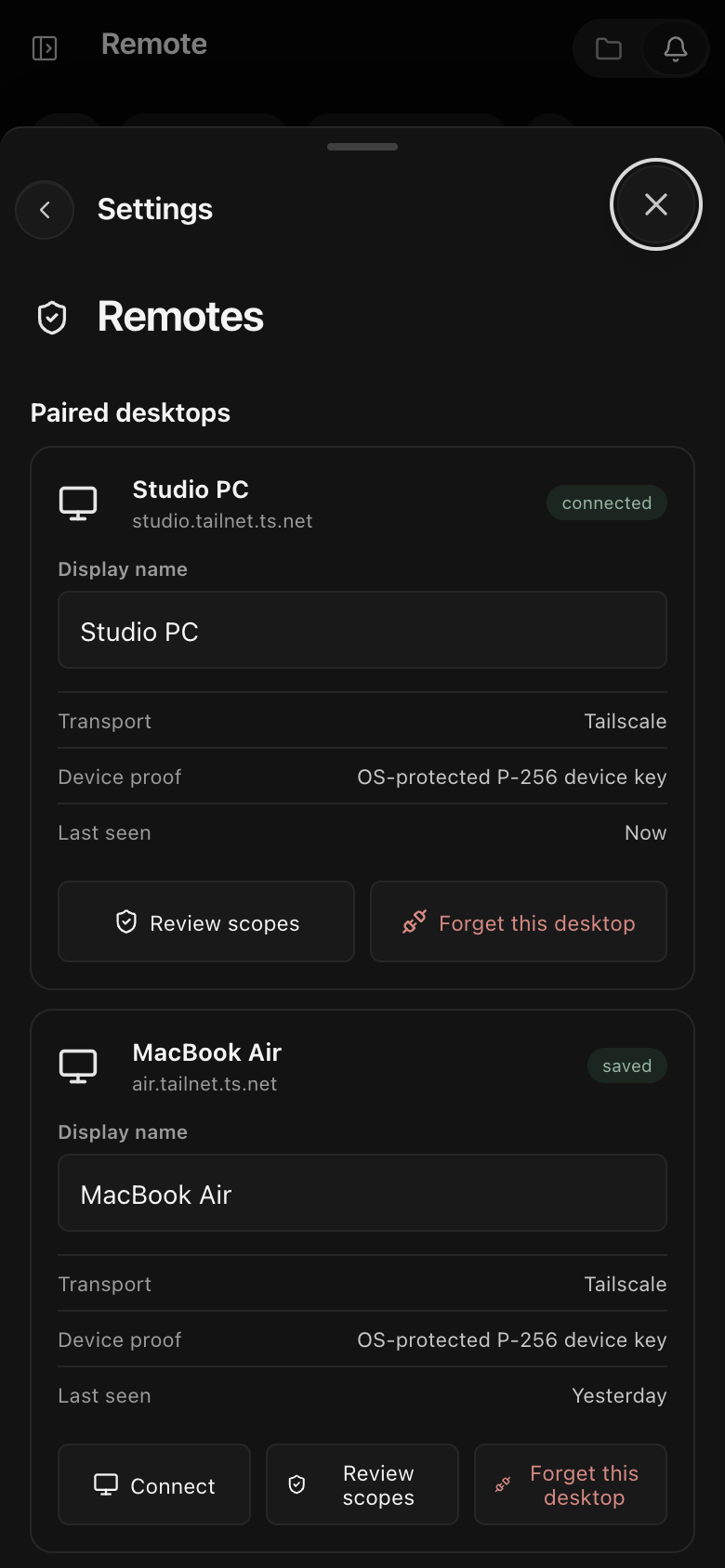
The computer needs to be on and unlocked for you to reach it, and both devices need Tailscale. You can see every paired computer under Settings, rename it, look at what the phone is allowed to do with View permissions, and remove it with Forget this desktop.
The iPhone app is in public testing on TestFlight. The TestFlight article has the link and the steps.