AI Integrator Files can now create and edit documents, spreadsheets and presentations on the web, in the desktop app and on iPhone. Each file has an Assistant that edits it with the model you choose. When a change affects how the file looks, the Assistant checks a picture of the result and fixes problems before it replies, and you can undo any change it makes.
Documents
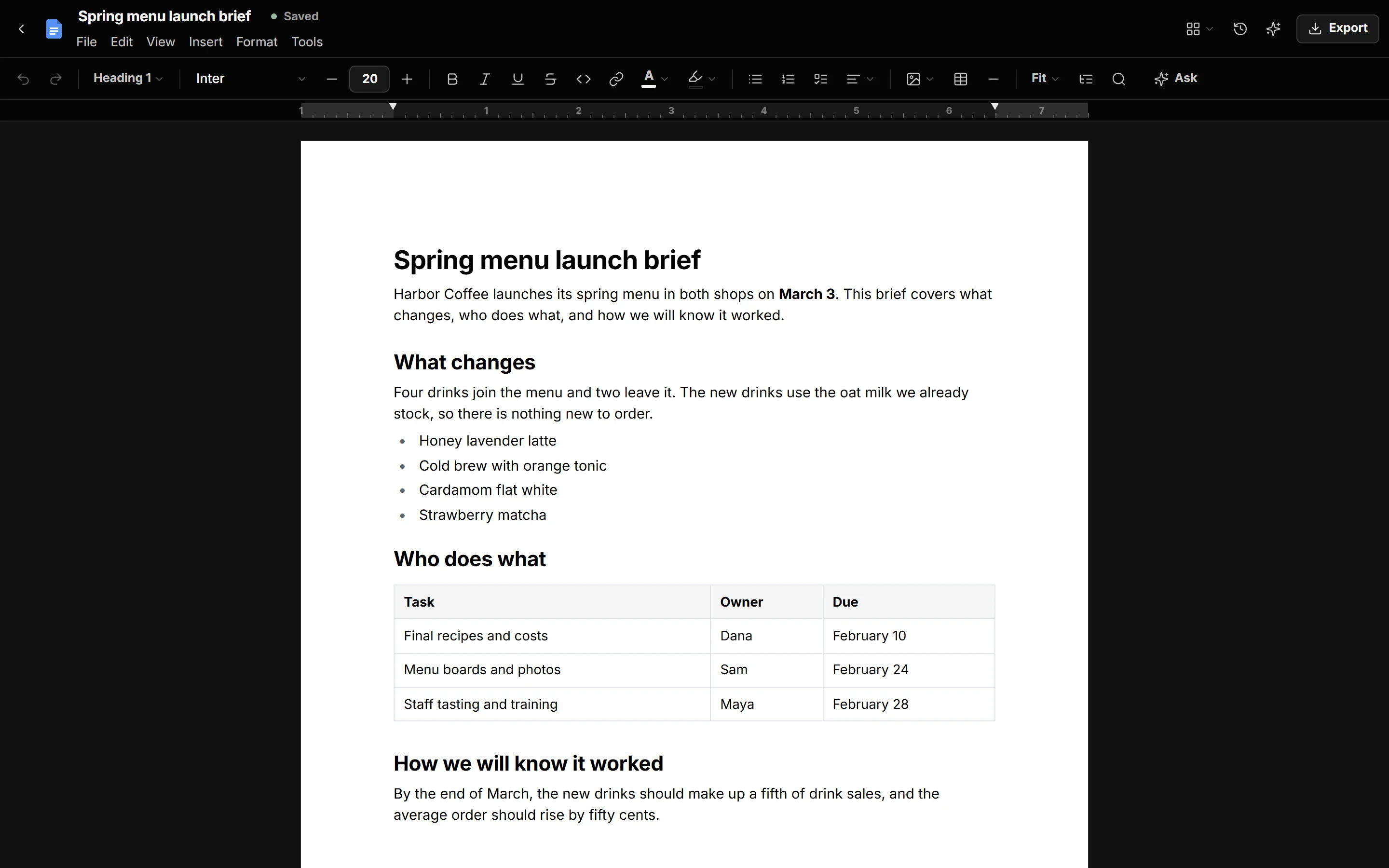
New documents start on a US Letter page with a ruler. You can switch the paper size to Legal, Tabloid, A4 or A5, turn the page to landscape, set the margins, or make the document pageless so it scrolls as one continuous page. The menu bar has File, Edit, View, Insert, Format and Tools menus, and the toolbar below it shows the controls for whatever you have selected.
Documents include 54 built-in fonts, from sans serifs to handwriting styles, and you can add any font from the Google Fonts catalog. A heading always stays on the same page as the paragraph that follows it. On a phone, the text reflows to fit the screen. Documents export as Word files.
Spreadsheets
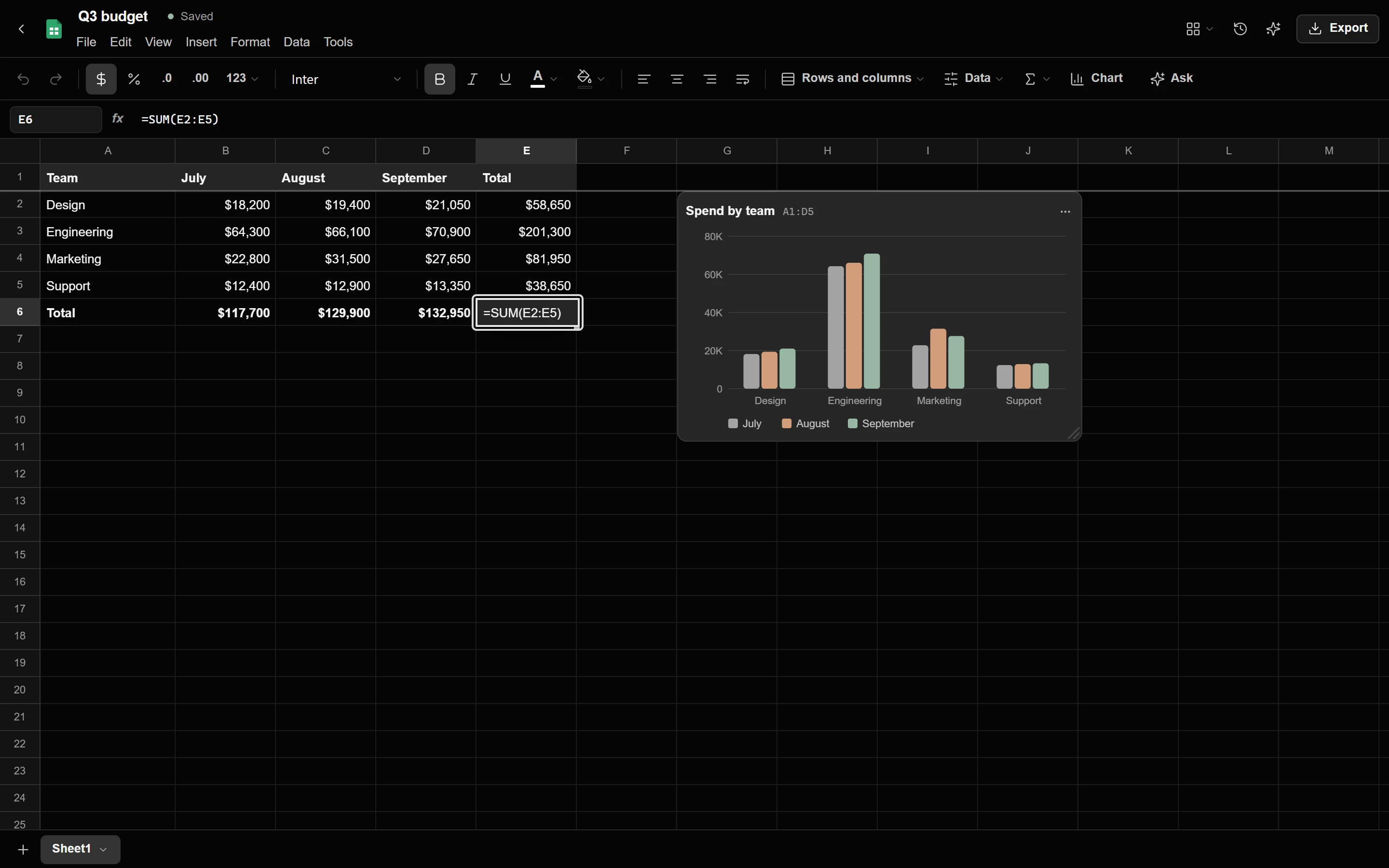
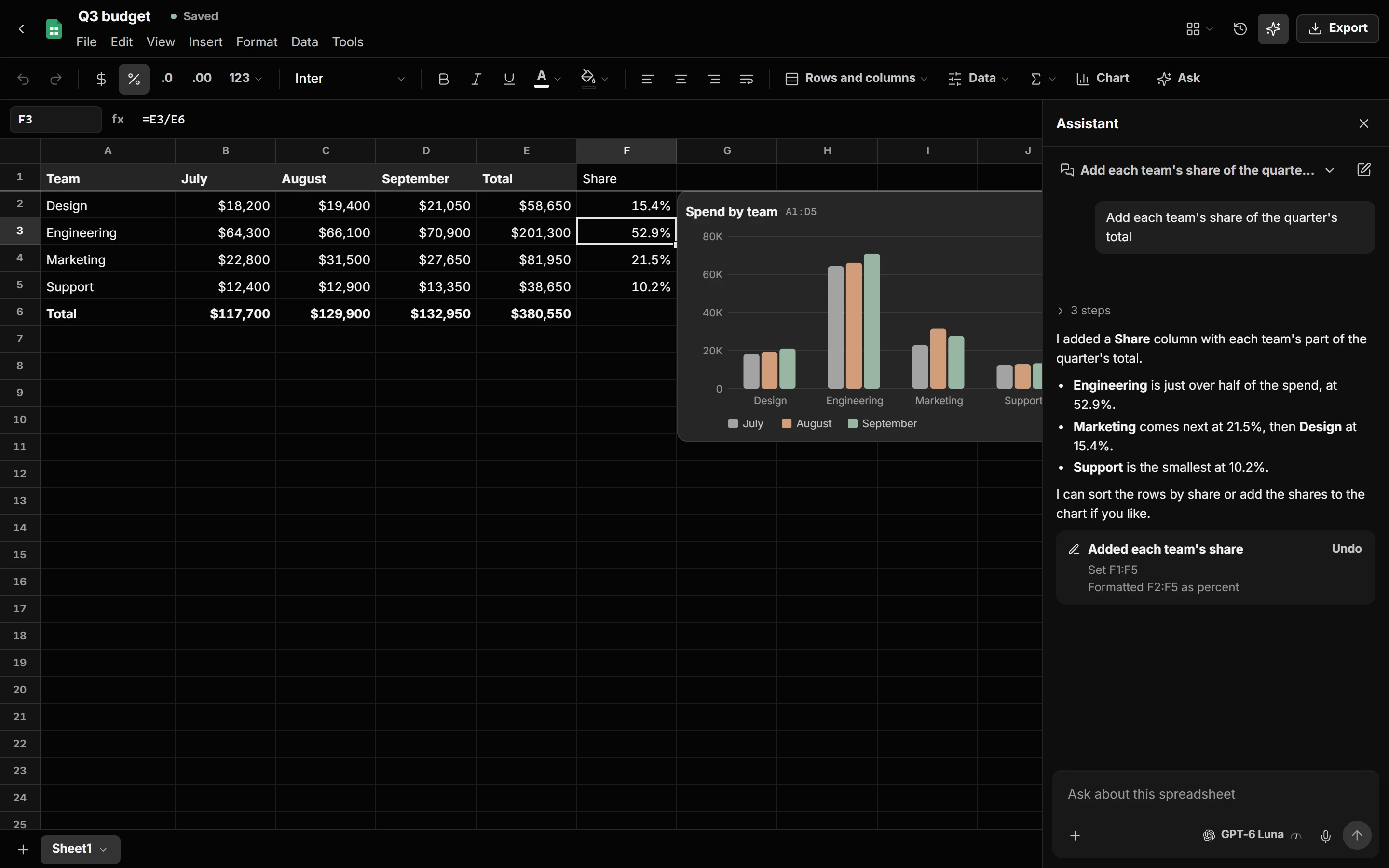
Spreadsheets support 83 formula functions, including SUM, IF, VLOOKUP, INDEX, MATCH, SUMIFS and TEXT. You can format numbers as currency or percentages, freeze header rows, sort data, and add bar, line, area, pie and doughnut charts that update when the data changes. Formulas can refer to other sheets in the same file.
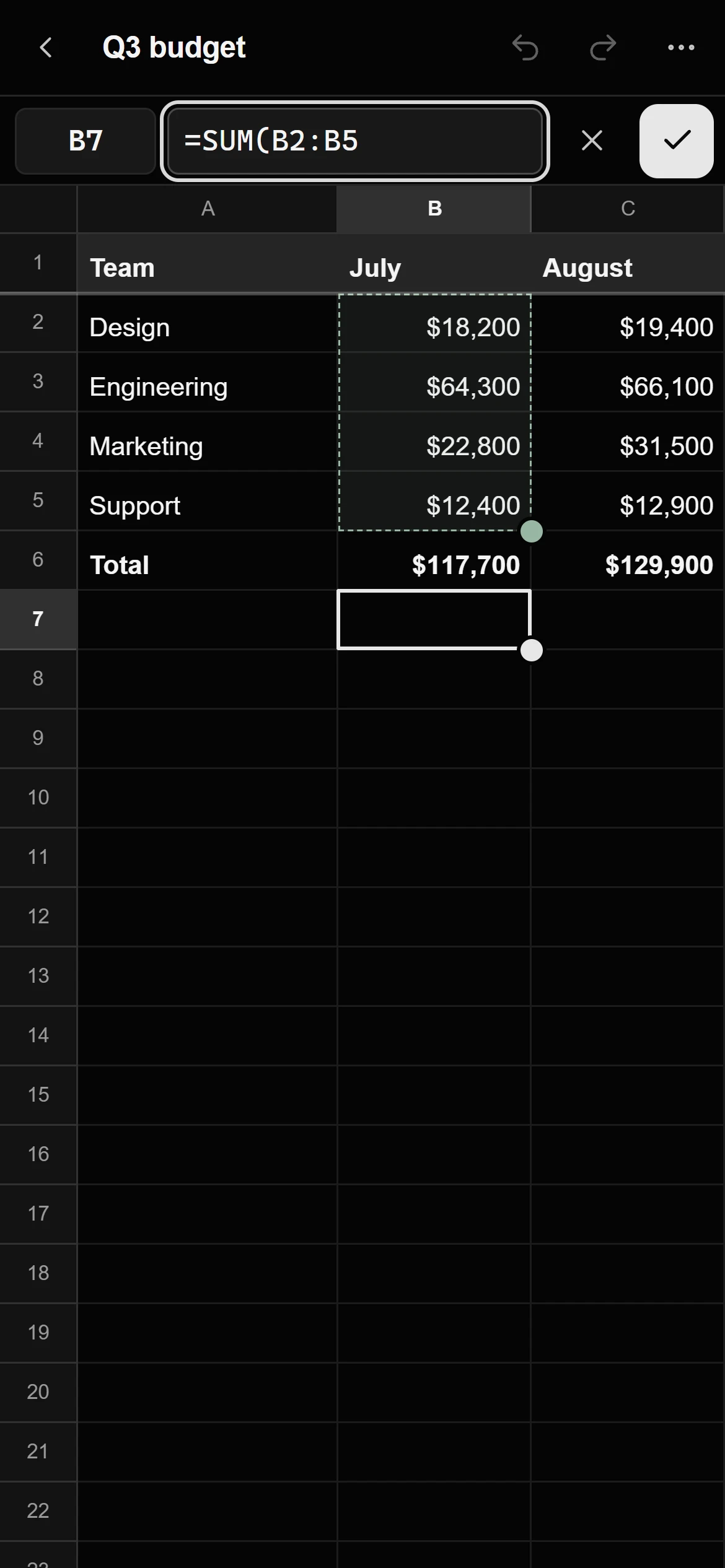
On a phone, you can tap a cell to add it to a formula and drag the handle on its corner to select a range, and the keyboard stays open while you do. Spreadsheets export as Excel or CSV files.
Presentations
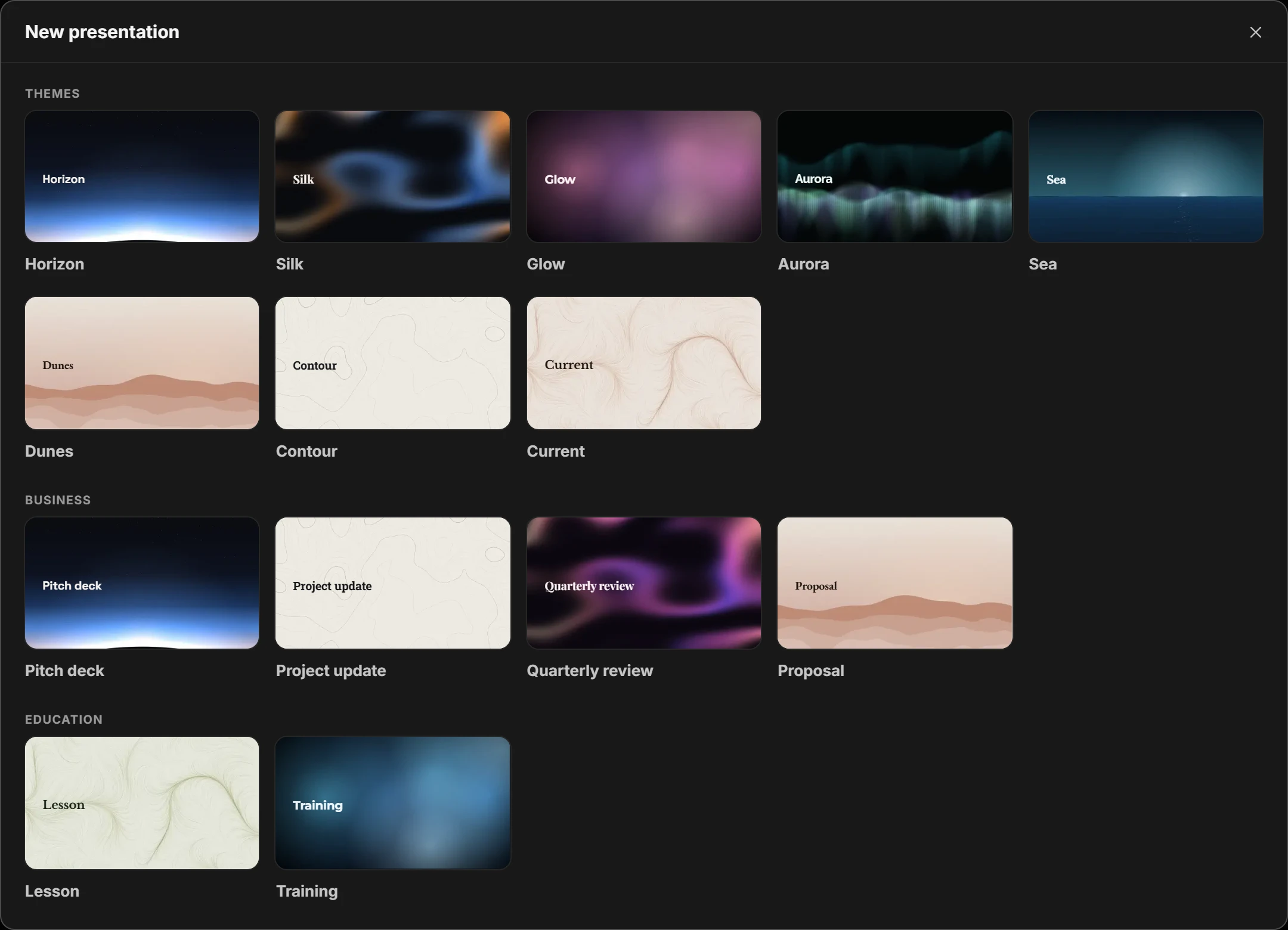
New presentations start from a gallery of 12 presentation types, such as a pitch deck, a project update, a lesson, research findings and an event agenda, and 8 themes, each in 3 colours. Each theme includes its own art and a separate design for each kind of slide, including title slides, section breaks, agendas and quotes.
You can fill a picture frame by clicking it, dropping a picture on it or pasting one in, or by choosing a picture from your Files or the theme's art. Slides support speaker notes and transitions. You can present full screen and export to PowerPoint with charts included.
Make Presentations With AI describes how the Assistant designs a whole presentation.
The Assistant
Open the Assistant from the file's header and describe the change you want, for example "turn these notes into a two-page brief", "add each team's share of the total" or "make the closing slide calmer". The Assistant reads the file and makes the change. When the change affects how the file looks, the Assistant checks a picture of the result for text that runs past its box, overlapping elements and colours that are hard to read, and fixes what it finds. It can repeat the check up to three times in one reply.
- You ask for a change. In plain words
- The Assistant reads the file
- The Assistant edits it
- Checks a picture of the result. Text, overlaps, colours
- Fixes the problems
- You keep or undo. Each change in History
- You ask for a change to The Assistant reads the file
- The Assistant reads the file to The Assistant edits it
- The Assistant edits it to Checks a picture of the result
- Checks a picture of the result to Fixes the problems: Problems found
- Fixes the problems to Checks a picture of the result: Checks again
- Checks a picture of the result to You keep or undo: No problems
The Assistant's changes are listed below its reply as one group with an Undo button, and each change is also listed in the file's History with its own Undo. Undo reverses only the parts of the file that have not changed since, so your own later edits stay in place.
The Assistant uses the same model picker as Chat, including GPT, Claude, Gemini and the other models Chat offers. Conversations are saved with the file. If you close the file while the Assistant is replying, the reply continues and is waiting when you come back, and you can stop it from any of your devices. If a coding agent such as Codex or Claude Code is signed in on one of your computers, the Assistant can run through that agent, which uses the agent's own plan and does not count toward your AI Integrator usage.
Chat, Code and Agents
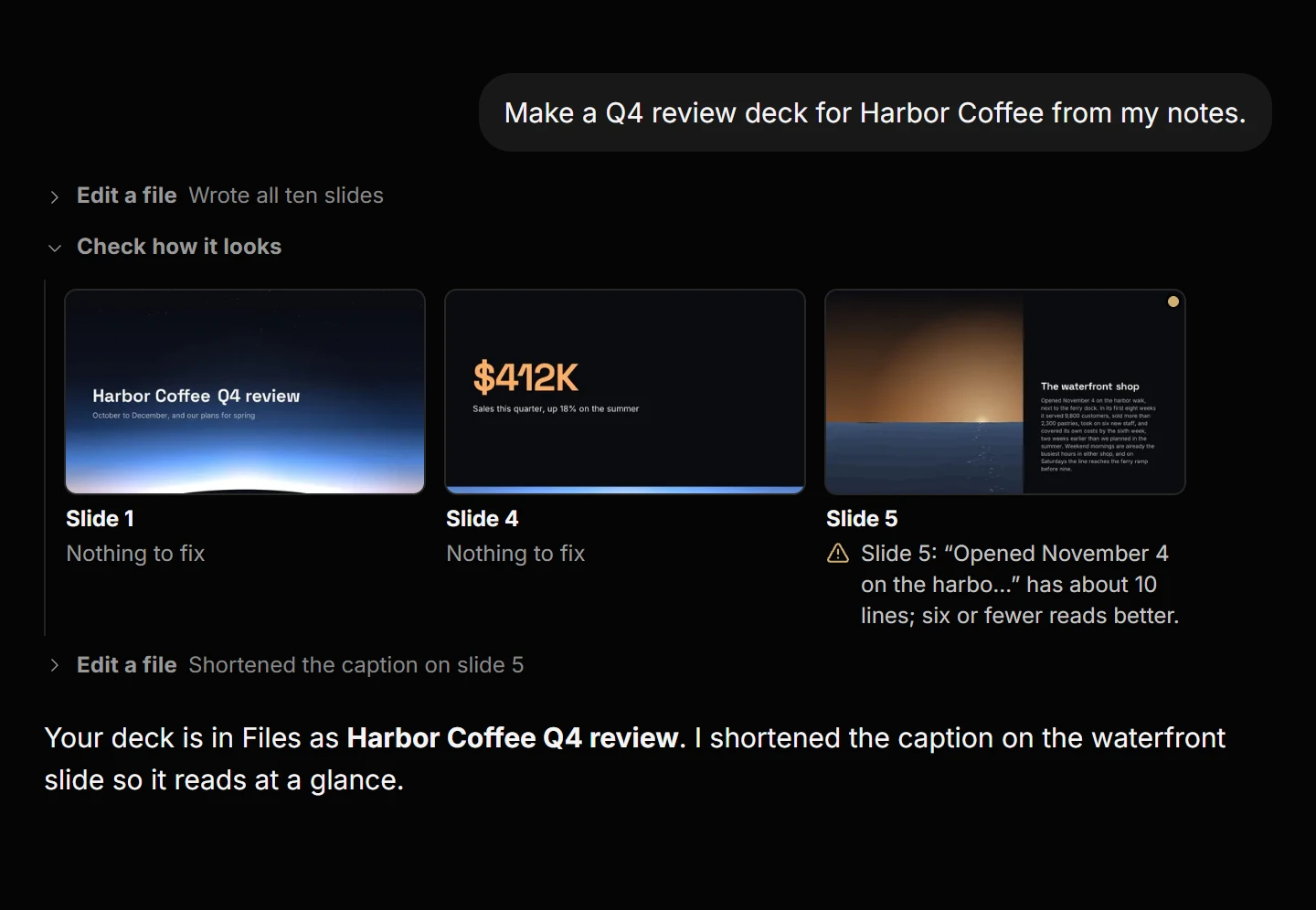
When the Files plugin is turned on in Skills & Plugins, Chat, Code and your Agents can create and edit files with the same tools as the Assistant. For example, ask Chat for a quarterly review, and Chat builds the presentation in your Files, where you can open and edit it.
When a model checks how a file looks, the pictures it checked appear in the conversation with a note on what it found, and you can open each one full size. In Code, you can refer to a file by name, such as "my budget sheet", and Code finds it in your Files.
The library
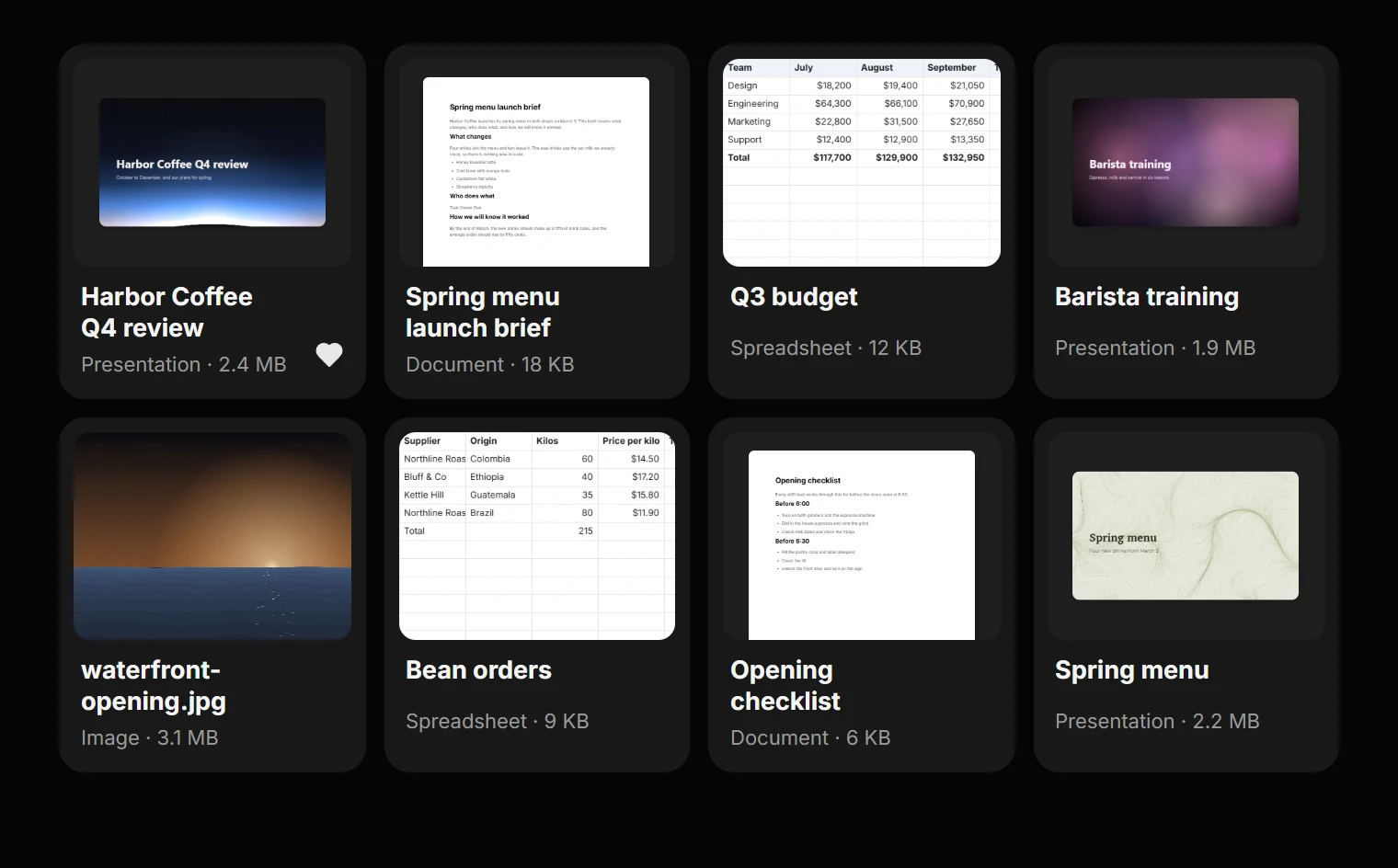
The library shows every file as a card of the same size with a thumbnail: the first page of a document, the first rows of a spreadsheet, or the first slide of a presentation. Thumbnails are stored on your device, so the library loads quickly when you come back. In the list view and the editor's header, each file type has its own colour: blue for documents, green for spreadsheets and yellow for presentations. Search finds a file by its contents shortly after you edit it.
iPhone
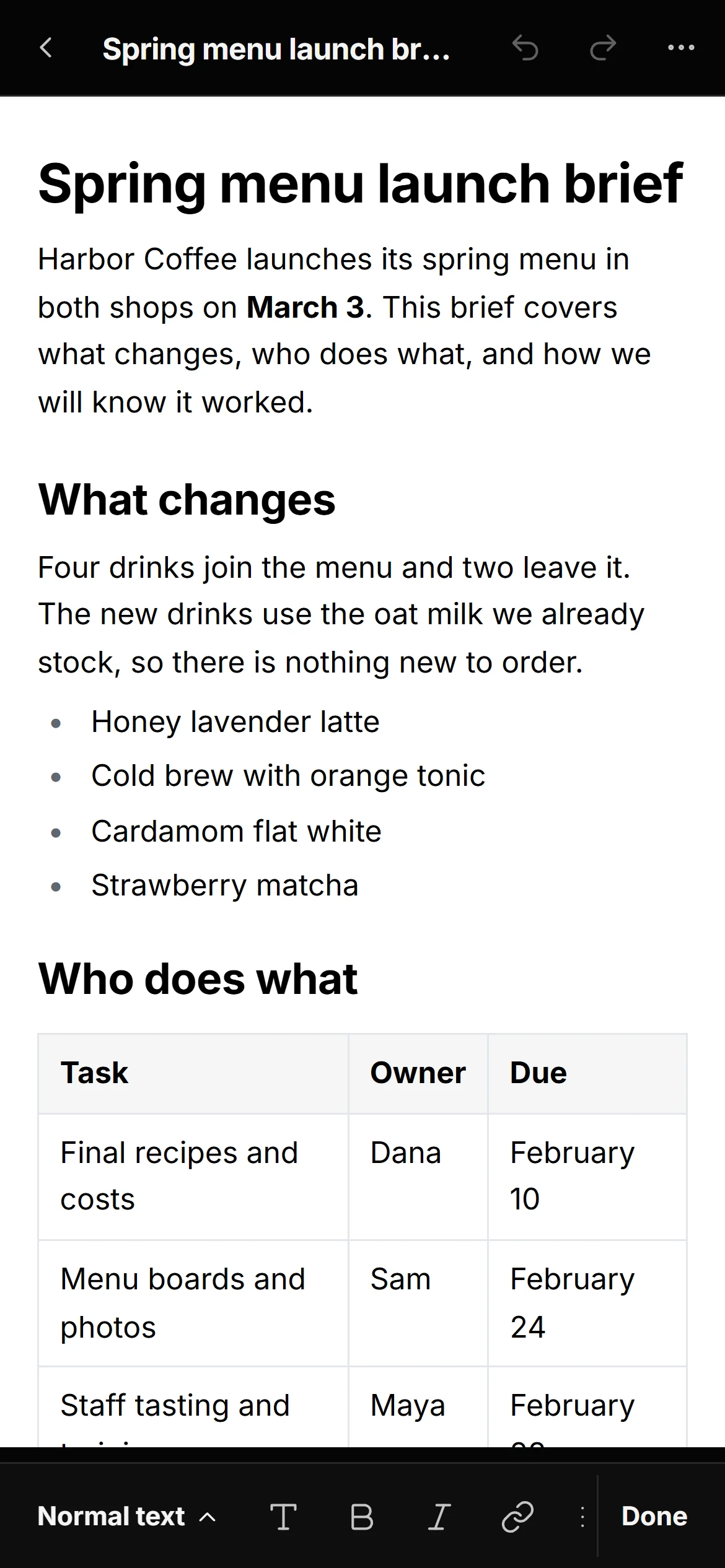
The editor on iPhone works the same way as on the web and in the desktop app. Formatting controls and panels open from a bar at the bottom of the screen and stay above the keyboard while you type, and the Assistant has its own tab. Swipe from the left edge of the screen to go back to your library.
Plans
The editor and the Assistant are included in Pro and Max, along with the rest of the Files library. Assistant replies count toward your Chat usage in the same way as messages in Chat, except when the Assistant runs through a coding agent on your own computer.