AI Integrator can now make presentations. Ask for one in Chat, in Code, from one of your Agents, or with the Assistant inside a presentation, and the model picks a theme that suits the subject, lays out each slide, and draws charts from your numbers. Before the model replies, it checks a picture of every slide it changed and fixes the problems it finds. The finished presentation is saved in your Files, where you can edit it, present it, or download it as a PowerPoint file.
Asking for a presentation
Describe what the presentation is for, who will see it, and what it should be based on. For example:
- "A ten-slide pitch for our wholesale coffee program, for café owners."
- "Turn the attached report into a six-slide summary for the board."
- "A quarterly review from my Q3 budget sheet, with a chart of spending by team."
Chat works with any model in the model picker. The reply names the new presentation, and you can open it from Files right away. The model can also read the other documents and spreadsheets in your Files, so a chart on a slide can use the numbers from your own spreadsheet.
Themes
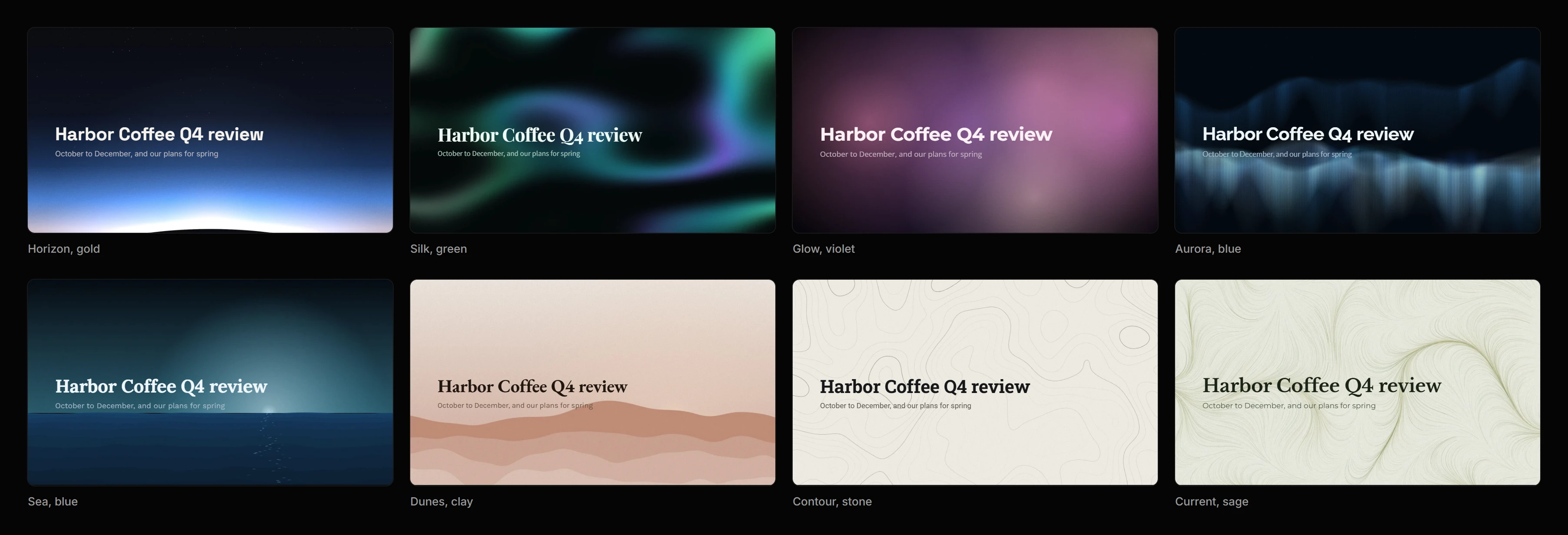
AI Integrator has eight presentation themes, each in three colours, and each suited to different subjects:
- Horizon: product launches and technology
- Silk: finance and executive reviews
- Glow: marketing and events
- Aurora: science and research
- Sea: strategy, health and travel
- Dunes, a light theme: proposals and the humanities
- Contour, a light theme: engineering and data reports
- Current, a light theme: lessons and editorial work
The model picks the theme that best suits your request and avoids the themes you used most recently, so presentations you make one after another look different. You can also name a theme, or describe the colours you want and have the model apply them.
Slide designs
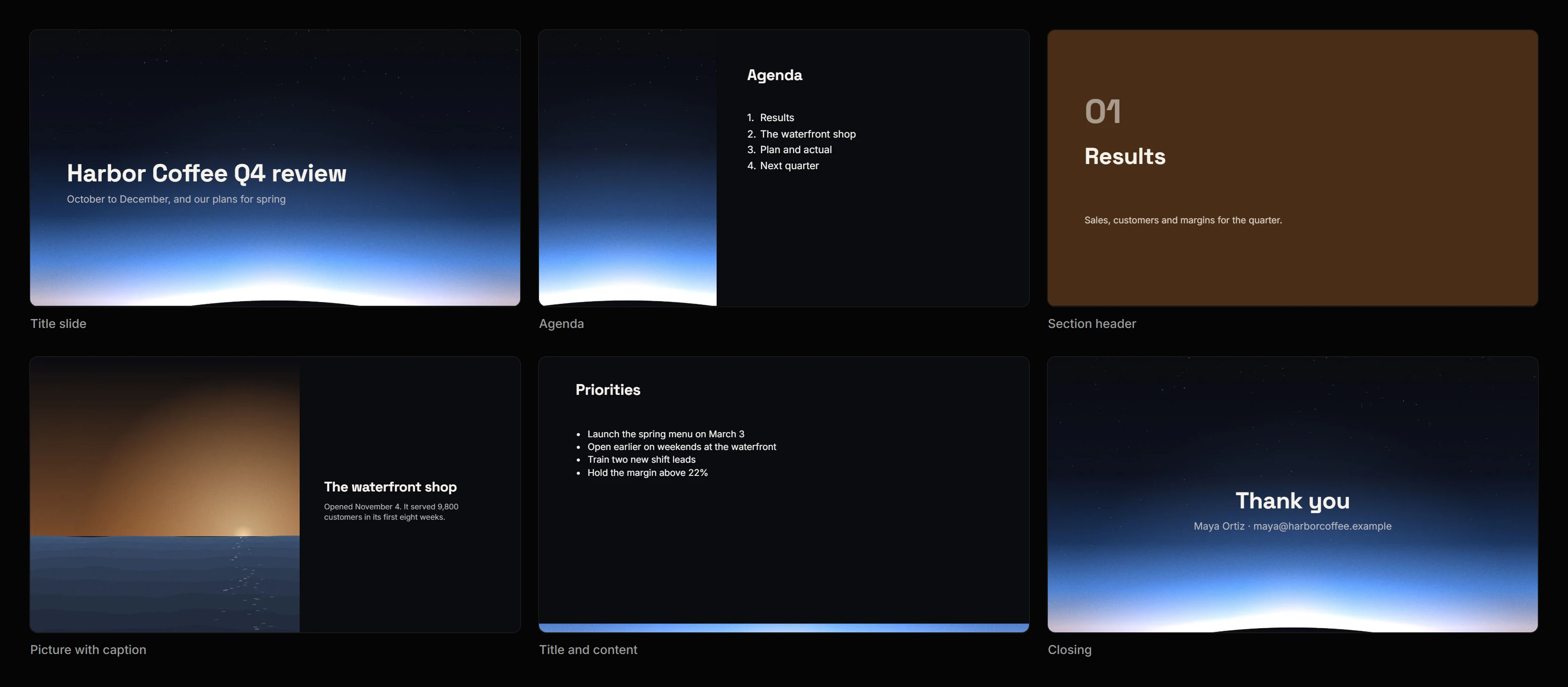
Each theme has a separate design for each kind of slide. Title and closing slides show the theme's art across the whole slide. Section breaks use the theme's strongest colour. Agenda slides place the list beside a panel of art. Quote slides set the quote in large type over the art. Content slides keep the art to a narrow band and leave the rest of the slide for text, charts and pictures.
How the model builds slides
The model can move and resize anything on a slide, change a slide's background, and add shapes, tables, charts and groups. AI Integrator has 18 built-in slide layouts, and the model can create a new layout when a slide needs one.
The model is instructed to keep each slide to one point and to write a title that states that point, such as "Sales grew 18% in Q3". It shows numbers as a chart, or as one large figure when a single number matters most. After the first draft, the model reviews the whole presentation and redesigns the slides that still look plain.
Picture frames can hold pictures from your Files or the theme's own art. Charts use the numbers in your request or the data in a spreadsheet in your Files.
Checking each slide
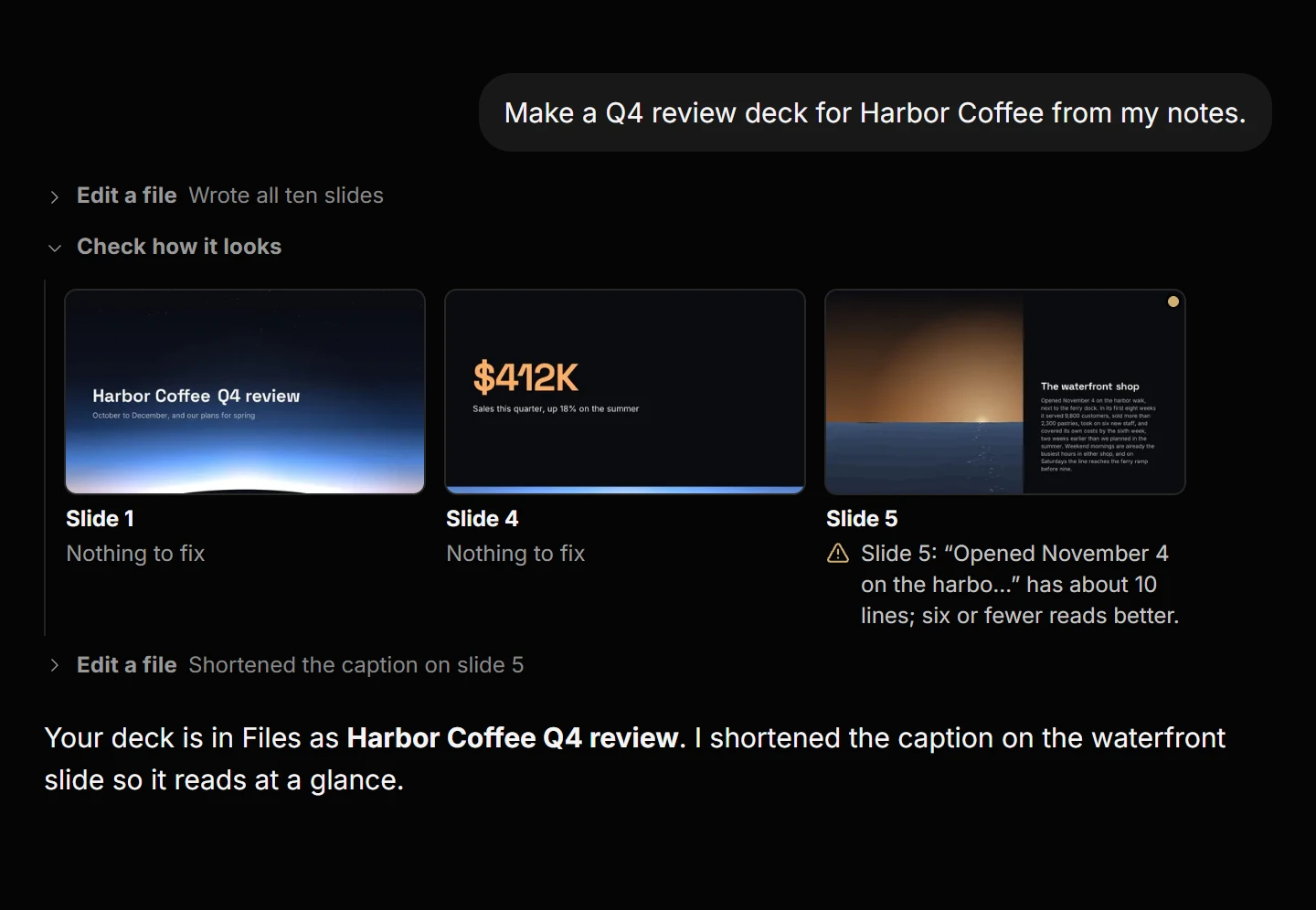
Models building presentations check their work. After the model changes how a slide looks, AI Integrator renders a picture of the slide, and the model checks it for text that runs past its box, elements that overlap or extend past the edge of the slide, and colours that are hard to read. The model fixes these problems before it replies, and it can repeat the check up to three times in one reply. Models that cannot read images receive the same findings as a written list.
In Chat, the pictures the model checked appear below its reply with a note on what it found, and you can open each one full size.
Editing and presenting
Open the presentation in Files to keep working on it. You can edit any text, move and resize elements, drop a picture into a frame, write speaker notes and set transitions. You can also ask the Assistant inside the presentation for a change, such as "make the closing slide calmer" or "split slide four into two".
Every change the model makes is listed in the presentation's History with its own Undo button, so you can reverse one change and keep the others. When the presentation is ready, present it full screen or download it as a PowerPoint file with its charts included.
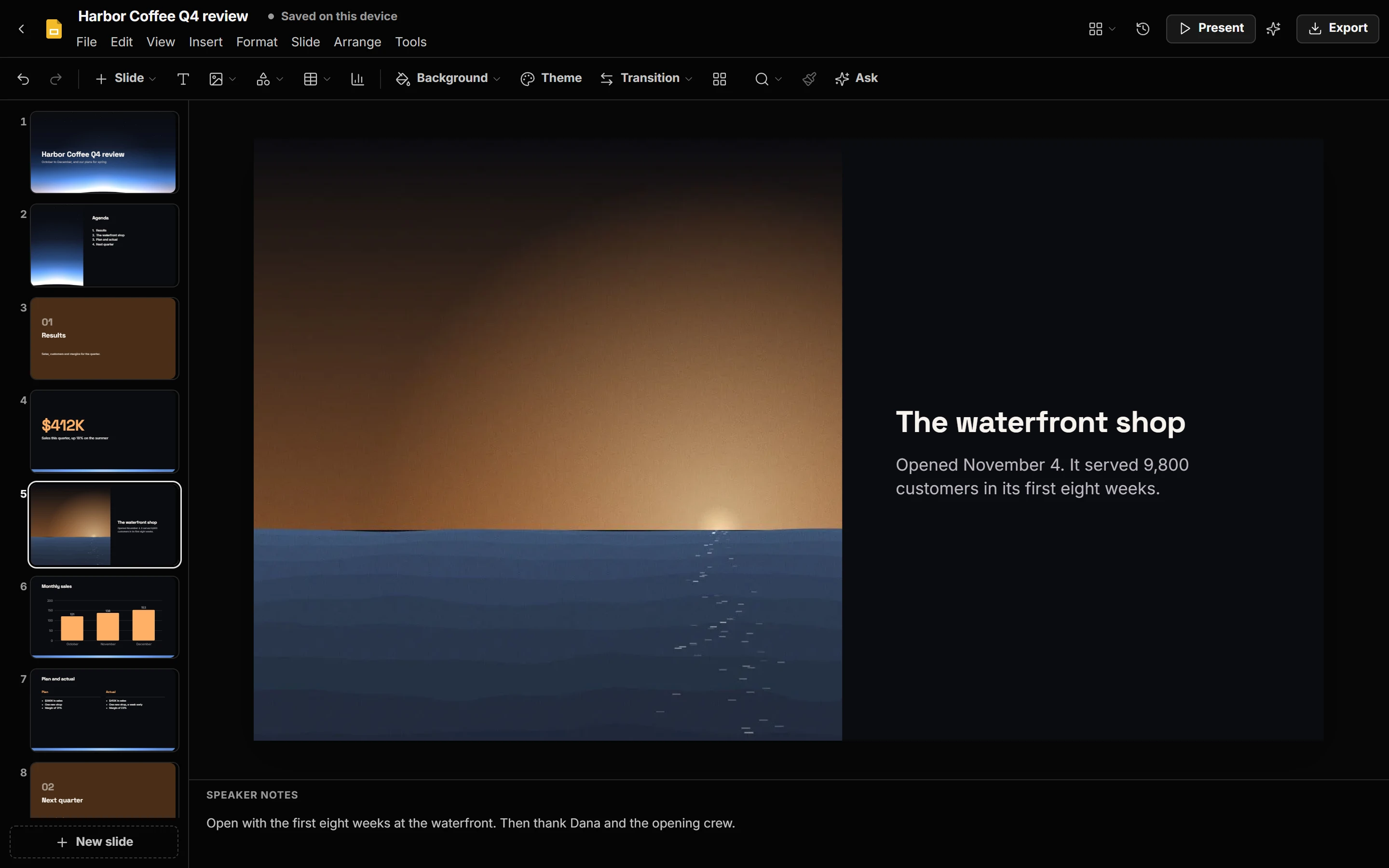
The rest of the editor is described in Documents, Spreadsheets, and Presentations.
Plans
Presentations are saved in AI Integrator Files, which is included in the Pro and Max plans. Making a presentation in Chat or with the Assistant counts toward your Chat usage in the same way as any other message.